Remove Encrypted iTunes Backup Password Easily

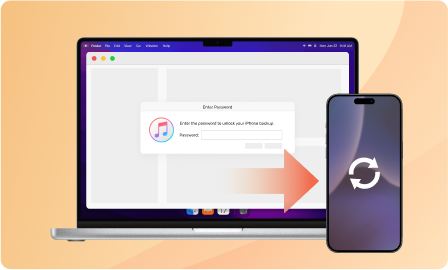
Forgot your iTunes backup password? Passixer helps you remove iTunes backup encryption settings with just a few clicks without damaging your backup file or any data stored in it.

Easy to use
100% Safe
Suitable for All iOS Device

How to Remove iTunes Backup Encryption Settings

Failed to create a new iTunes backup for your iPhone/iPad because of forgetting the iTunes backup password? Worry not. Here you can learn about the easiest way to remove the forgotten iTunes backup password without resetting your iOS device. Now, let's proceed with the detailed steps.

Download Download
You Must Know Before Starting:

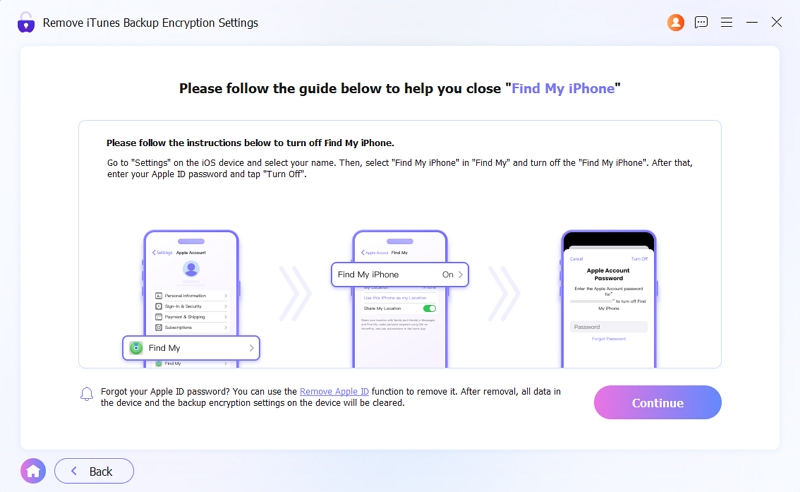
1. Please turn off "Find My" before starting to remove Encrypted iTunes Backup password.

2. During the removal process, please do not open or use iTunes and keep your iPhone unlocked and properly connected to the computer.

3. After removing the iTunes backup encryption settings, you can back up your device again and set a new backup password. However, your previous backups will remain encrypted.

Step 1 Connect iPhone to Passixer iPhone Unlocker.

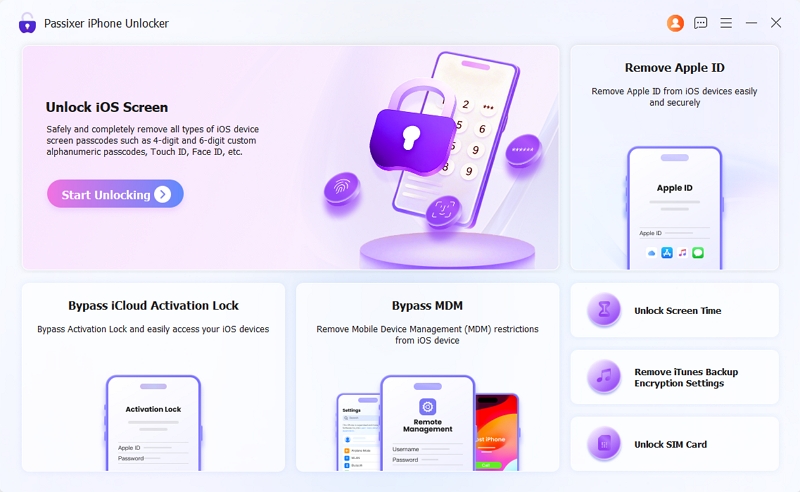
Run Passixer on your computer, select Remove iTunes Backup Encryption Settings and connect your unlocked iPhone to the same computer with an authorized USB cable.

passixer-interface
Step 2 Remove iTunes Backup Encryption Settings.

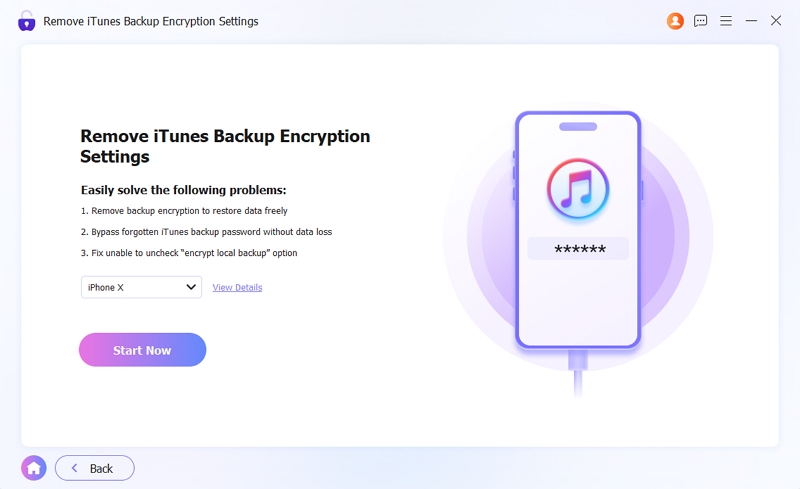
Hit Start Now to begin removing iTunes backup encryption settings.

passixer-interface

If Find My is turned off, the removal of iTunes backup encryption settings will start without any additional steps.

passixer-interface

If Find My is enabled, you need to turn it off first and then click Continue. Passixer will then remove the iTunes backup encryption associated with your device.

passixer-interface

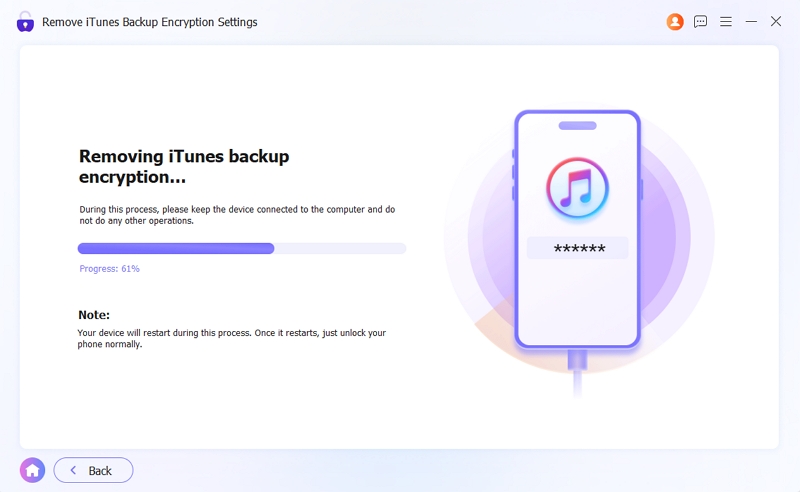
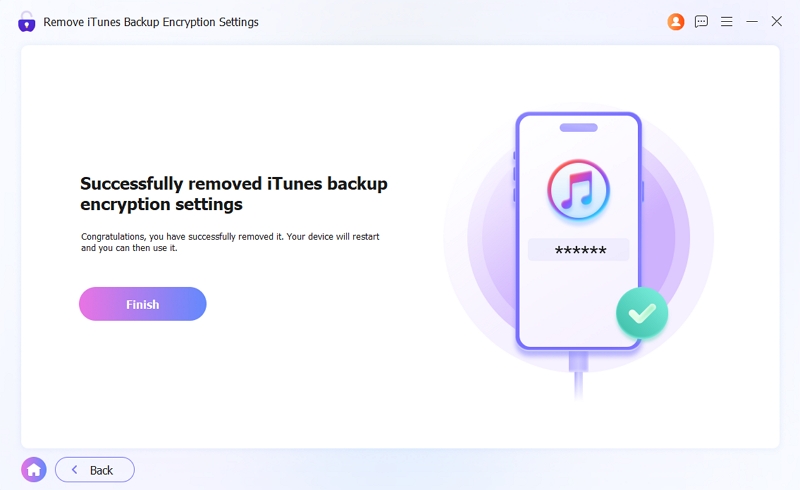
Once the removal process finishes, your iPhone will restart and you can create a new iTunes backup for your iPhone now. Certainly, you can also set a new iTunes backup password.

passixer-interface

More Features About Passixer

FAQs Of Unlocking Encrypted iTunes Backup

1. Can I reset my iTunes backup password?

Yes and just follow the steps here.

Step 1: Connect your iOS device to the computer and then open iTunes.

Step 2: Locate to your device and click Summary.

Step 3: Click Change Password under the Backup section and follow the onscreen instructions to set a new iTunes backup password.
2. How to unlock iPhone backup with password?

It’s easy to unlock iPhone backup with password for restoration and here is a step-by-step guide for you.

Step 1: Connect your iPhone to your computer and run iTunes.

Step 2: Click the device icon.

Step 3: Choose Restore iPhone and select the encrypted backup. After that, hit Restore and input the iTunes backup password to restore the backup to your iPhone.

3. How to turn off the iTunes backup encryption?

Step 1: Launch iTunes on your computer and connect your iOS device to the same PC.

Step 2: Click the iOS device icon and switch to the General tab in the right pane.

Step 3: Uncheck the Encrypted backup box and enter your password to turn off the encryption feature.

4. Why is iTunes backup asking for password?

The general reason is that you have encrypted your iTunes backup before. To restore an encrypted iTunes backup, you need to provide the related backup password first. If you forgot the iTunes backup password, you can try every possible password first like your PC login password. Or you can use Passixer to remove iTunes backup password without causing any damage to the backup content.

More Tips and Tricks