What Happens If Removing MDM from iPad/iPhone

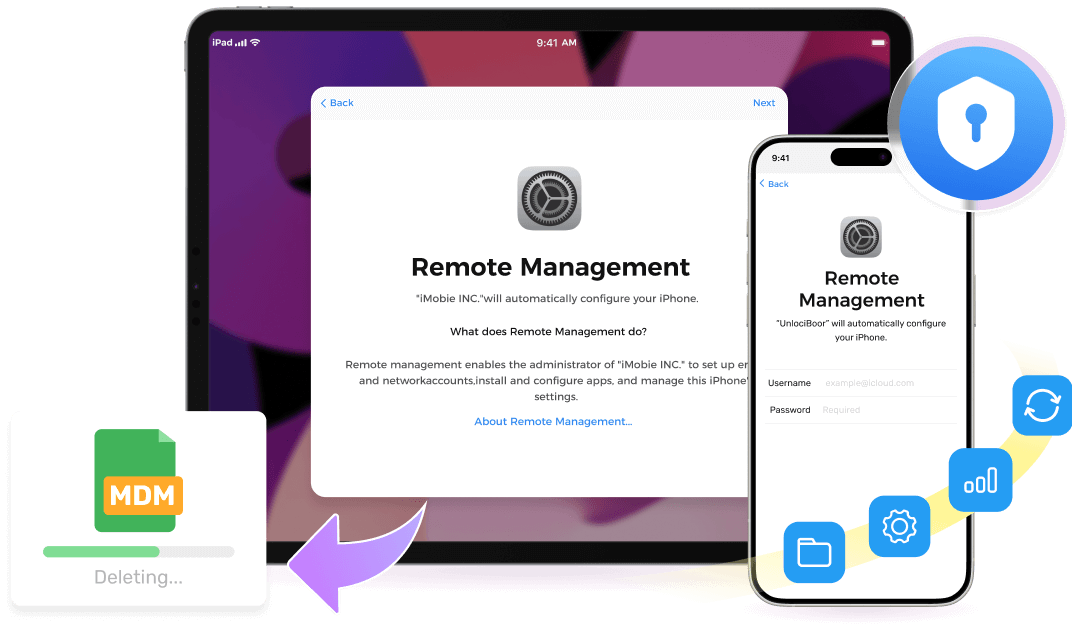
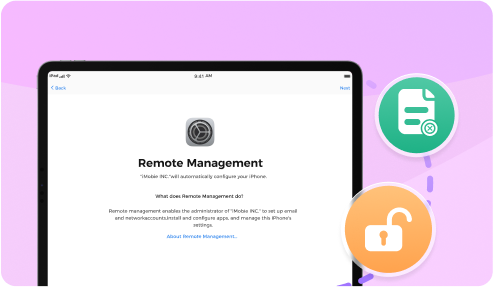
MDM restricts you from using all features or services on your iPhone/iPad and makes your iOS device stuck on the Remote Management screen even worse. How sad it is! Thankfully, Passixer iPhone Unlocker can easily help you remove MDM without the user name and password and turn you back an iPhone/iPad without any limitation to feature usage and the possibility of being tracked or blocked by others.

Enjoy all functions on iPhone/iPad without any restriction.

The data and operations on iPad/ iPhone are not subject to company monitoring.

No need to worry that iOS devices are remotely blocked or erased anymore.

Remove MDM Without Password

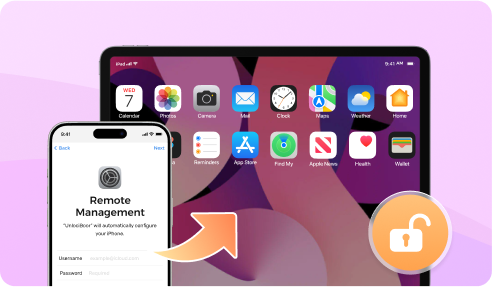
Cannot do anything with your iPhone or iPad locked with MDM? Worry not. Passixer iPhone Unlocker can remove Remote Management from your iPhone/iPad without credentials.

Remove MDM Without Losing Data

Want to get rid of Remote Management from your workable iOS device? Try Passixer iPhone Unlocker that can perfectly remove MDM lock from accessible iPhone/iPad without losing any data.

How to Remove MDM from iPad/iPhone Without Losing Data

If you have access to your iPhone/iPad and want to remove the MDM restriction from your device without credentials, you can apply Passixer to do this. Passixer enables you to unlock MDM without username and password while no data loss occurs during the unlocking process. After MDM removal, you regain full control of your iOS device. To try Passixer, simply follow the steps below.

Download Download
You Must Know Before Starting:

1. Turn off "Find My" before starting the removal process.

2. The content on your iOS device will not be erased unless your device is in Recovery Mode or you use Passixer’s Advanced Mode to bypass MDM. Note: Advanced Mode is typically used only when MDM cannot be removed using the following steps.

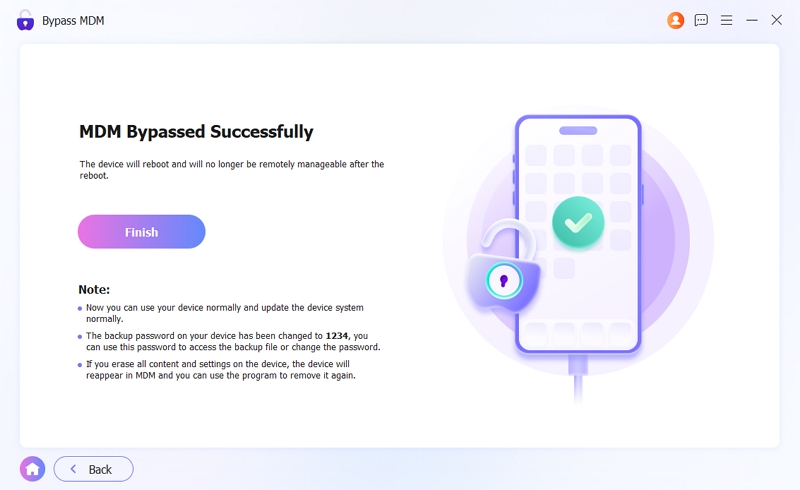
3. Your iTunes backup password will be changed to “1234” and you can modify the password further.

Step 1 Connect Your iOS Device to Passixer.

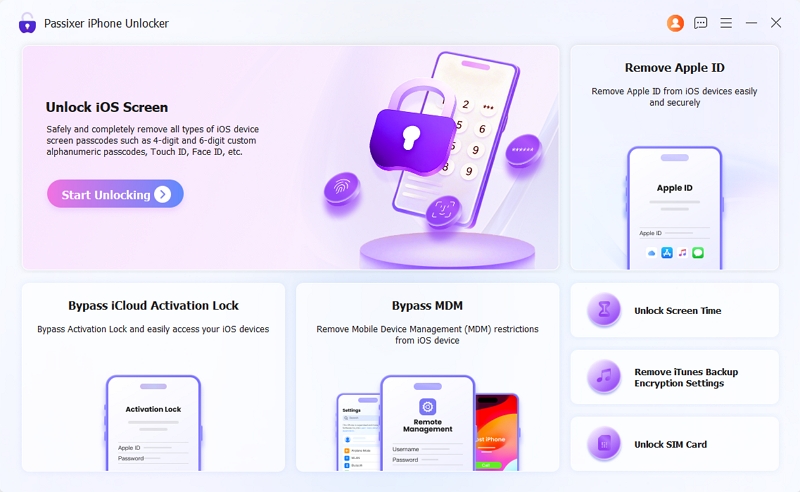
Connect your iPhone or iPad to a PC or Mac. Then install and launch Passixer on the computer and click Bypass MDM.

passixer-interface
Step 2 Unlock MDM.

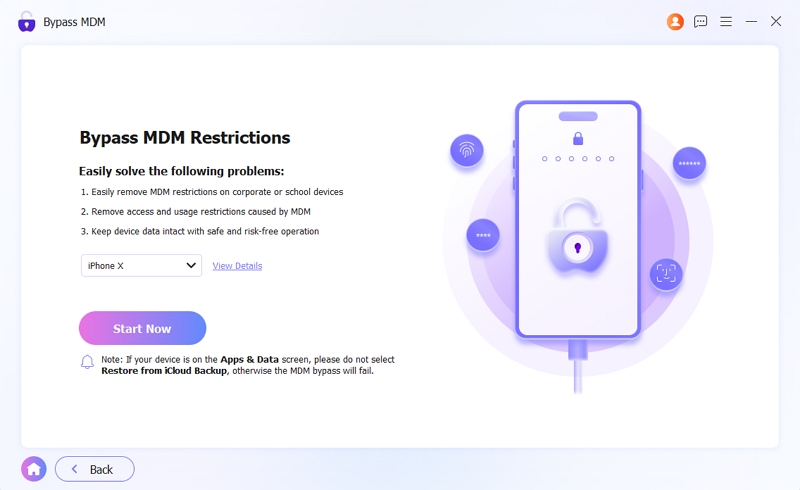
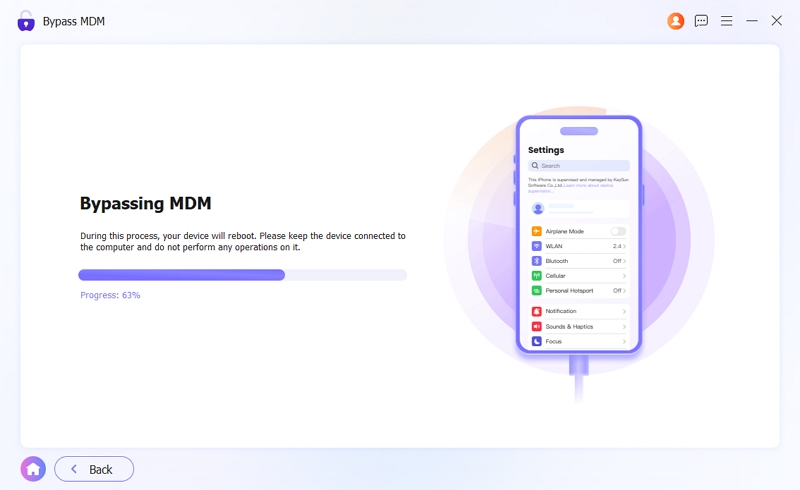
Click Start Now to begin the MDM removal process.

passixer-interface

If Find My is off, the MDM unlock process will start instantly.

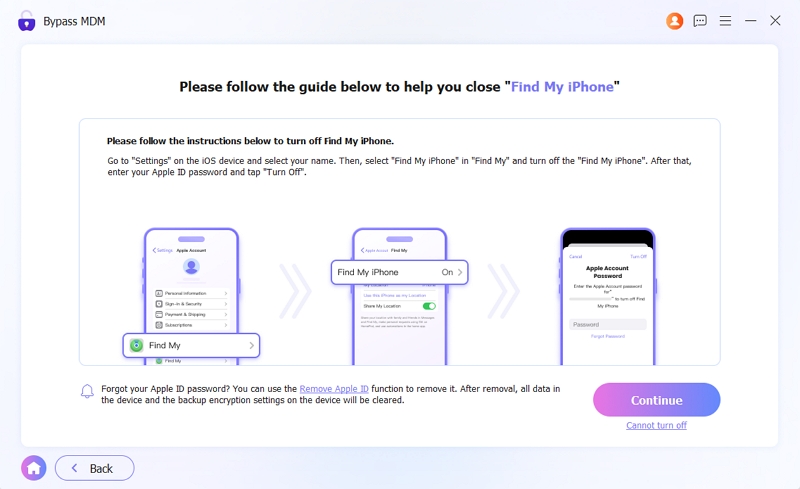
When Find My is on, you need to follow the onscreen guide to disable the Find My option on your iOS device first. The steps are: Go to Settings > tap your Apple ID > choose Find My > enter your Apple ID to disable Find My.

passixer-interface

After Find My is off, click Continue to begin the MDM removal process.

passixer-interface

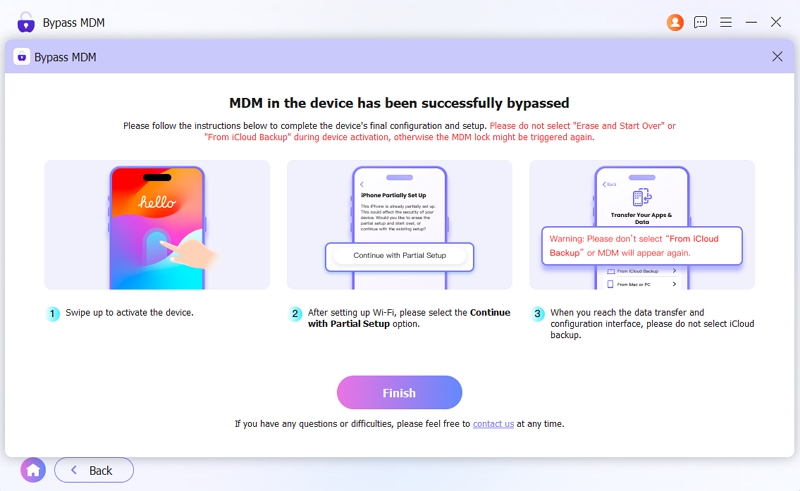
Once MDM is bypassed, follow the on-screen instructions to set up your device.

passixer-interface

Now, you can use your iOS device without supervision!

passixer-interface

More Features About Passixer

FAQs Of Passixer iOS MDM Remover

1. How to know if MDM is on my iPhone?

Open the Settings app. Then tap General > VPN & Device Management > Management Profile and check whether there is a MDM file.

2. Does jailbreak or reset remove MDM from my iPhone/iPad?

Yes, but please note there are some limitations to them. For jailbreak, the drawbacks are security risks, instability, voided warranty, etc while data loss is caused by factory resetting iPhone/iPad.

3. Can I use my iPhone normally after removing MDM?

Yes. After MDM removal, you can use your iPhone without any restriction.

4. How to delete MDM from iPhone?

Step 1: Access Settings.

Step 2: Go to General > VPN & Device Management > Management Profile.

Step 3: Select the MDM file and tap Remove Management.

Step 4: Enter your Credentials to delete MDM from your device.

More Tips and Tricks