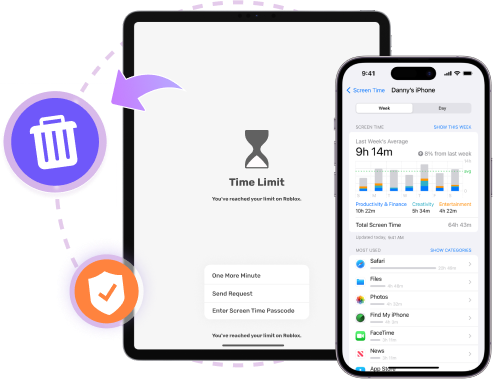
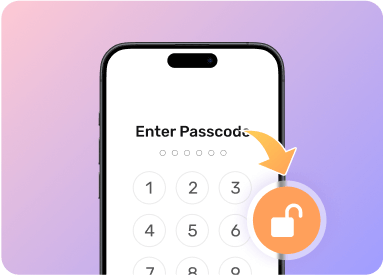
Planning to remove the forgotten Screen Time passcode from your iPhone by erasing your device? Wait!
This is not a good option, since erasing your iPhone will wipe all content and settings from your device.
Actually, there is a powerful way to get you out of the Screen Time Restriction without data loss and what you need is Passixer iPhone Unlocker,
a professional Screen Time Removal tool. Developed with advanced technology, Passixer allows you to remove the Screen Time passcode set on your own device without data loss.
It can also help you remove the Screen Time passcode set by a parent on their device for your device, which is especially useful if the passcode has been forgotten.
You can choose the appropriate mode depending on whether the Screen Time passcode was set directly on your device. With the help of Passixer,
you can finally enjoy full access to all apps on your iOS device.
You Must Know Before Starting:
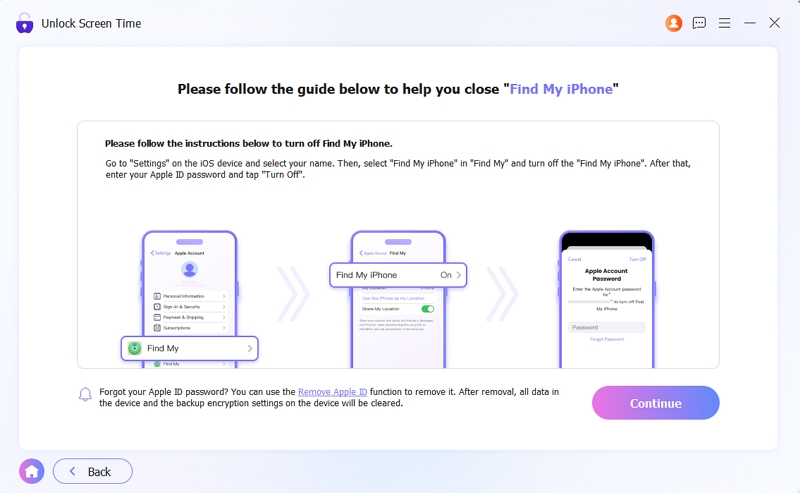
1. Please turn off Find My before starting to remove the Screen Time passcode.
2. Please make sure your iTunes is the latest version on your computer.
3. When the Screen Time passcode is set on your own device, removing it with Passixer won’t cause any data loss. However, if it was set through Family Settings, your device will be erased during the removal process.
Step 1
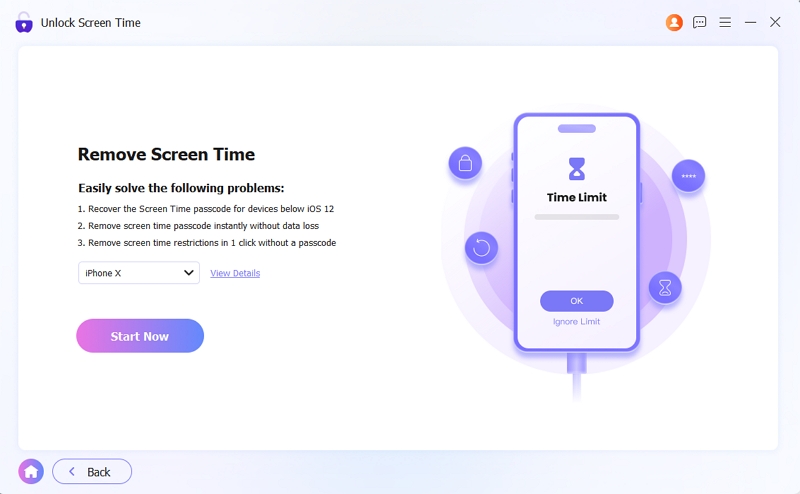
Run Passixer and Choose Unlock Screen Time from the Main Pane.
Click Unlock Screen Time in Passixer. Then connect your iOS device to the computer where Passixer is installed and unlock your device.
Step 2
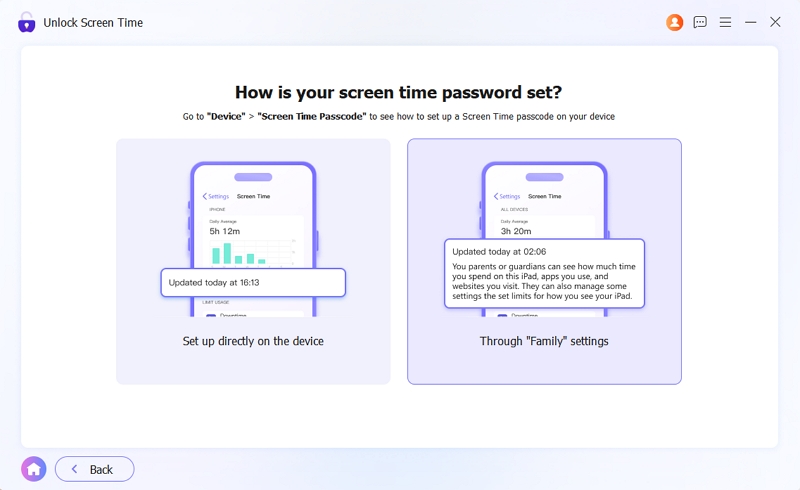
Select Where the Screen Time Passcode Is Set on Your iDevice.
Set up directly on the device: Choose this if the Screen Time passcode was set by you on your device.
Through Family settings: Select this if your Screen Time passcode was set by a family member on their device.
Click Start Now to proceed.
Step 3
Remove Screen Time and Its Passcode.
If you previously chose “Set up directly on this device”:
You need to disable Find My on the device first while it’s turned on.
Once Find My is turned off, click Continue at the bottom-right corner to start the removal.
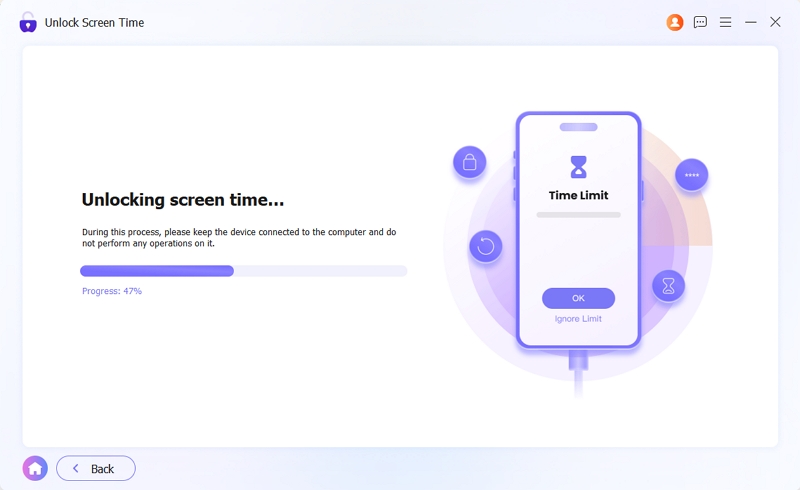
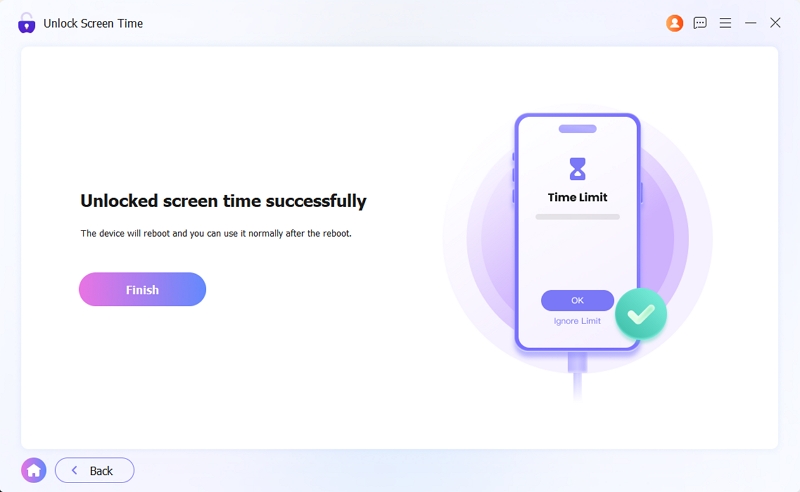
After a few minutes, the Screen Time passcode will be removed and Screen Time will be turned off.
If you selected “Through family settings” before:
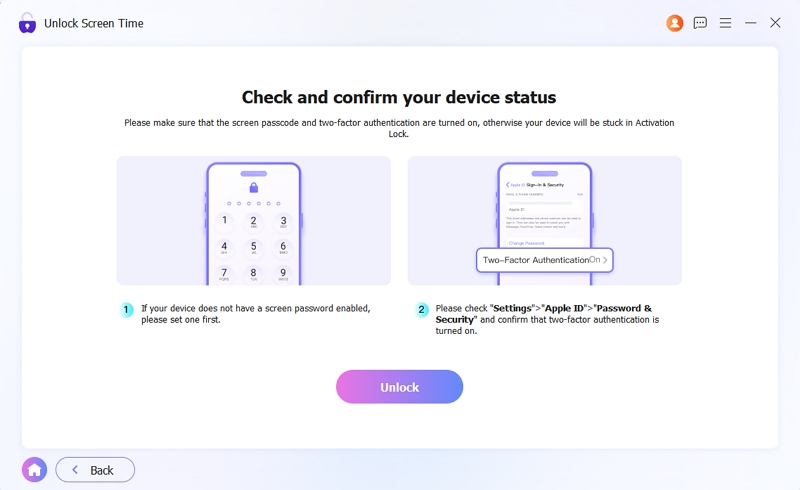
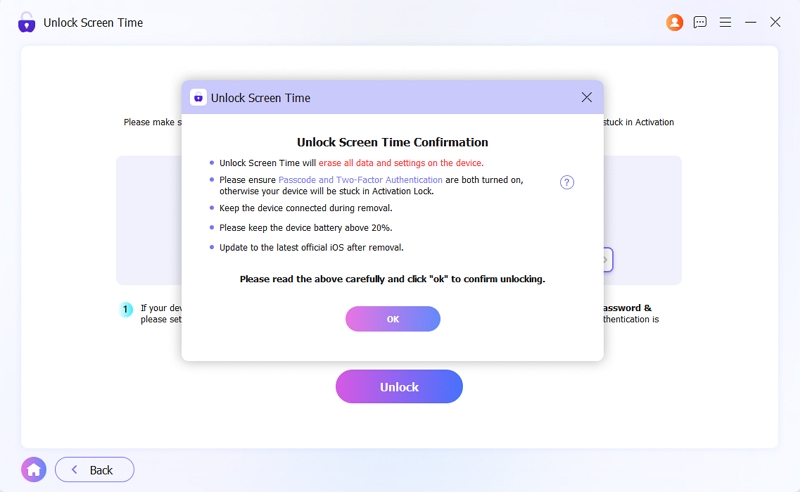
Please ensure that both the Screen Time passcode and two-factor authentication (2FA) are enabled on your device.
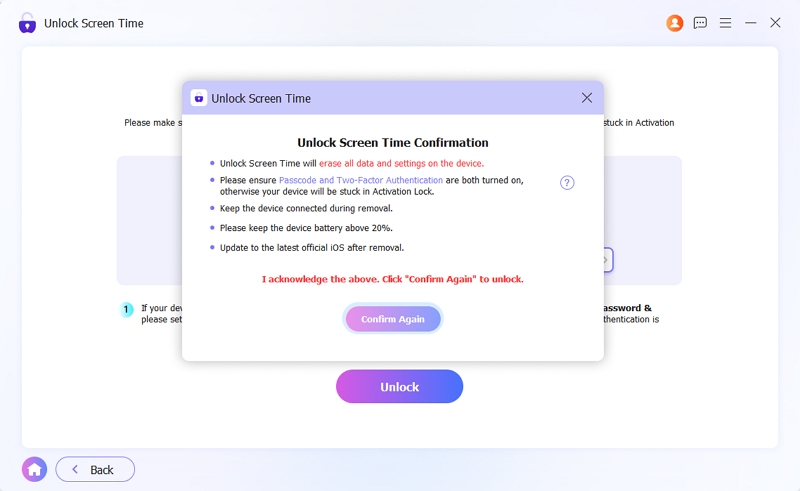
Read the prompt carefully and hit Ok > Confirm Again to remove the Screen Time passcode.
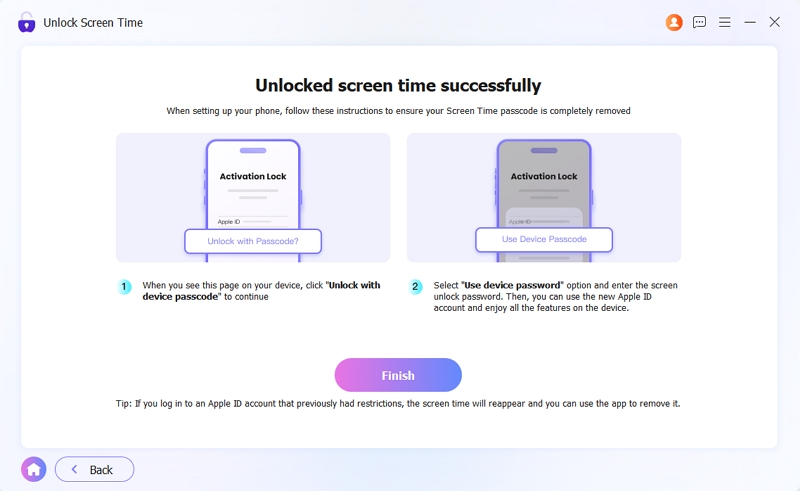
The Screen Time passcode will be removed shortly.