



Can’t erase your iPhone in the Settings app because you forgot the Screen Time passcode? This usually happens when Screen Time restrictions were set to prevent changes to your settings, but you’ve forgotten the passcode and can’t use the built-in reset feature. In this post, we will show you how to reset your iPhone without the Screen Time passcode.
You May Also Like
Before Resetting iPhone Without Screen Time Passcode
You can try to reset a forgotten Screen Time passcode without the original one if you have set up password recovery via Apple ID before. Then, reset iPhone with Screen Time passcode without any issues.
Step 1: Navigate to Settings on your iPhone.
Step 2: Scroll down and tap on Screen Time.
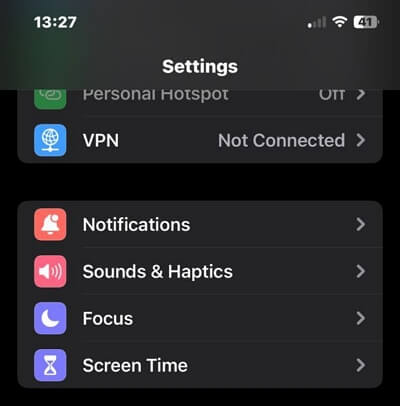
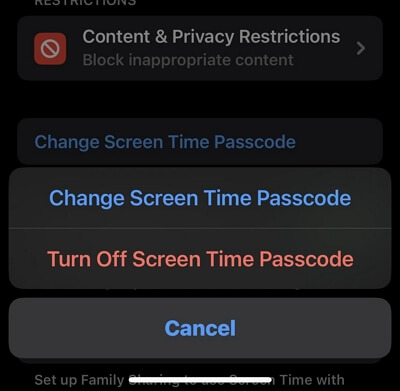
Step 3: Tap Change Screen Time Passcode > Choose Change Screen Time Passcode to proceed.
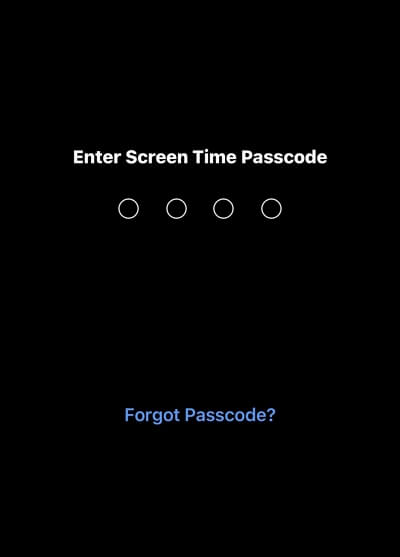
Step 4: Tap Forgot Passcode?. This will take you to Screen Time Passcode Recovery.
Step 5: Type your Apple ID and Password and tap OK to continue.
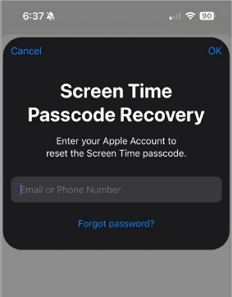
Step 6: Create a new Screen Time passcode.
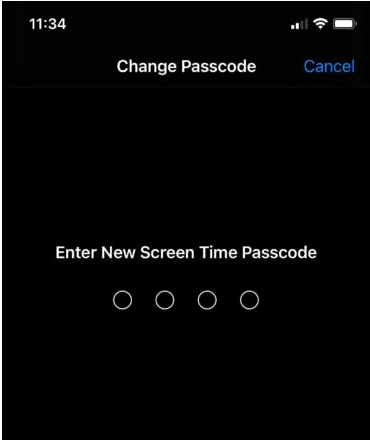
After you complete the above, you can reset your iPhone via the Settings app again.
Overview of Ways to Reset iPhone Without Screen Time Passcode
You can understand each way fast via the table or video guide below.
| Ways | What You Need |
|---|---|
| Passixer iPhone Unlocker | A Windows/Mac, a USB cable and the Passixer software |
| Erase Option in Lock Screen | iOS 15.2 or later, Find My iPhone on and Apple ID & password |
| iCloud Find My Site | A browser, Apple ID and password, and enabled Find My iPhone |
| iTunes/Finder | A USB cable and computer |
| Find My App | Find My app, Apple ID credentials and active Find My feature |
How to Reset iPhone Without Screen Time Passcode
If you can’t reset the Screen Time passcode on your iPhone because its recovery Apple ID belongs to the previous owner or for other reasons, you can follow this part to factory reset your iPhone.
Way 1. Remove Screen Time Passcode and Then Reset
Passixer iPhone Unlocker’s Screen Time feature allows you to turn off the Screen Time passcode without entering the current one. After that, you can reset your iPhone in the Settings app without Screen Time passcode. Your data and settings will be preserved during the passcode removal process. However, Find My iPhone needs to be disabled to use this feature.
If Find My iPhone is on, you can use Passixer’s Apple ID removal option to erase your iPhone without the Screen Time passcode or Apple ID credentials. You also don’t need to worry about triggering the iCloud Activation Lock after the reset. This is especially helpful when you need to factory reset your iPhone with Find My enabled but don’t have access to the associated Apple ID.
Steps to Use Passixer to Remove Screen Time Passcode
Open the Passixer iPhone Unlocker app on your computer and click on “Screen Time”.
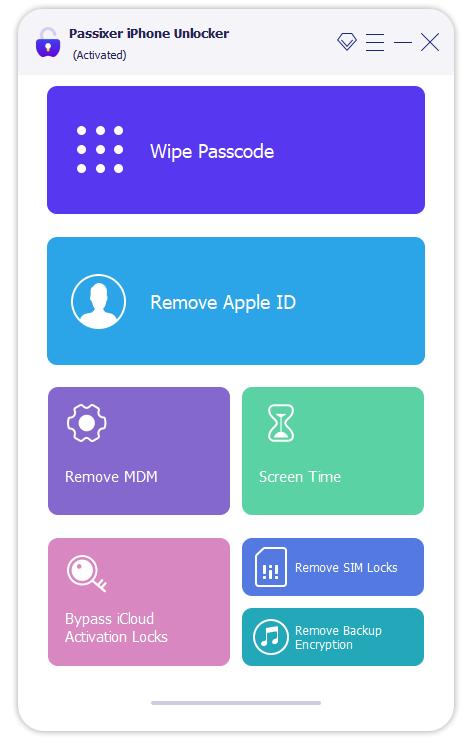
For this process, you need to turn off Find My iPhone on your device first. After that, connect your iPhone to the computer with its cable and click on the “Start” button to begin the unlock process.
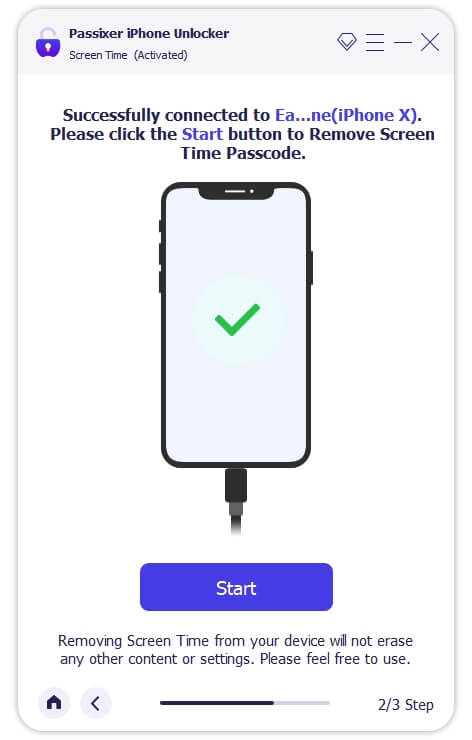
Once you click Start, Passixer iPhone Unlocker will start turning off Screen Time passcode on your iPhone.
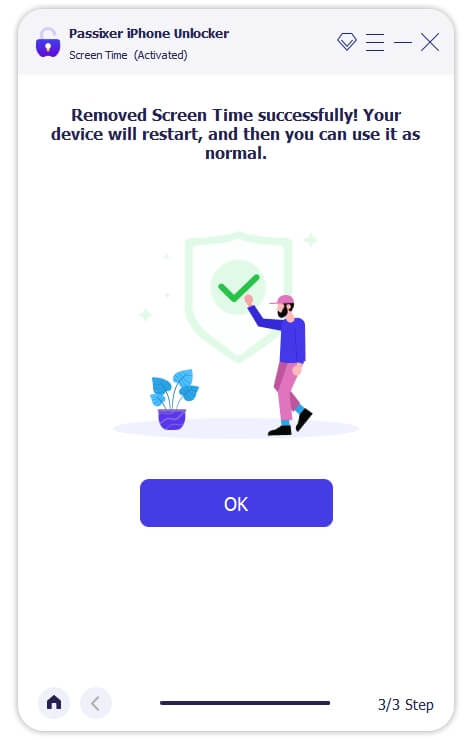
After the program is over, your device will not be restricted by the Screen Time lock and you can reset your phone in the Settings.

To use Passixer to reset iPhone without Screen Time passcode when Find My iPhone is enabled, you can refer to this official guide.
Way 2. Erase iPhone Via Lock Screen
The Erase option on the iPhone lock screen allows you to unlock the device via a factory reset, as long as your iPhone is running iOS 15.2 or later and Find My iPhone is enabled. You can also use this feature to reset your iPhone without the Screen Time passcode.
Step 1: Enter any screen passcode until you see iPhone Unavailable or iPhone Security Lockout.
Step 2: Tap Forgot Passcode at the bottom screen.
Step 3: Choose iPhone Reset and then Start iPhone Reset.
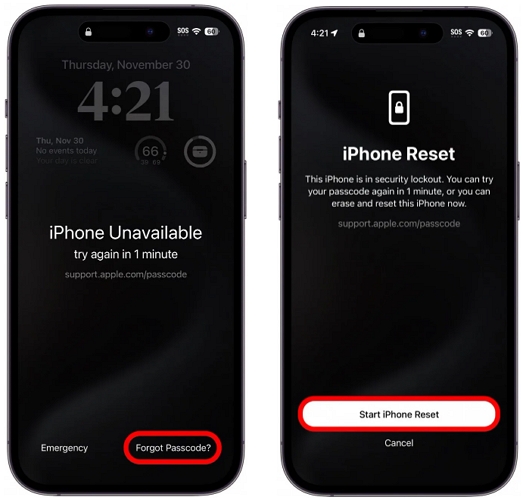
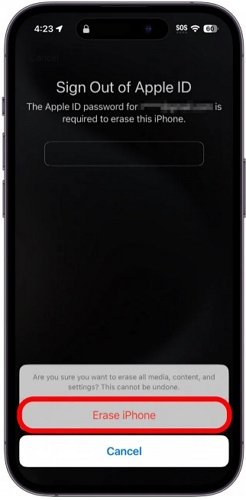
Step 4: Input the corresponding Apple ID password when prompted. Then, confirm the erasing by tapping Erase iPhone.
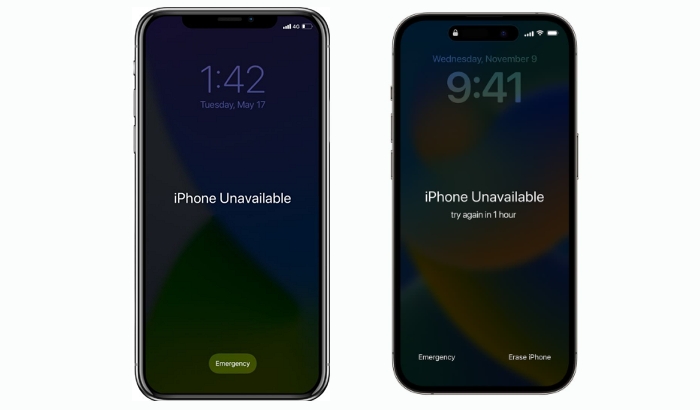
Can’t see the Erase iPhone or Forgot Passcode option on the unavailable screen? Check this post to learn the reasons and fixes.
View PostWay 3. Wipe iPhone Using Find My App
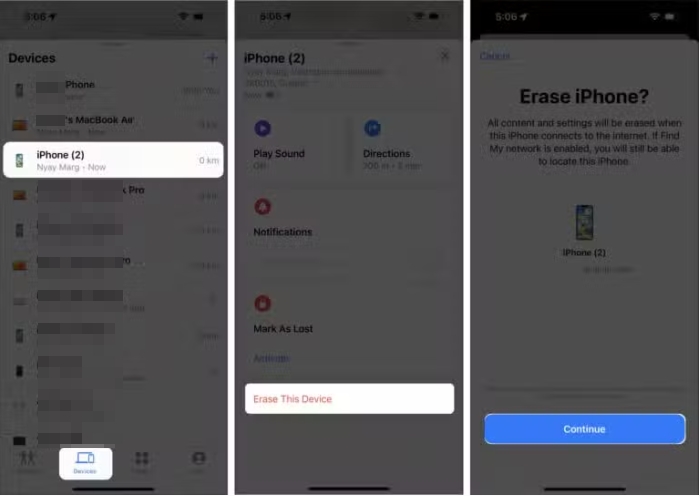
Another way to approach iPhone reset is by using the Find My app. This involves removing the iPhone from your Apple ID account, which is similar to factory resetting your device, as your iPhone data and settings will also be erased. Here is how this works:
Step 1: Launch the Find My App using another iPad or iPhone that is signed with the same Apple ID as your iPhone.
Step 2: Tap on the Devices icon to view all your Apple devices.
Step 3: Next, tap on the iPhone you want to remove from the list and select “Erase This Device” to erase all your contents, including the Screen Time passcode.
Step 4: Finally, enter your Apple ID and password to confirm the process. After that, your iPhone will start to erase and reset itself.
Way 4. Restore iPhone with iTunes
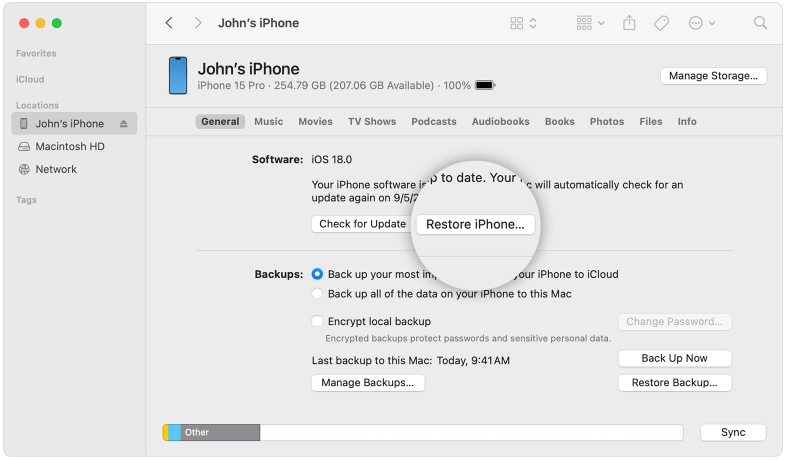
iTunes is the official way to reset your iPhone. Simply turn off Find My iPhone and then restore it by using iTunes or its official alternatives like Finder(macOS) and Apple Devices(Windows 10 or later).
Here are some steps to guide you through:
Step 1: Connect your iPhone to the computer. Then locate your device in the sidebar and click Restore iPhone in the right section.
Step 2: iTunes will begin to download the software to reset your iPhone without screen time passcode. This should take at least 15 – 20 minutes to complete.
Way 5. Clear iPhone Through iCloud Site
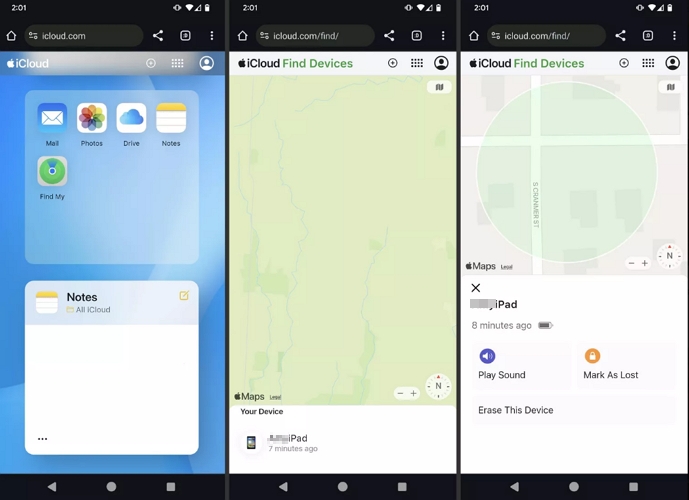
This method is generally used to erase an iPhone remotely when it’s lost, and it also serves as a way to restore your device. Make sure Find My iPhone is turned on, go to the iCloud website in any browser and follow the steps provided here.
Step 1: In the iCloud page, click Find My.
Step 2: Choose the iPhone from the device list.
Step 3: Hit Erase This Device and enter the Apple ID password to proceed. After a while, your iPhone will be restored to factory settings.
Conclusion
The techniques introduced above are reliable to reset iPhone without screen time passcode. All you need is to follow the steps correctly and your iPhone will reset. We recommend using Passixer iPhone Unlocker, as it allows you to bypass Screen Time passcode, whether Find My is on or off.