



Generally, iPhone’s black screen with a spinning wheel isn’t an error but it’s a normal system process. It usually appears when iOS refreshes animations or reloads small parts of the interface. However, when that screen state stays for more than a second or two, it’s not normal anymore. Such abnormal cases could happen several times a day, after unlocking the iPhone, or even suddenly while using it.
The good part is that this issue is always fixable at home. In this guide, we’ll go through every method that helps you remove the iPhone black screen with a spinning wheel and stop it from returning again.
Fixed: iPhone Black Screen Spinning Wheel But Still Running
A small spinning wheel appears on the iPhone’s black screen. Sometimes it lasts just for a moment, sometimes indefinitely and you can’t do anything. At times, the iPhone still works in the background, like you can hear vibrations or notifications. At other times, it doesn’t even respond to physical touches.
If that’s what you’re facing, it means that your iOS has entered a loop. Don’t worry. Here, we’ll go through every possible reason why this happens and the exact fixes.
Why Is My iPhone Turning Black with a Spinning Circle
Here’s what can trigger the spinning circle on your iPhone endlessly:
Re-spring
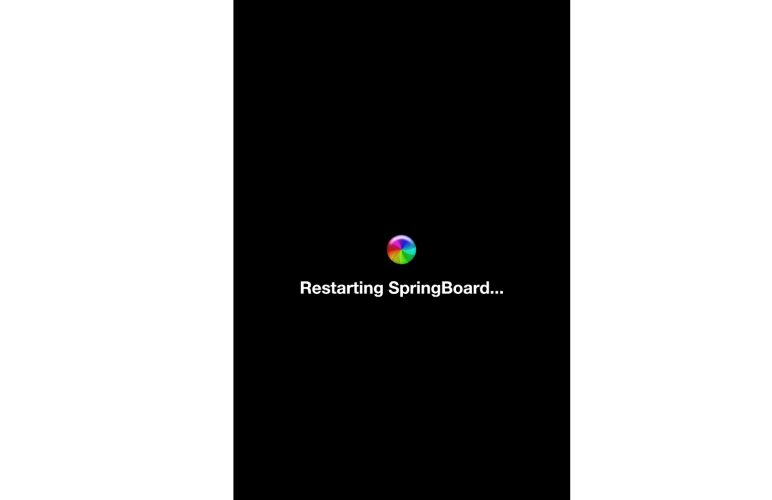
“Re-spring” is an iOS term for restarting the SpringBoard which manages your home screen, icons, and interface animations. This is a completely normal behaviour. As the iPhone gets older, this re-spring happens more often and lasts just one or two seconds, which simply refreshes the screen animations.
However, sometimes corrupted background services or broken animations interrupt the process. As a result, the iPhone screen stays black with the spinning circle for hours. During this time, some users say it vibrates or receives notifications while others report that it becomes completely unresponsive.

Insufficient iPhone Storage
When your iPhone’s storage is almost full, iOS struggles to allocate memory for essential background processes like re-spring or restart. This often happens on 64GB models running iOS 16 or newer. Many users notice it right after large photo library updates or when installing iOS beta versions.

iOS Bugs or Temporary Glitches
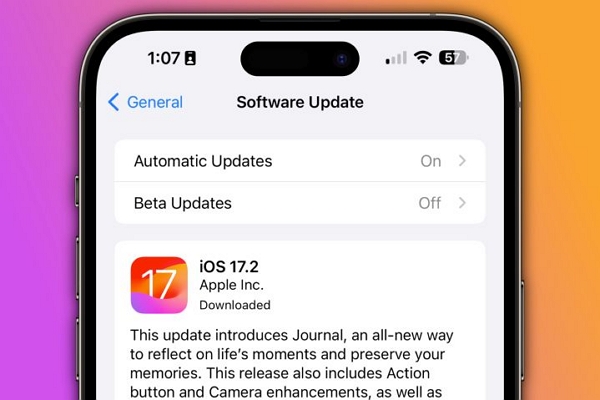
Incomplete or dead background processes can also trigger this error. For example, users running the iOS 17.4 beta reported it most frequently. Mis-hung or crashed background tasks, especially after a major version jump, like from iOS 16 to 17, can freeze the system on the spinning wheel instead of completing the restart.
Malfunctioning Apps
Buggy or incompatible apps can also cause a deep freeze. Many users noticed this right after launching the Camera app, while others pointed to third-party music apps like SoundCloud. In these cases, iOS attempts to restart the interface but never moves past the visible loading wheel.
Notification Bugs
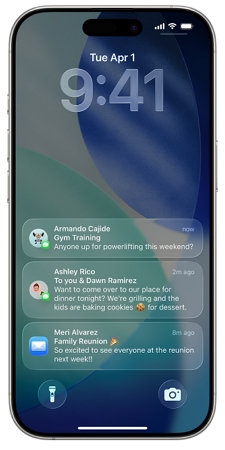
After receiving a banner notification, some users notice the screen freezes, dims, and turns black with the spinning circle. Here, the main problem is animation effects conflicting with background refresh.
Hardware Problems
Faulty charges or cable fail to deliver enough power and prevent the iPhone from booting normally. And in rare cases, a dying battery or logic board corrosion can also trigger the error.
How to Fix iPhone Black Screen with Spinning Wheel
Now, coming to the fixes. Remember to go through all of them to stop the spinning iPhone black screen issue for good and follow each solution carefully. They’re completely safe and any caution you need to know is mentioned wherever necessary.
Fix 1: Force Restart iPhone
A force restart simply refreshes the springboard at the firmware level. And even if you can’t interact with the screen, this method still works, because it relies on the iPhone’s physical buttons. Here’s how to escape the spinning circle loop — steps vary with model:
iPhone 8/SE (2nd Gen)/X and Later
- Quickly press and release Volume Up.
- Quickly press and release Volume Down.
- Hold the Side button until the spinning circle disappears and the Apple logo appears.

iPhone 7/7 Plus
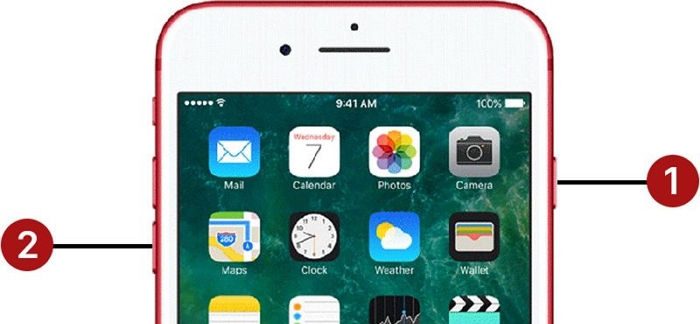
Hold Volume Down + Side together until the Apple logo flashes.
iPhone 6/SE (1st Gen) and Earlier
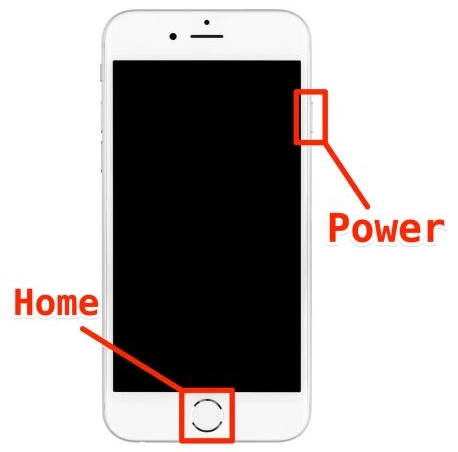
Hold Home + Top (or Side) together until the Apple logo replaces the spinning circle.
After rebooting, your iPhone should start normally again.
Fix 2: Repair iOS with Troubleshooting Tool
Most of the time, the black screen with spinning circles comes because of issues on the software side. So, you can repair the iOS firmware quickly with Passvers iOS System Recovery.
Passvers offers three repair modes, each designed for different situations. The Free Quick Fix Mode usually fixes loop restarts caused by springboard errors or hung UIs. The Standard Mode steps in when the problem appears after notification banners or lock screen animations. And when the iPhone is running on unstable iOS builds or faulty updates, the Advanced Mode repairs the firmware itself at a deeper level.
You don’t need to follow complex steps. Passvers automatically detects the issue, downloads the right system files, and repairs your iPhone back to normal without you having to do anything technical.
How to Use Passvers iOS System Recovery (Step by Step):
Launch Passvers iOS System Recovery on your computer and connect your iPhone. From the main screen, press Start to continue.
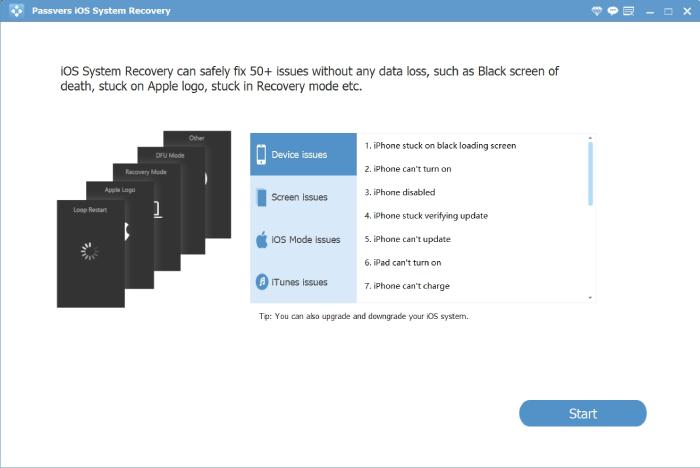
Once your iPhone details appear on the screen, select the Free Quick Fix link. Passvers will identify the error and handle the stuck animations automatically. Your iPhone will restart and the spinning wheel issue should disappear.
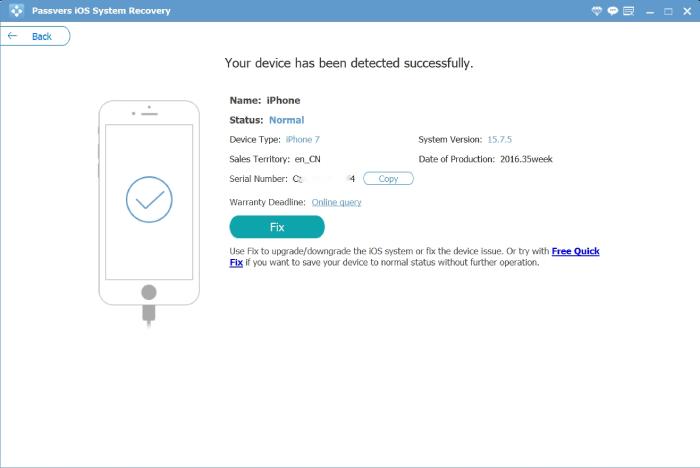
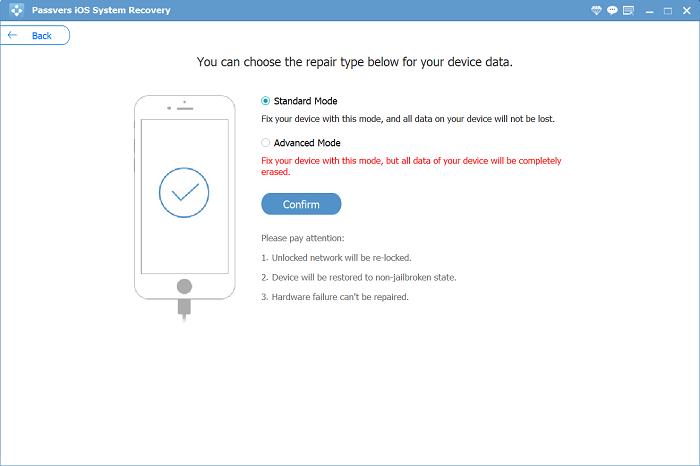
If the spinning wheel returns, reopen Passvers and switch to another repair mode:
Standard Mode: fixes deeper system glitches without deleting your data.
Advanced Mode: reinstalls iOS at the firmware level to remove severe or repeated crashes.
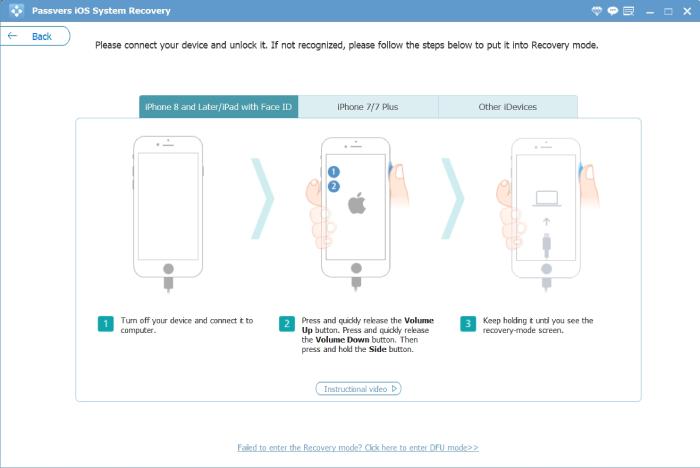
Put your iPhone into Recovery Mod and let Passvers download the appropriate firmware package for your iPhone.
Once the repair is done, the restart loop will be gone and your iPhone will load the home screen normally again.

Fix 3: Restore iPhone
iTunes, Finder, or Apple Devices also allow you to restore your iPhone. What this does is replace the iOS core firmware. However, this method causes data loss.
To factory reset iPhone:
Step 1. Open iTunes or Finder. Then, connect the iPhone to your computer.
Step 2. Put it in recovery mode. Use the same button combination as a force restart.
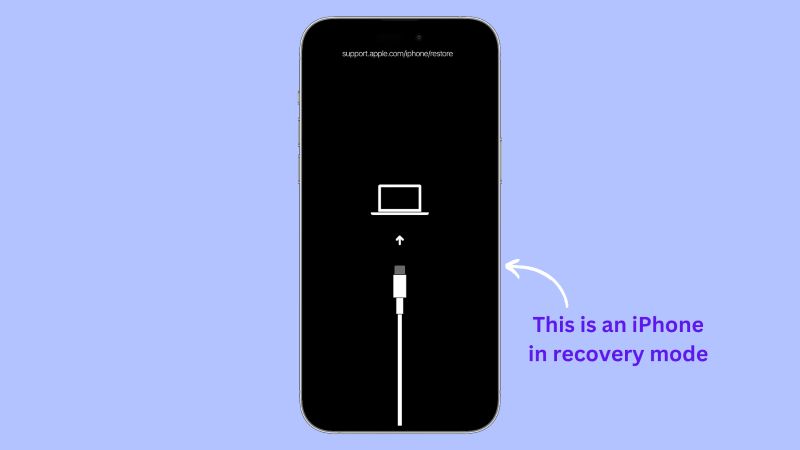
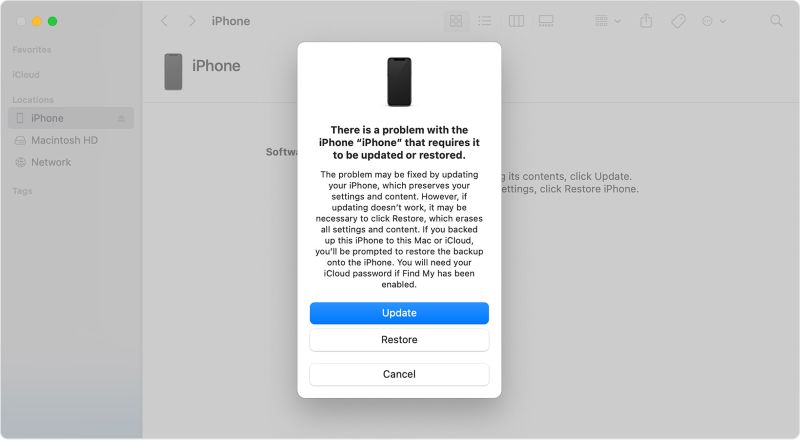
Step 3. iTunes or Finder will pop up a message saying there’s a problem with your iPhone. Click Restore.
Step 4. Let the tool reinstall iOS completely. Once the restore completes, the spinning circle will disappear.
How to Prevent iPhone Black Screen with Spinning Wheel
After getting rid of the black screen with a spinning wheel on your iPhone, you can follow the tips below to minimize the chances of it happening again.
Tip 1: Clear iPhone Space
If you often see pop-ups, like “Storage Almost Full” or “iPhone Storage Full”, it means that around 90–95% of your storage has already been taken. Even clearing 1–2 GB allows background processes to have enough space to refresh.
So here’s what to do for releasing iPhone storage:
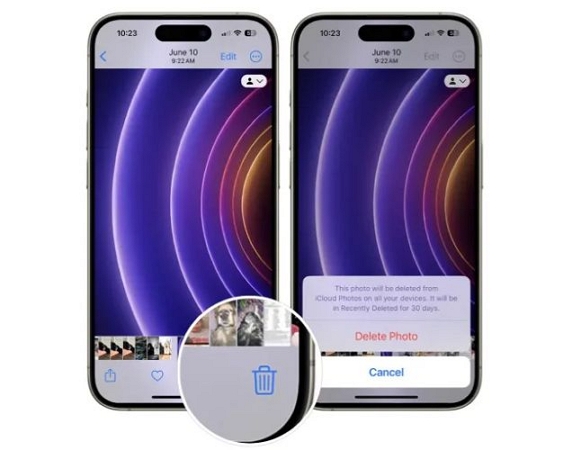
Step 1. Go to Settings, tap General and then select iPhone Storage.
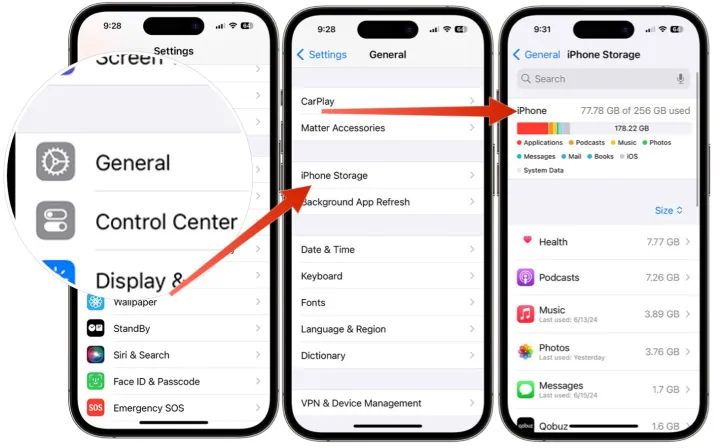
Step 2. Wait for the storage bar to load. You’ll see what’s taking up the space. The same screen will also allow you to clear space. You can do the following, for instance:
- Offload Unused Apps
- Delete Old Conversations
- Review Large Attachments
- Choose to delete the unnecessary files
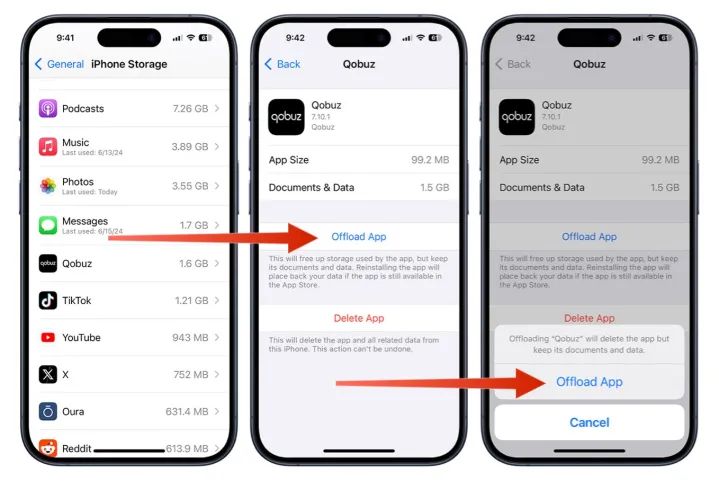
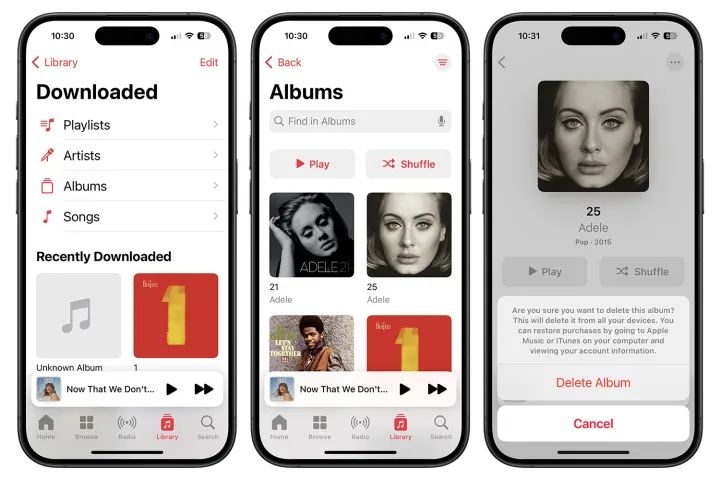
Step 3: You can clear cache from third-party apps, like Spotify or Netflix. Or, delete downloaded songs in Apple Music or similar apps.
Step 4: Remove duplicate photos.
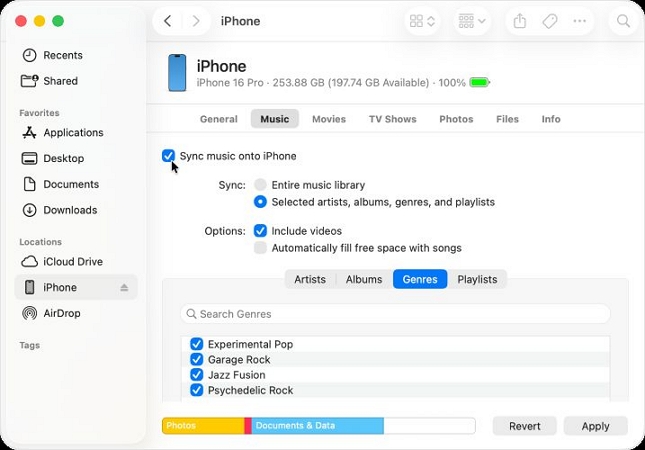
If the spinning wheel doesn’t allow you to interact with the iPhone’s screen, you can also review and delete large media files via iTunes/Finder.
Tip 2: Turn off Notifications
iPhone refreshes parts of the interface whenever a banner notification appears. On older iOS versions, however, that refresh may finish improperly and thus the phone ends up stuck on a black screen with a spinning wheel.
Here’s how to disable Notifications feature:
Step 1. If the phone still responds, open Settings.
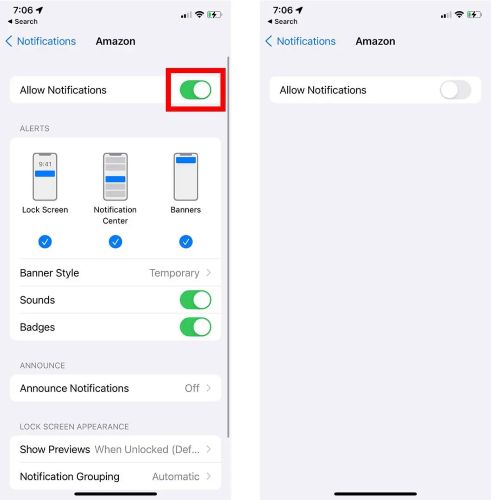
Step 2. Tap Notifications. Scroll through the list of apps manually. Yes, you’ll have to do this one by one.
Step 3. Choose apps, like Messages, Instagram, Mail, or Amazon, and turn off the Lock Screen toggle for each.
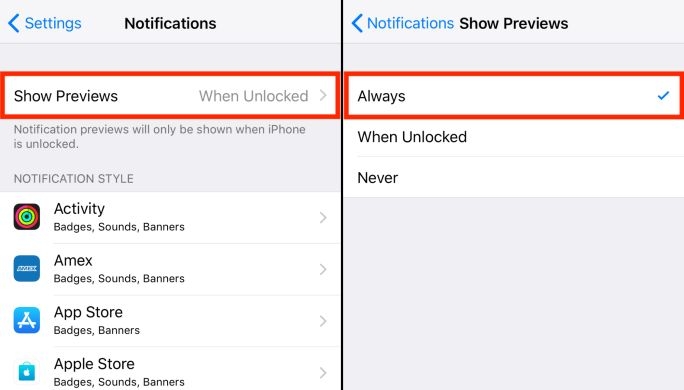
Step 4. Turn off lock screen animations as well. Under Show Previews, select Never.
Step 5. After making these changes, restart your iPhone.
Tip 3: Check Apps
If the black loading circle issue appear only when launching certain apps, it means there is a conflict between the app’s UI and iOS background refresh.
Many users notice this after using resource-intensive apps, such as Instagram and Snapchat. So, you can temporarily remove such apps.
Step 1. Open Settings > Battery. Check which apps show unusually high battery usage. The ones consuming the most are often running faulty background processes.
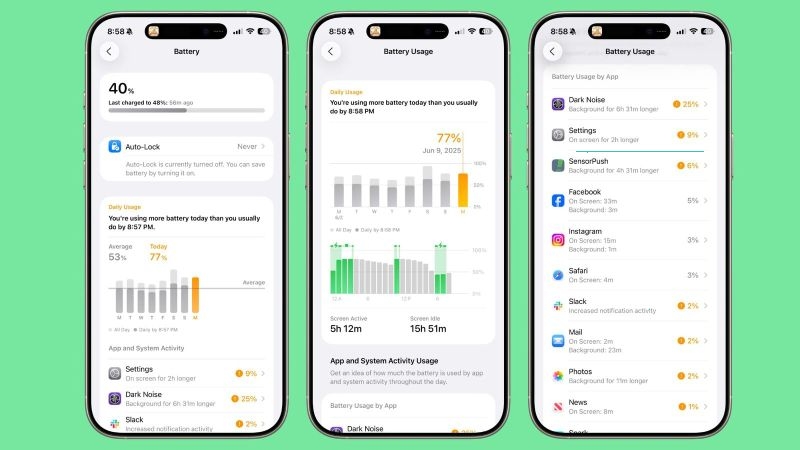
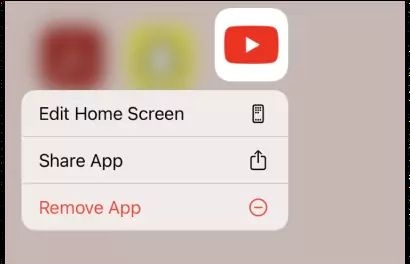
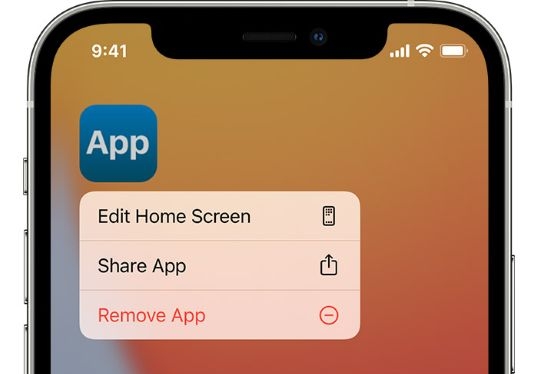
Step 2. Identify the heavy apps and delete them. You can either remove them directly from Settings or the easier way, from the Home Screen:
- Long-press the app icon.
- Tap Remove App.
- Select Delete App to confirm.
Step 3. Once the suspected apps are gone, reboot your iPhone.
Fixed: iPhone Black Loading Screen After Unlock
Another common iPhone black screen problem is: when you wake your iPhone, enter the passcode or scan with Face ID, the device fades into a black screen with the spinning wheel instead of opening the Home Screen. The issue lasts for minutes and then throws you back to the lock screen, which repeats like a cycle. So here, we’ll look at why this happens and what fixes work.
Reasons for iPhone Black Screen with Spinning Wheel After Unlock
Even for the spinning wheel error that shows after unlocking, the reason stays the same as discussed earlier.
- The iPhone fails to refresh the UI layer — that is, the SpringBoard.
- Another common pattern users have noticed is that this often happens after installing iOS betas. So, unfinished or buggy beta builds can easily trigger it.
- Insufficient storage can also lead to this. When iOS doesn’t have enough free space to create temporary caches during unlock, it freezes midway and keeps looping on the spinning circle.
- Notification or widget animations can also collide with the rendering of the interface and stop it from loading properly.
- And at times, poor charger quality or unstable power delivery can also cause the same issue.
Fixes for iPhone Black Screen with Spinning Wheel After Entering Passcode
- Start with a force reboot — it refreshes the firmware and clears temporary crashes.
- Then, free up iPhone storage if it boots normally.
- Move to stable iOS builds instead of beta versions.
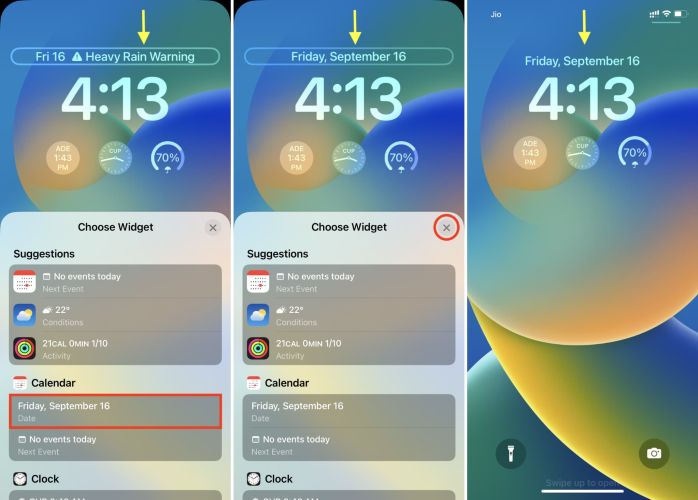
- Disable lock screen widgets that may be looping animations.
- And finally, use Passvers iOS System Recovery to repair the firmware if the problem keeps returning.
Final Words
The fixes above will help you deal with the iPhone black screen and spinning wheel issue, no matter what caused it.
If the basic fixes don’t stop the problem, use Passvers iOS System Recovery. It repairs the firmware safely and removes whatever’s causing the loop. The best part is that it’s extremely easy to use. You can run it on Windows and Mac computers and use the Free Quick Fix mode to resolve the iPhone issue completely.