



If there’s one thing that everyone loves about iPhone, it’s the display that is vibrant, colorful, and full of life. So when that same screen suddenly turns dull grey, or worse, freezes on the grey screen entirely, you will feel unsettling and helpless.
If it’s happening to you, don’t worry. In most cases, it can be fixed without any professional repair. We’ll walk through every possible fix, from quick setting-based adjustments to deeper repairs using Passvers iOS System Recovery, ensuring your display returns to its full color again.
Why Did My iPhone Screen Suddenly Go Grey
There are several reasons your iPhone screen looks washed out or grey.
1. System Setting Issues:
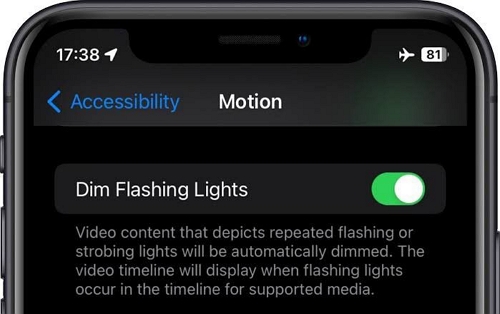
Most of the time, it’s a setting you’ve turned on, like Dim Flashing Lights, Auto-Brightness or Color Filters, which make the display appear dull. Even greyscale mode or Reduce White Point feature creates the same effect.
When these settings are the cause, the grey screen doesn’t stop you from using the iPhone normally. You can turn these settings off. Scroll below where we’ve shown how to disable each corresponding option step by step.
2. iOS Errors
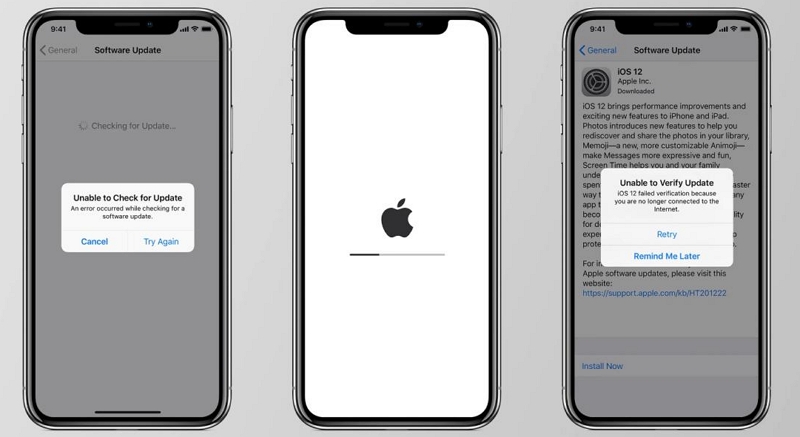
Corrupted system files or incomplete updates can trigger a grey screen. When that’s the reason, you’ll notice these signs: slower touch response, ghost images, or faint flickering during use.
Some users see the tint only while opening certain apps. Many users with iPhone 11, 12, and 13 models report this after updating to iOS 14, 15, or later.
3. Hardware Problems
When faded colors appear right at boot, before the Apple logo, it signals a physical issue. Drops, screen pressure, or water ingress are common factors. Such cases point to damage inside the display or connectors, not software.
How to Fix iPhone Grey Screen and Unresponsive
Now, moving on to how to fix iPhone grey screen when it doesn’t respond. Let’s start with the simple solutions that often clear the grey tint in seconds. If the issue lies deeper, like hardware damage or display faults, we’ll also see what it costs to repair and what steps to take next.
Fix 1. Force Restart iPhone
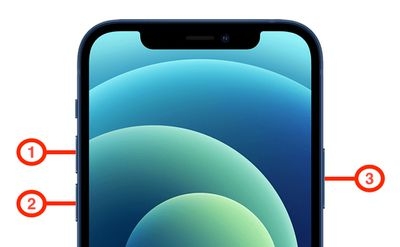
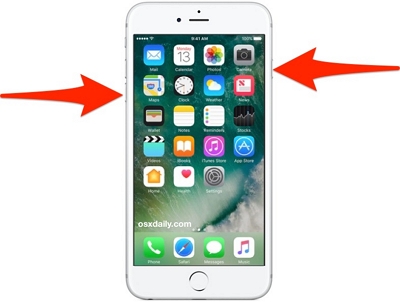
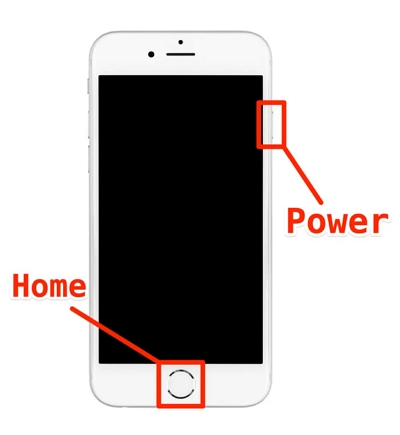
If the grey tint or overlay appeared suddenly, it could be because of screen display glitches. This is common after a recent iOS update. A simple force reboot restarts those processes and clears the grey layer immediately. Here’s what to do:
- On iPhone 8 or later (incl. SE 2/3): press Volume Up quickly, then Volume Down. Next, hold Side until the Apple logo appears.
- On iPhone 7/7 Plus: hold Side + Volume Down till the screen goes dark and the Apple logo appears.
- On iPhone 6s or earlier: hold Home + Side/Top and release them when you see the Apple logo.
Fix 2. Repair iOS with Professional Tool
When the iPhone is completely unresponsive, the first solution is Passvers iOS System Recovery. It scans your iPhone’s core iOS components and pinpoints what’s making the display look flat or greyed out. Then, it fixes the display faults or UI-level glitches to bring the visual back to normal.
Passvers includes three repair modes, each more advanced than the last. Even if the screen isn’t responding at all, Passvers can still detect the device automatically and identify the underlying issue if sound is still coming through. Its Standard Repair mode has shown great results for grey screen errors, which restores normal visuals without deleting any data. And the best part—it’s incredibly simple to use.
Steps to Get Rid of iPhone Grey Screen Using Passvers
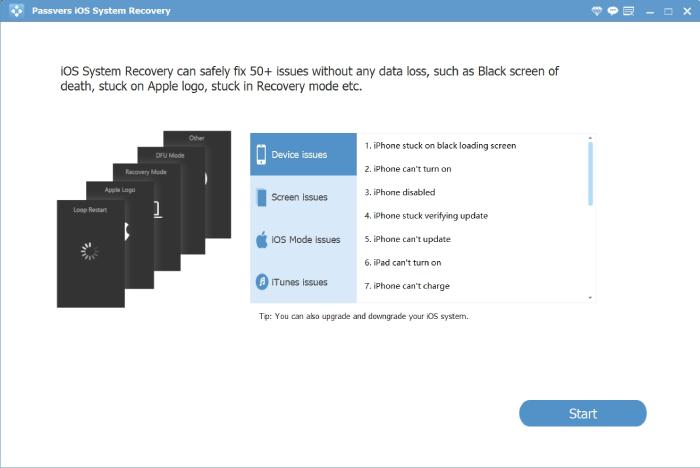
Launch Passvers iOS System Recovery on your Mac or PC and connect your iPhone with grey screen to the same computer.
On the main screen, click Start.
Choose the Free Quick Fix link to repair instantly. Wait for the repair to complete. The faded or grey panel should now be gone.
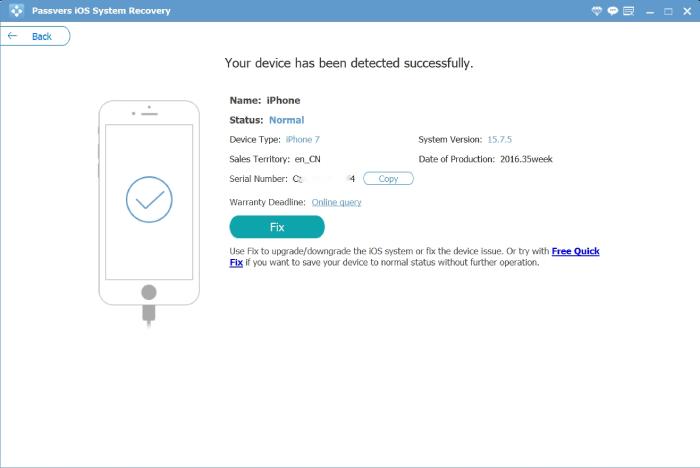
If the issue persists, go back and choose Standard Mode.
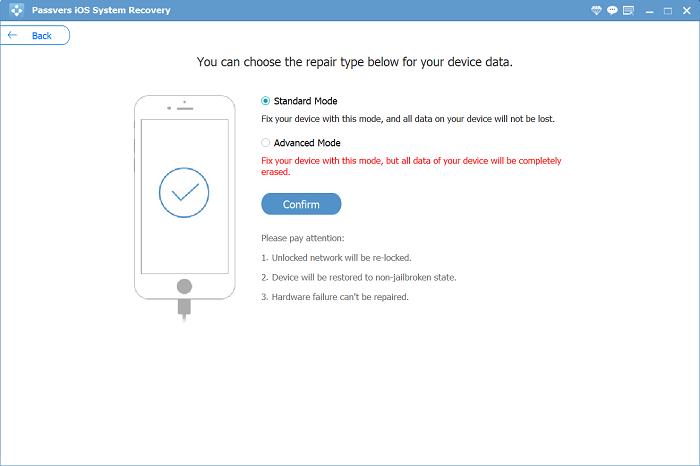
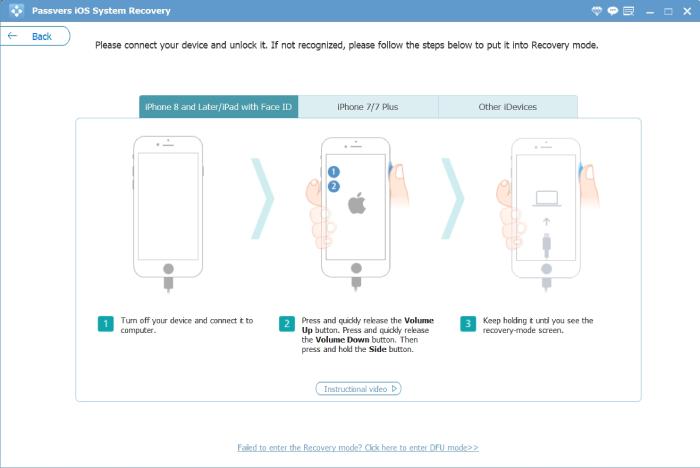
You’ll follow the on-screen steps to put your iPhone into Recovery Mode. Even if the screen is frozen, the process only involves pressing the right button combinations.
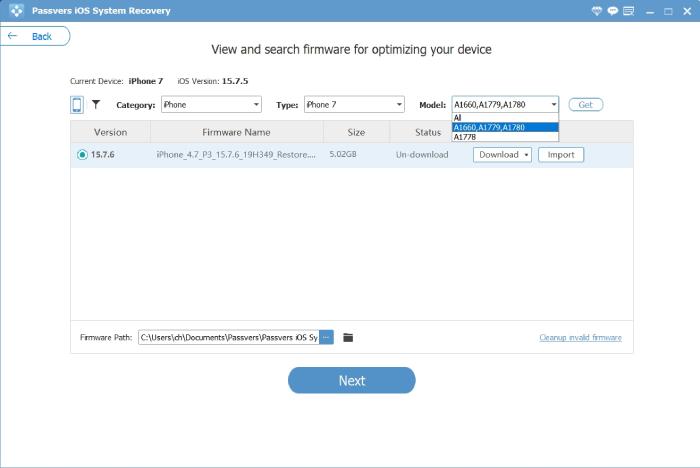
Then, download the correct firmware when prompted and let the repair finish.
Still seeing a dull or desaturated screen? Switch to Advanced Mode this time. It rebuilds the iOS firmware entirely. However, this mode will wipe all the iPhone’s data, so make a backup first.
That’s it! Your iPhone’s natural display will be returned instantly.

Fix 3. Erase iPhone
Sometimes, the grey look on the iPhone is a result of a stuck configuration or two display filters clashing. Or some hidden setting that keeps forcing a greyscale tone. Thankfully, you don’t have to guess, the iPhone has the option to clear all settings at once. Here’s what to do:
First, Reset All Settings. This option on the iPhone only clears system preferences and caches, then boots clean. It fixes the grey tint when a misconfiguration was the culprit.
- Open Settings and tap General.
- Choose Transfer or Reset iPhone > Reset > Reset All Settings.
- Enter the screen passcode and confirm it.
- Let the iPhone restart and check the screen tone.
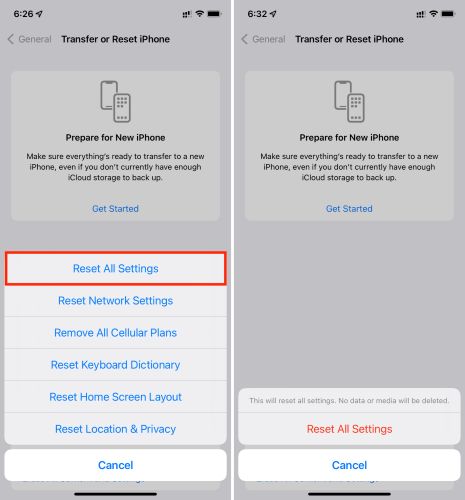
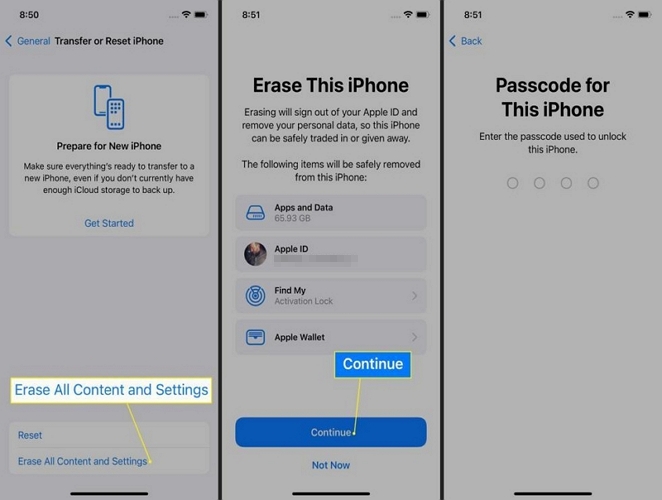
If the shade returns, go stronger: Erase All Content and Settings. This option will restore the iPhone to its factory state. Yes, you’ll lose local data: photos, notes, messages, apps and others. So, back up your iPhone first via iCloud or computer. Once that’s taken care of, here’s what to do:
- Go to Settings > General.
- Choose Transfer or Reset iPhone.
- Tap Erase All Content and Settings and follow the onscreen steps to complete the process.
After the device restarts, the grey overlay should vanish on the Hello screen if system glitches were behind it. Go ahead and set up your iPhone from backup.
Many users say that sometimes the grey screen reappears right after restoring a full backup. That means the backup itself carries a faulty profile or corrupted setting. You can repeat the reset and choose to set your iPhone as new.
Fix 4. Troubleshoot iPhone Hardware
When your iPhone shows a grey display before iOS fully loads, the problem is likely hardware-related.
Perform the screenshot test: take a snapshot and view it on another device. If it doesn’t show the grey tint, the problem could be with the iPhone’s display, internal wiring, or logic board. Your next step should be to visit Apple Support.
Apple or its authorized centers will also give you a repair estimate upfront. Here’s a general idea of the costs:
The washed-out tint is common after third-party screen or battery replacements. And replacing those components with genuine Apple parts usually fixes the problem permanently.
How to Turn Off Grey Screen on iPhone When Responsive
When your iPhone still works fine but the screen looks pale or grey, it’s usually caused by settings that change how your display behaves. So, you can fix it quickly.
Turn Off Dim Flashing Lights
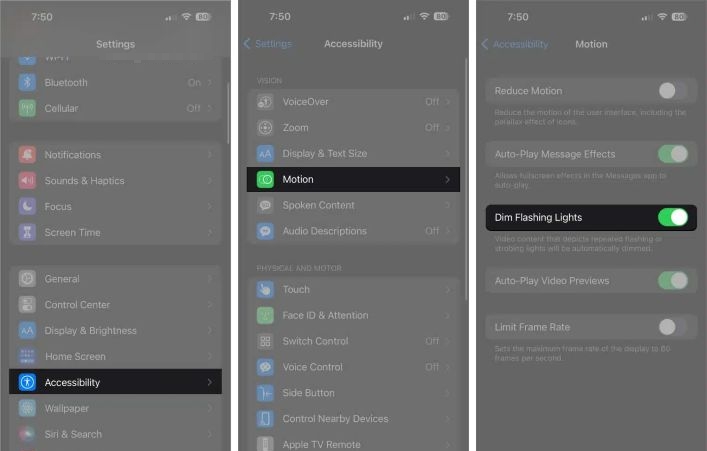
On iOS 16.4 and later, Apple added Dim Flashing Lights for people who are sensitive to sudden brightness. So whenever there’s bright scenes (say, scrolling through Instagram or watching a white-heavy clip), the UI will switch to a pale or greyish look. So, if your iPhone turns dull or grey only during bright scenes, Dim Flashing Lights could be the reason. You can turn it off easily. Here’s what to do:
- Open Settings.
- Tap Accessibility.
- Choose Motion.
- Turn Dim Flashing Lights off.
Reopen the same app or video and you will find the grey overlay will no longer appear.
Disable Auto-Brightness
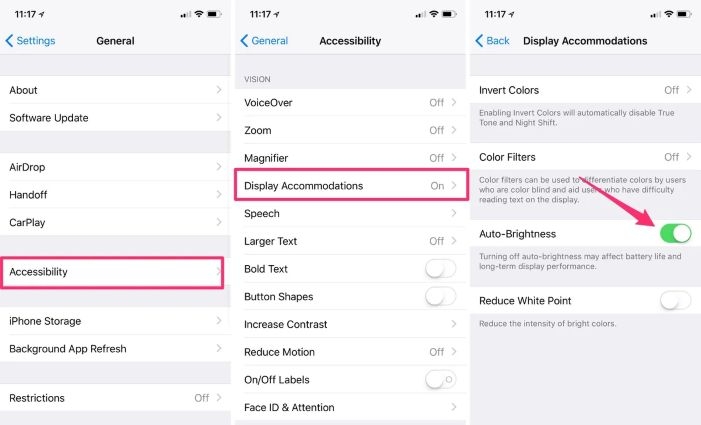
On iOS 15.2 and later, the Auto-Brightness toggle behaves somewhat oddly. Many users say their screen stays dim for a while after moving away from sunlight, mimicking a greyish look. You can turn this feature off and set brightness manually for consistent colors.
Steps:
- Open Settings.
- Tap Accessibility.
- Select Display & Text Size.
- Scroll to Auto-Brightness and switch it off.
Now adjust brightness manually from the Control Center. If you’re on older iOS builds, the same toggle is under Accessibility > Display Accommodations.
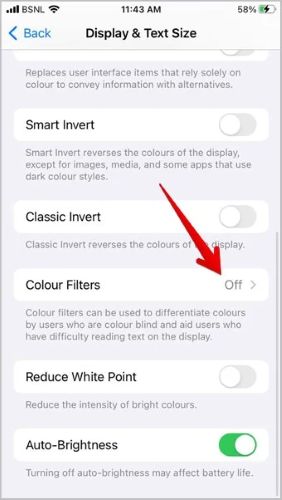
Deactivate Color Filters
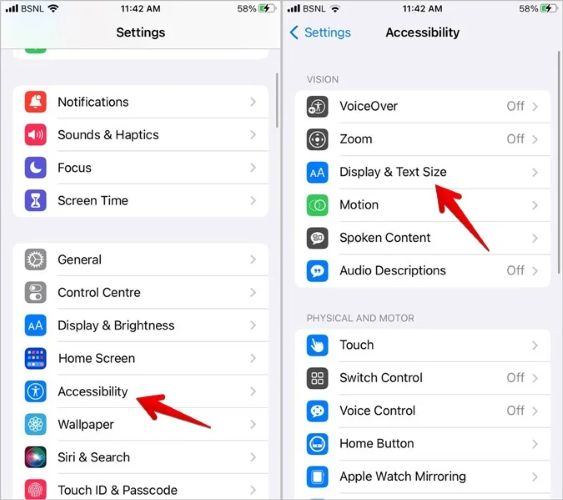
Another frequent cause of a grey iPhone display is Color Filters, especially when the greyscale option is turned on under accessibility. To check and fix this:
- Open Settings and tap Accessibility.
- Choose Display & Text Size.
- Select Color Filters. If it’s on, switch it off. If it is already off, open it once to ensure greyscale isn’t selected. Set it to None and return. That should immediately restore the full color palette of your iPhone screen.
Turn Off Zoom Filter
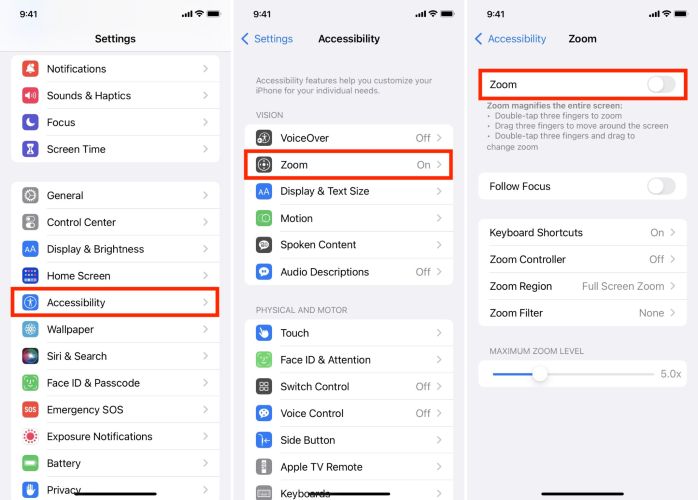
Some users accidentally enable Zoom filters, which override display colors and create a grey or desaturated effect, even when other features are off. Zoom doesn’t need to be active on-screen to alter visuals, but its filter can persist in the background.
To Disable Zoom Filter:
- Open Settings.
- From Accessibility, select Zoom.
- Tap Zoom Filter and set it to None.
- Exit the menu and make sure no shortcut is triggering Zoom automatically.
Once done, the iPhone UI will return to full color immediately.
Conclusion
Whether the iPhone screen is working under a grey overlay or completely frozen on the grey screen, we’ve discussed complete fixes for both situations.
When the screen still responds, it’s usually a matter of settings, and the adjustments above are enough to restore normal screen function. When the screen doesn’t respond at all, Passvers iOS System Recovery takes over. It detects the device even when the screen is entirely unresponsive and works without any screen interaction.