


Many users today search “how to unlock disabled iPad without iTunes” because iTunes is no longer pre-installed or supported on macOS Catalina and later. Others can’t use it because their iPad was never synced before, or the trusted computer is no longer available.
The good news is — even without iTunes or Finder, there are safe, legal, and Apple-approved ways to regain access to your iPad. Depending on your situation (whether you remember your Apple ID, have another device, or use iPadOS 17+), you can choose one of several verified solutions.
Below, you’ll find five proven methods that work in 2025 to unlock your iPad without iTunes or Finder
Comparison Table (Quick Overview)
Part 1. Unlock Disabled iPad Without iTunes
Way 1. Unlock Disabled iPad Without iTunes Using Previous Passcode (iPadOS 17+)
If you recently changed your screen passcode (within 72 hours) and your iPad runs iPadOS 17 or later, you can unlock it without iTunes or data loss.
Steps:
Step 1. On the “iPad Unavailable” screen, tap Forgot Passcode?
Step 2. Choose Enter Previous Passcode.
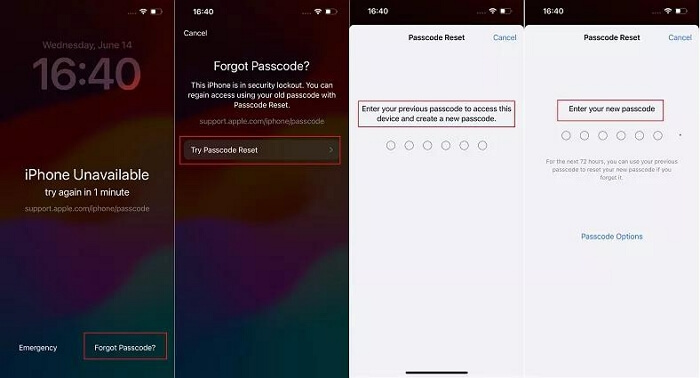
Step 3. Enter your old passcode to regain access, then set a new one.
Way 2. Unlock Disabled iPad Without iTunes Using Passixer
If you’re wondering “how do you unlock an iPad without iTunes or Apple ID,” the best choice is using a professional unlock tool—Passixer iPhone Unlocker.
It works even if Find My is off or iTunes doesn’t recognize your device.
Use this when:
- iTunes or Finder not available
- iPad disabled or showing “iPad Unavailable”
- You forgot both passcode and Apple ID
Steps:
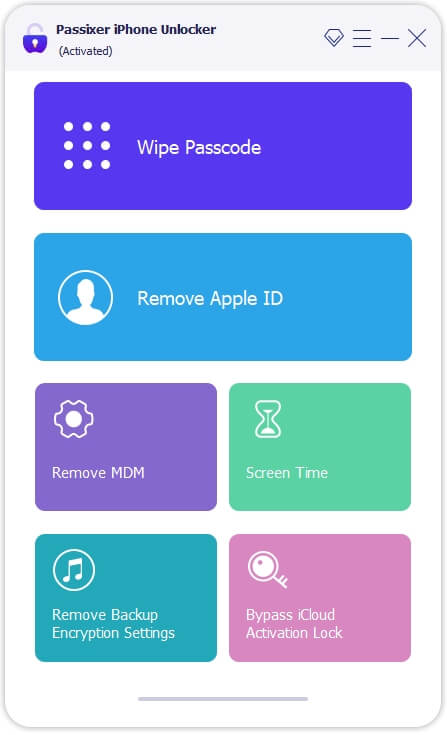
Launch Passixer on your computer and select the Wipe Passcode mode to start the process.
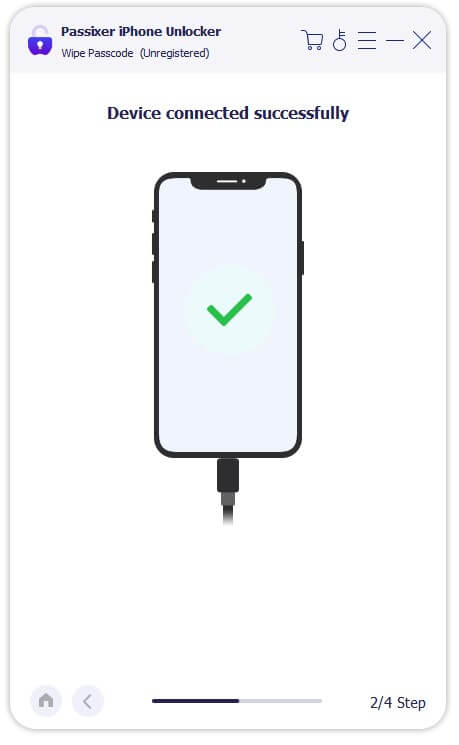
Use a certified USB cable to connect your iOS device to the computer. Passixer will automatically detect it once connected.
Verify your device information is correct, then click Start to download the latest firmware package required for unlocking. Make sure your computer has at least 7GB of free space.
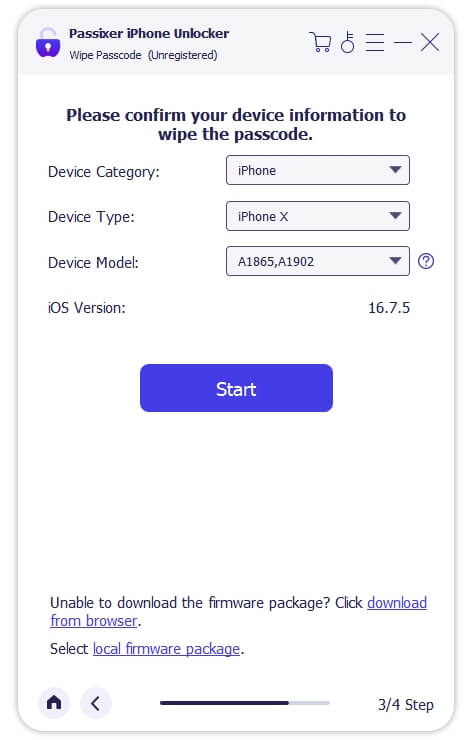
After downloading the firmware, click Next. Enter 0000 to confirm the unlocking operation and hit Unlock. Passixer will start removing the forgotten passcode. Keep your device connected during the process.
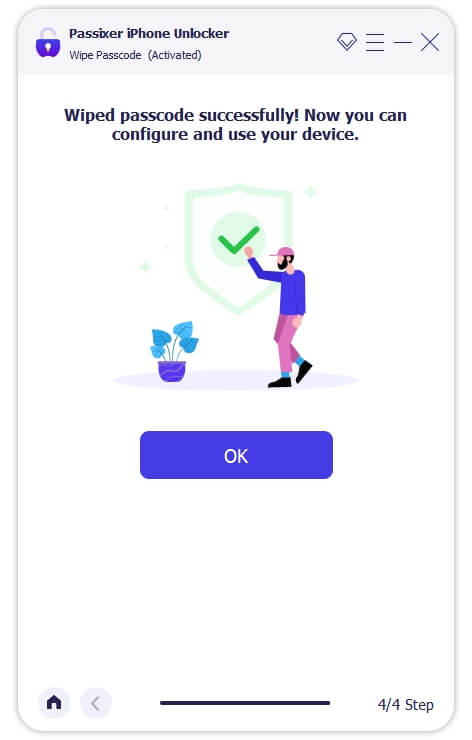
Once the process completes, a “Wipe passcode successfully” prompt will appear. Your iOS device can now be accessed without a passcode and set up as new.
Users searching how to unlock iPad without iTunes or Apple ID.
Part 2. Unlock Disabled iPad Without iTunes via iCloud (Free)
If you enabled Find My iPad before it was disabled, you can unlock it remotely via iCloud — no iTunes or cables needed.
Use this when:
- Find My iPad is ON
- You know your Apple ID and password
Steps:
Step 1. Visit iCloud.com/find.
Step 2. Sign in with your Apple ID.
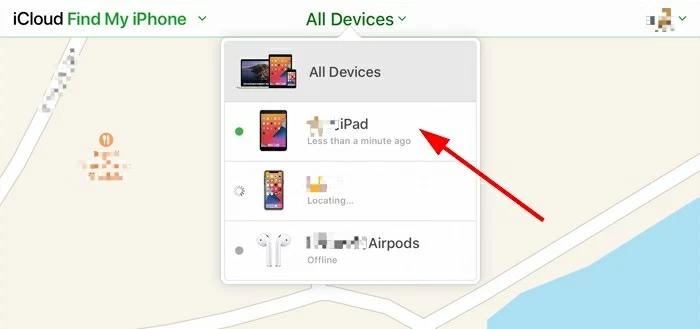
Step 3. Click All Devices → choose your disabled iPad.
Step 4. Select Erase iPad → confirm with Apple ID password.
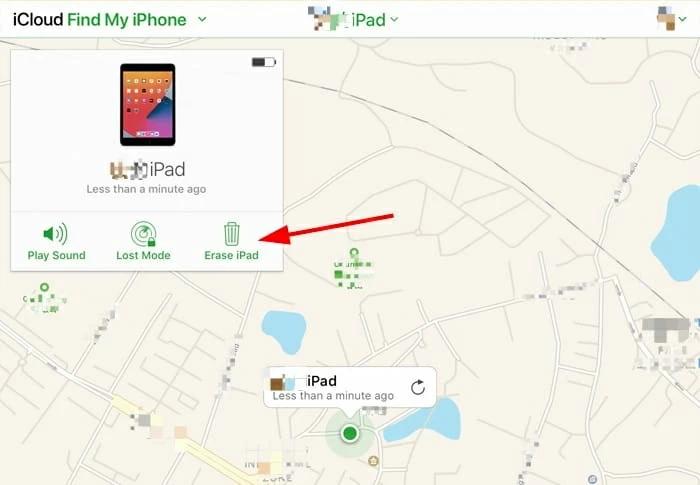
Step 5. Wait for the iPad to reset.
Works from any web browser, including mobile devices.
This covers: users searching how to unlock iPad disabled without iTunes and without a computer.
Part 3. Unlock Disabled iPad Without iTunes or Computer (Find My App)
Another easy option if you own another Apple device logged in with the same Apple ID.
Use this when:
You have another iPhone/iPad
iPad has Find My enabled
Steps:
Step 1. Open Find My app → tap Devices.
Step 2. Select the disabled iPad.
Step 3. Tap Erase This Device → confirm erase.
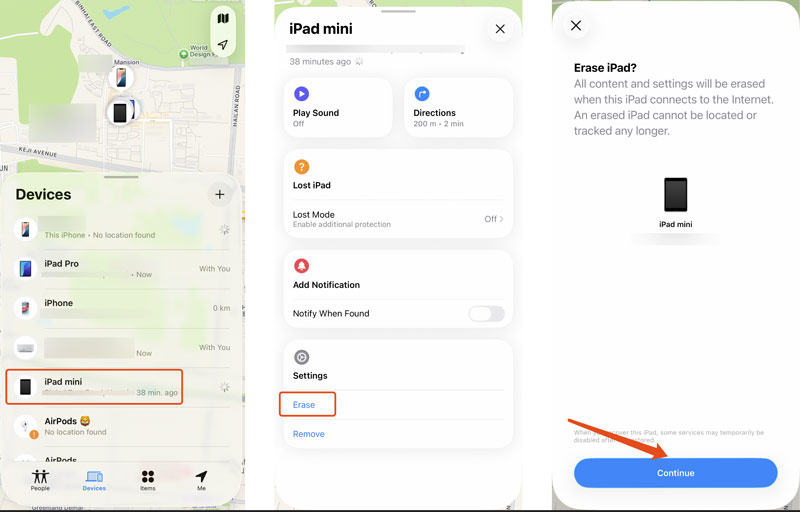
Step 4. Wait until reset completes → set up iPad again.
Part 4. Unlock Disabled iPad Without Computer Using Erase iPad Feature
For iPadOS 15.2 or newer, you can reset directly from the lock screen — no iTunes, no Finder, no PC.
Use this when:
- iPad runs iPadOS 15.2+
- Find My iPad is enabled
Steps:
Step 1. Enter wrong passcode multiple times until Erase iPad appears.
Step 2. Tap Erase iPad → confirm.

Step 3. Enter Apple ID password → device resets automatically.
Anyone asking “how to unlock iPad without iTunes or computer.”
Bonus: What If None of These Work?
- If none of the above options work:
- If “Erase iPad” doesn’t show → put iPad in Recovery Mode and restore via Finder.
- Forgot Apple ID password → recover it on iforgot.apple.com.
- If iPad is MDM-locked (school or work), contact admin or use verified MDM removal software.
FAQs
Conclusion
Now you know exactly how to unlock disabled iPad without iTunes — whether or not you have a computer.
- If you know your Apple ID → try iCloud or Find My.
- If you forgot everything → use a professional unlocker for the fastest result.
When iTunes can’t help, these safe, legal methods will get your iPad back in minutes.