



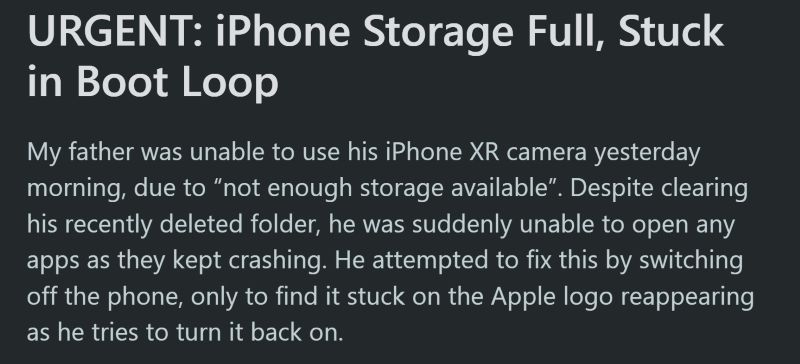
Few things feel worse than watching your iPad restart over and over. Although there are many fixes, you must want the most effective ways to solve the issue without data loss. That’s what we’ll discuss here. Most iPad boot loop cases can be dealt with without restore and we’ll start with such solutions. Even for deeper faults, we’ll show you how to use Passvers iOS System Recovery to repair iPadOS without losing data. Whether you are using old 3rd-gen or the newest 11th-gen, you can get the issue fixed here and finally break the loop and reach the Home Screen again.

iPad Stuck in Boot Loop: Why Does It Happen
There are several reasons for an iPad getting caught in a boot loop. To categorize them simply:
- Software-level Issues: Failed iPadOS update or corrupted files. Jailbreaking could also lead to system instability.
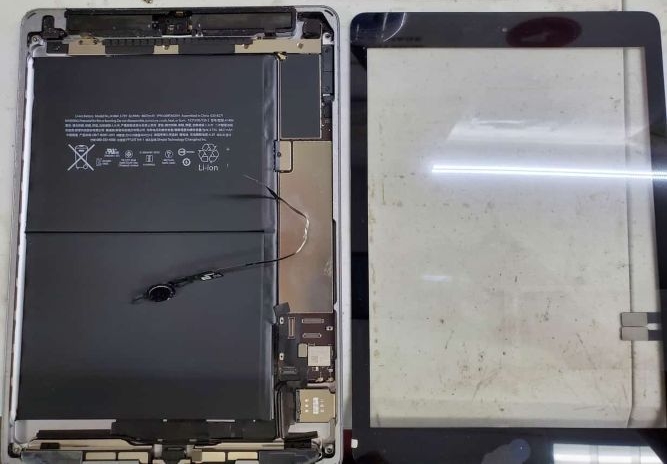
- Battery-related Problems: Many boot loops are power-related. An aging iPad battery or faulty charging accessories often cause such random restarts.
- Hardware-related Faults: Prime suspect is the charging port, which could be worn out or clogged.

How to Fix iPad Stuck in Boot Loop Without Computer or Data Loss
So, if you’re stuck with a boot loop in one of these scenarios below, it’s mostly fixable right on your iPad.
Case 1. iPad Boot Loop While Charging

After trying to charge a drained iPad, it gets stuck on a white screen with the Apple logo appearing again and again within 3–5 second intervals. Sometimes, the iPad boots to Home Screen but shuts off immediately after.
Here, the fault could be the charger failing to deliver required voltage. Or the charging port itself is worn out or filled with dust.
Case 2. iPad Stuck in Boot Loop with Low Battery
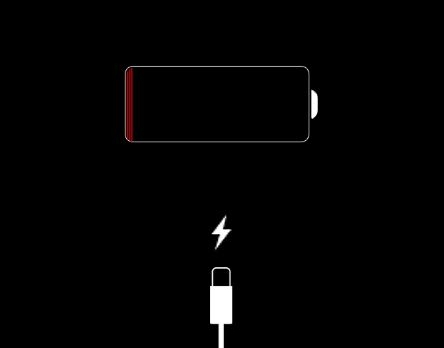
The iPad died due to low battery and now can’t seem to charge up enough to boot. You see the red empty-battery icon, then the Apple logo and it goes black finally.
The simple thing here is that the battery is over-depleted.
Case 3. iPad Boot Loop After Reset
You’re trying to update or reset, but the iPad gets stuck in the boot loop.
One reason is that the process didn’t go through. The other reason is that there are certain hardware faults that the new iOS system identifies while trying to boot up.
After understanding your case, you can follow the fixes below to restore your iPad back to normal state.
Fix 1. Use Original Charger
The most common reason for the iPad failing to boot up is that it not getting enough power. First, make sure you’ve an Apple-certified wall adapter and cable.
Keep your iPad within a 32°F–95°F (0°C–35°C) range, plug your iPad in and let it charge for 30–40 minutes. Once the power is stable, the iPad will boot up normally.
If iPad fails to boot after charging:
Charge another iPad with the same adapter and cable. If that one works, your charger is fine and the cause could be the dust in the iPad charging port.
- Use a toothpick or plastic spudger to loosen the dust in the iPad charging port and blow out the rest with short bursts of compressed air.

Fix 2. Freeze iPad and Then Charge It
This one sounds odd, but the suggestion comes from many users for whom the fix worked. The suggestion is to keep the iPad in the freezer for a few minutes, around five to ten.
The idea here is to trigger the temperature protection circuit. So, it remains turned off while charging. Make sure the iPad is inside an airtight box or plastic bag, so no liquid can get in.
- Once it’s cooled a bit (after 5-10 minutes), take it out and plug it into the charger.
- Leave it there quietly for a while. It lets the iPad boot normally again.

Fix 3. Force Restart iPad
A quick force restart often breaks the failed boot cycle. Here’s how to do it:
For iPad with Face ID:
- Press Volume Up, then let go right away.
- Do the same with Volume Down.
- Now, hold the Top (Power) button. Stop pressing the Top (Power) button when the Apple logo appears, so the iPad can boot to the lock screen.

For iPad with Home Button:
Hold both Top (Power) and Home together and release them when the Apple logo appears to make the iPad boot to the home screen.

Fix 4. Troubleshoot Hardware
If a force restart doesn’t fix the loop and all charging accessories are working on other devices, the next suspect is the faulty charging port or a failing battery.
It’s common for the iPad’s charging port to become loose, worn out, or have bent pins inside and that can stop proper power delivery. In such cases, the replacement usually costs between US$199 and US$250, depending on your iPad model.
A weak battery is another cause for the iPad to be stuck in boot loops. Battery replacements will cost around US$90 to US$300.
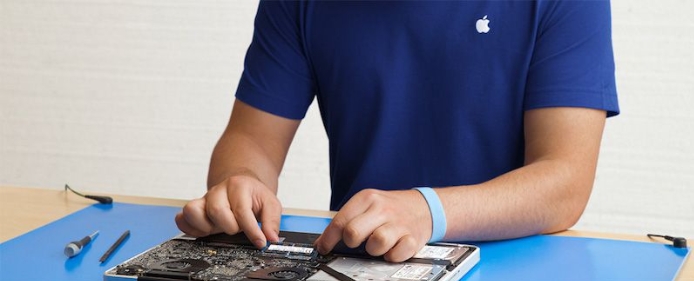
So, it’s time to take the iPad to an Apple Genius Bar.
How to Fix iPad Stuck in Boot Loop with Computer
Using a computer lets you bring in deeper iPad troubleshooting. Here are two reliable fixes.
Fix 1. Repair iOS [No Data Loss]
Passvers iOS System Recovery is the best tool to repair a broken iPadOS boot sequence without losing data. It comes with three repair modes and has helped many users resolve failed boot cycles on their iPads successfully.
The Free Quick Fix and Standard Mode work best when the boot loop is caused by corrupted files or partial updates. If the issue runs deeper, such as a damaged firmware preventing iPadOS from loading, the Advanced Mode performs a complete rewrite and reinstalls iPadOS from scratch.
It’s simple, fast, and safe, letting your iPad boot normally again without any complex steps or risk of data loss(Quick Fix and Standard Repair).
Steps to Repair iPadOS with Passvers
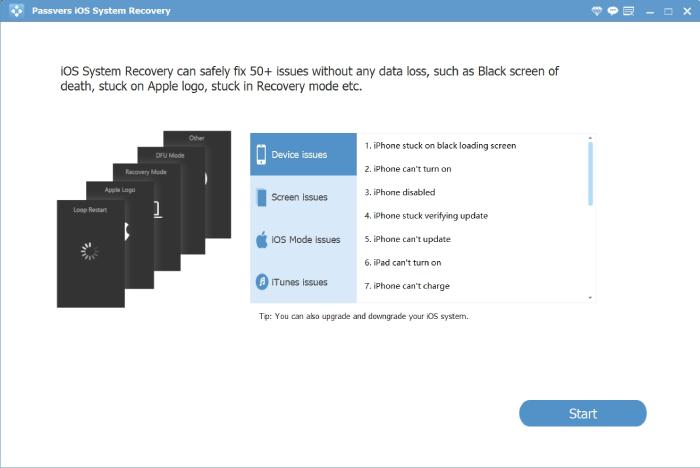
Connect your iPad to the computer. Then, install Passvers iOS System Recovery, launch it and proceed with the Start button.
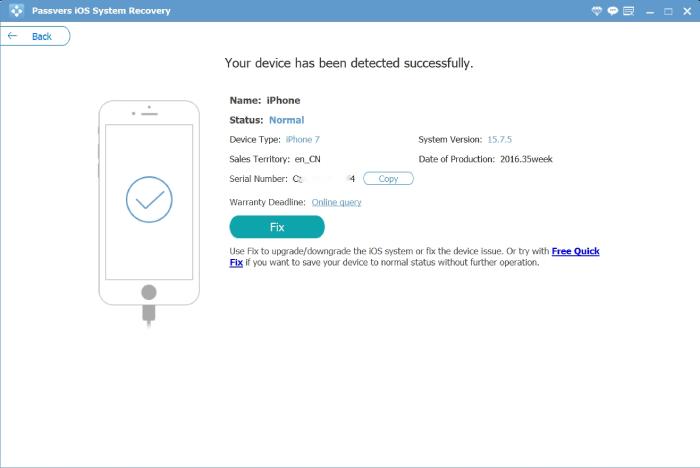
Passvers will show your device details on the screen. Select Free Quick Fix to repair the iPad instantly.
It will restart your iPad. This time, it should reach the Home Screen without looping back.
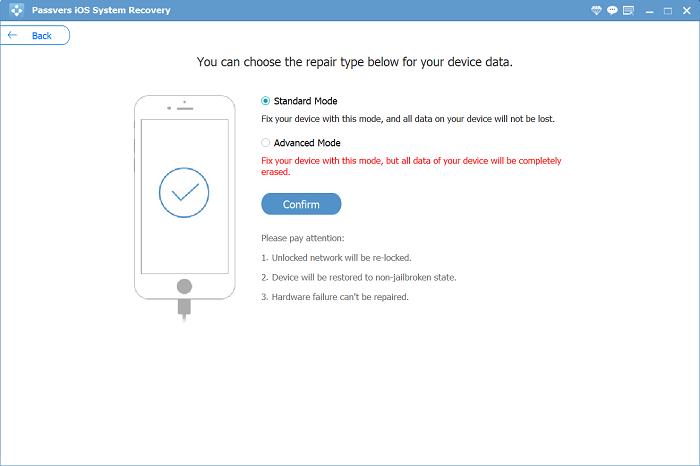
If the iPad slips into the boot loop again, move to a deeper repair. You’ll see two modes — Standard Mode (no data loss) and Advanced Mode (deeper fix but erases data). Pick one.
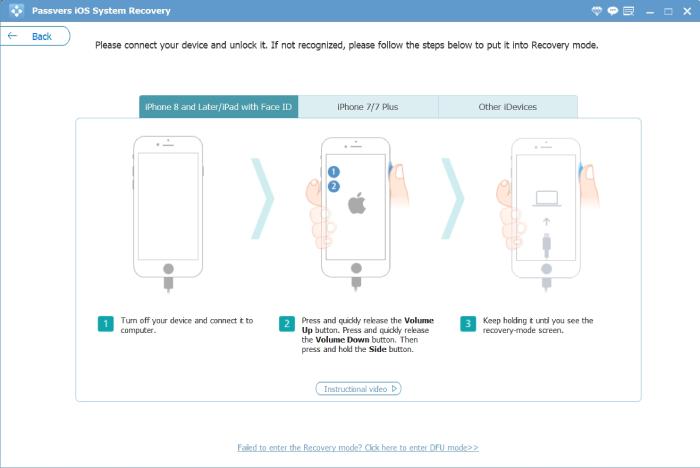
Then follow the steps shown on-screen to prepare your iPad for repair. You will need to put your iPad into Recovery Mode.
When prompted, download the right firmware file.
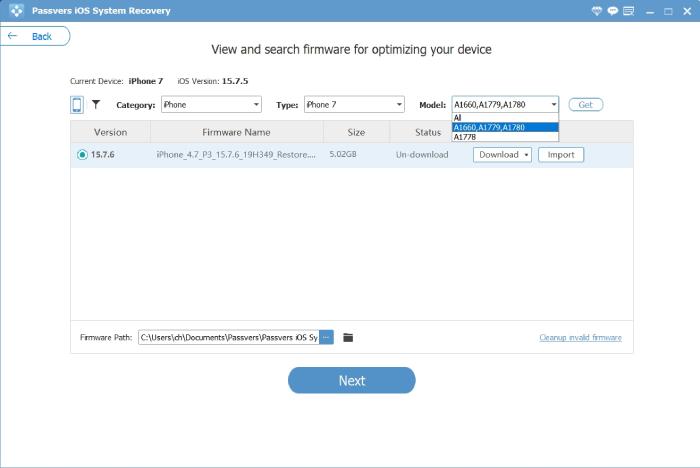
Wait while Passvers repairs the iPadOS system. Your iPad will restart normally and load to the Home Screen without any boot-loop issues.

Fix 2. Restore iPad [Data Loss]
iTunes or Finder can remove any corrupted installs and rewrite the firmware. If the boot loop is caused by deep software faults rather than a weak battery, these tools can steady the entire iPadOS image.
In Recovery Mode
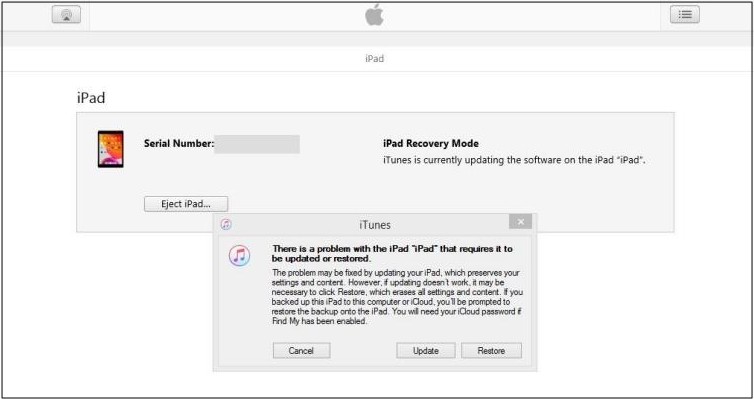
The first method is Recovery Mode. It works only when your iPad can enter that state. You’ll see two choices here — Update and Restore. Update reinstalls iPadOS while keeping your files. Restore replaces the full firmware and wipes all data.
Step 1. Connect your iPad to the computer.
Step 2. Put the iPad into Recovery Mode. This sequence is device-specific and the same as a Force Restart.
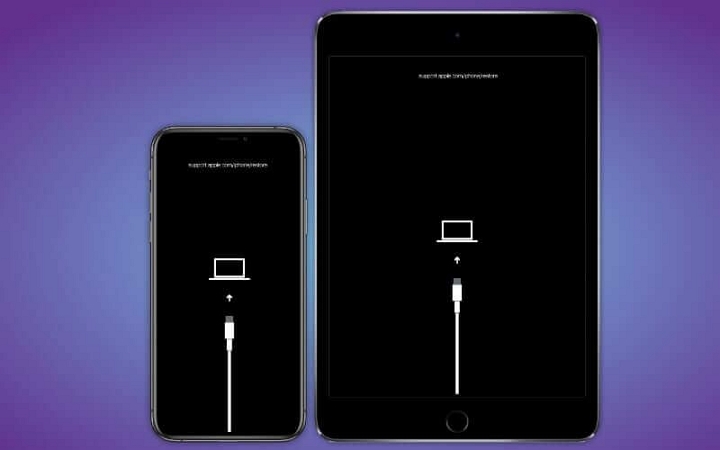
Step 3. An alert will appear in iTunes or Finder with two options:
- Choose Update. This option fixes the looping start screen without touching your data.
- If that fails, reopen iTunes or Finder. From the pop-up, choose Restore. It removes all corrupted files and your data. Then, install a fresh system image.
In DFU Mode
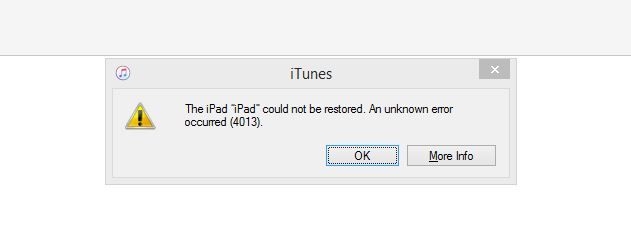
When attempting Recovery Mode shows errors like 4013 or 4015 in iTunes, try DFU Mode. It puts your iPad capable of receiving new firmware in a lower-level state than Recovery Mode.
Step 1. Plug the iPad into your computer and keep it steady.
Step 2. Follow the right button combo for your iPad model.
For iPads with Home Button
- Hold Home + Power for 8 seconds.
- Let go of Power, keep holding Home for 5 more seconds.
- The screen must stay black. If the Apple logo shows up, repeat the steps above.
For iPads Without Home Button
- Press Volume Up once.
- Press Volume Down once.
- Hold Top (Power) for 10 seconds until the screen goes dark.
- Keep holding Top, then press Volume Down for 5 seconds.
- Release Top and keep Volume Down for 10 more seconds.
- The display stays black. Your computer will detect the iPad.
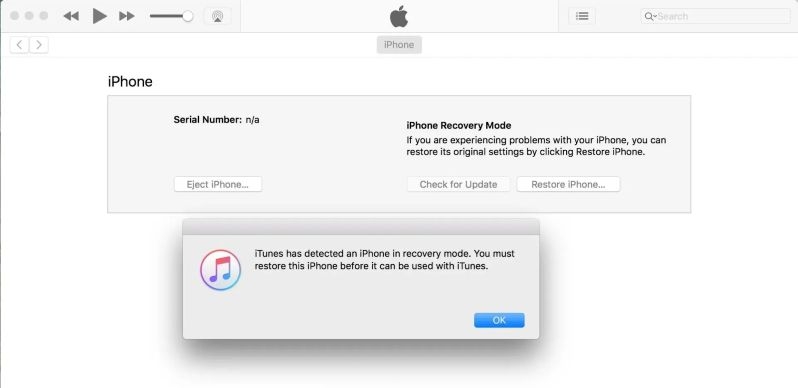
Step 3. You’ll see a message in iTunes or Finder that the iPad has been detected. Click OK. Then, choose the available Restore iPad option.
This will rewrite every corrupted file and clear the boot loop once and for all.
Final Words
Dealing with an iPad boot loop issue can be scary. However, we’ve shown you how to get past it and in most cases, without losing any data. Start with the simple fixes first. Many times, the problem is power-related because the iPad isn’t charging properly or the accessories aren’t delivering enough current.
If the problem runs deeper, say, the iPadOS fails because system files are damaged, then Passvers iOS System Recovery is the most suitable solution. It will restore the iPad to the Home Screen in minutes.