


Losing important conversations can be stressful — especially if they contain valuable personal or business information. The good news is that you can retrieve deleted text messages on iPhone, even without a backup.
Whether you accidentally deleted a chat, lost messages after an iOS update, or your iPhone crashed unexpectedly, this updated 2025 guide will show you multiple safe and effective ways to retrieve deleted iMessages and SMS — using iPhone settings, iCloud, iTunes/Finder, or professional recovery software.
How Messages Can Get Deleted on iPhone
Messages often get deleted due to human error or system issues. Common reasons include:
- Accidental deletion while managing storage.
- iOS update failures or incomplete installations.
- Water or physical damage to your iPhone.
- iCloud or system sync errors.
The good news: deleted messages aren’t always gone forever. They may still exist temporarily on your device or in a backup, allowing you to restore them using the methods below.
Quick Comparison: iPhone Message Recovery Methods
Method 1: Recover from the Recently Deleted Folder
Step 1: Open the Messages app on your iPhone.
Step 2: Tap “Filters” or “Edit” at the top of the conversation list.
Step 3: Tap “Recently Deleted” to see all deleted messages in the last 30 days.
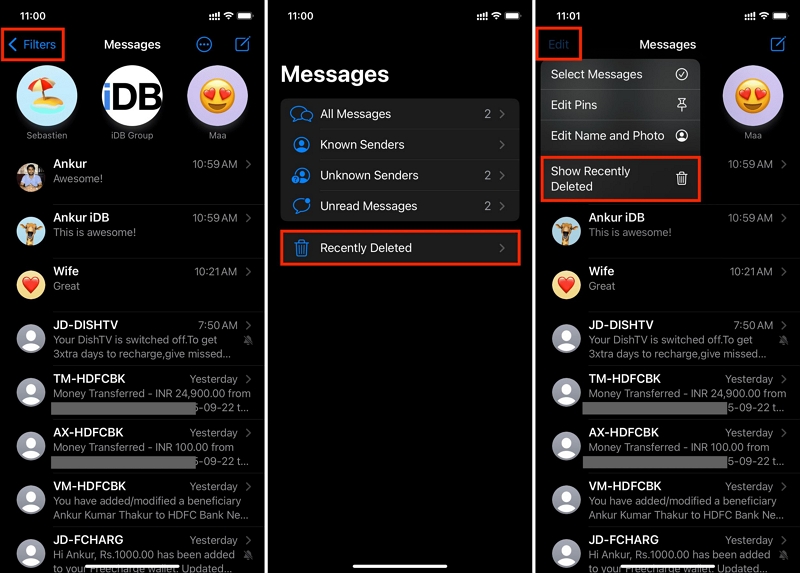
Step 4: Select the conversations you want to recover.
Step 5: Tap “Recover.” Confirm your action by tapping “Recover Messages.”
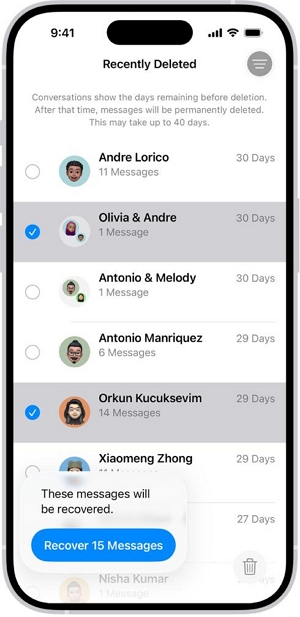
The selected messages are returned to the inbox.
What will you do if the messages are not in the “Recently Deleted” folder?
You could have other Apple devices signed in to the same Apple account on devices, such as a Mac or an iPad. The deleted messages could be there if they haven’t synced yet. It’s better to act quickly. However, if the devices have synced, you will not be able to find them.
Method 2: Retrieve Deleted Text Messages on iPhone via iCloud Backup
If your iPhone backs up regularly to iCloud, you can retrieve deleted text messages from iPhone by restoring from a previous backup.
Step 1: Go to Settings > [Your Name] > iCloud > iCloud Backup > Check your latest backup date.
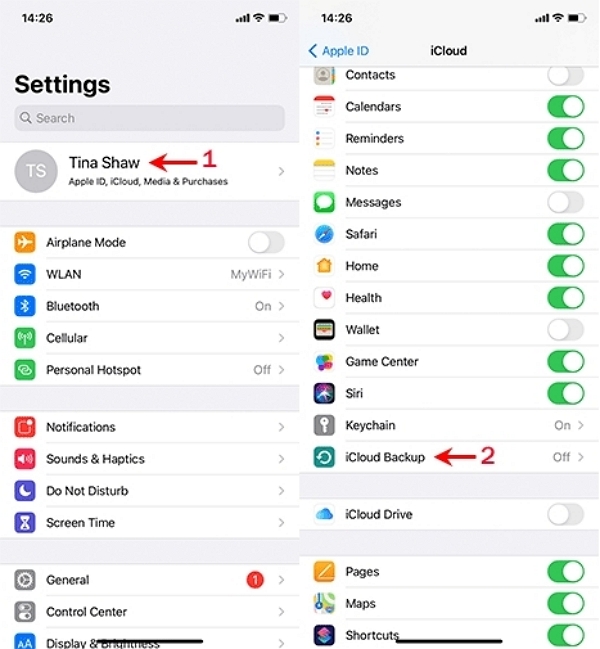
Step 2: Go to Settings > General > Transfer or Reset iPhone > Erase All Content and Settings.
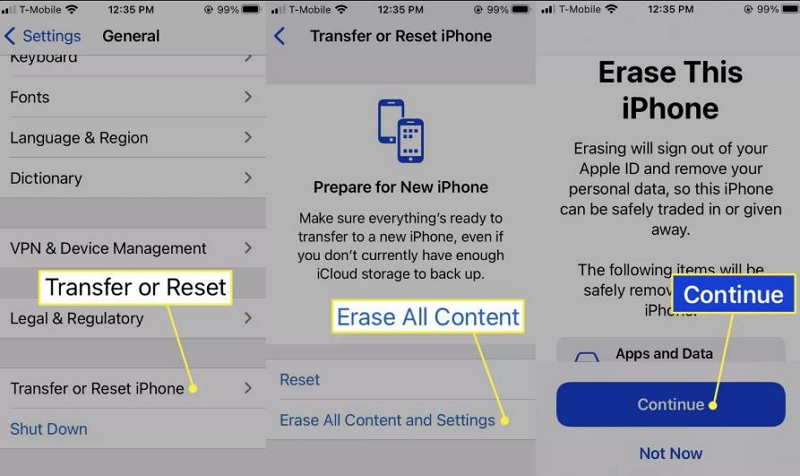
Step 3: Follow the on-screen setup until you reach Apps & Data.
Step 4: Select Restore from iCloud Backup.
Step 5: Sign in with your Apple ID and choose the backup that predates message deletion.
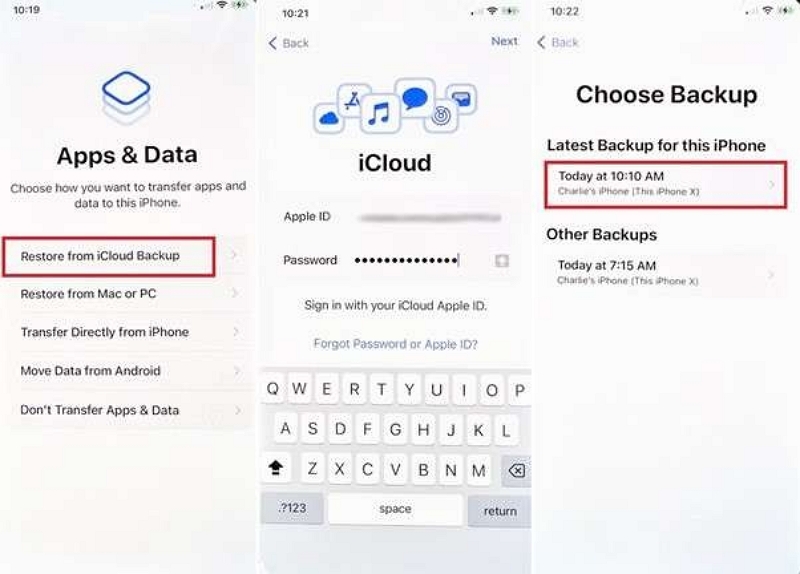
Step 6: Wait for restoration to complete and open Messages to verify.
Important Points:
Only messages existing in the selected backup will be recovered.
All new data created after that backup will be lost.
Method 3: Retrieve Deleted iPhone Text Messages via iTunes or Finder
If you’ve synced your iPhone with a computer, you can retrieve deleted iPhone text messages by restoring from a Finder or iTunes backup.
Step 1: Connect your iPhone to your computer using a USB cable.
Step 2: Open iTunes (for Windows/macOS Mojave or earlier) or Finder (macOS Catalina or later).
Step 3: Click your device icon > choose Restore Backup.
Step 4: Select a backup created before the deletion occurred. Click Restore and enter Apple ID credentials if prompted.
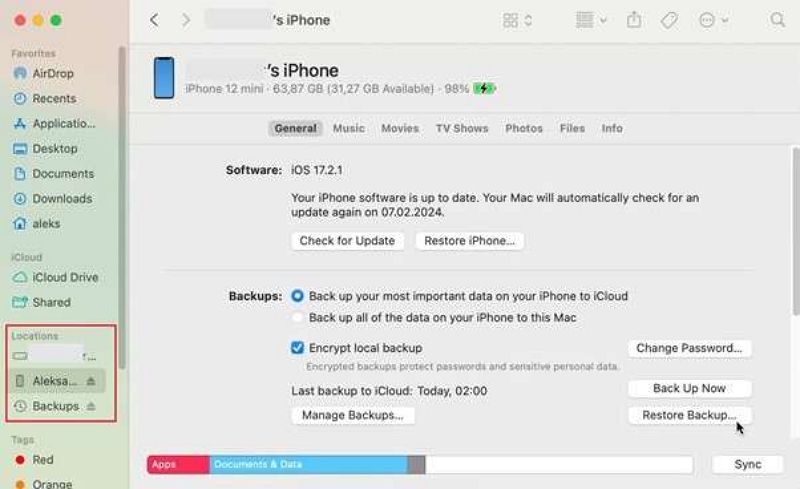
Step 5: Once complete, your iPhone will restart and sync restored data.
Important Points:
- This process overwrites existing iPhone data.
- Backup must include the deleted messages.
Method 4: Retrieve Deleted iMessages from iCloud Drive
You can also retrieve deleted text messages from iPhone by checking your iCloud Drive, if message syncing was enabled.
Step 1: Visit iCloud.com and log in with your Apple ID.
Step 2: Click Drive or Files to explore your synced content.
Step 3: Check the Recently Deleted folder.
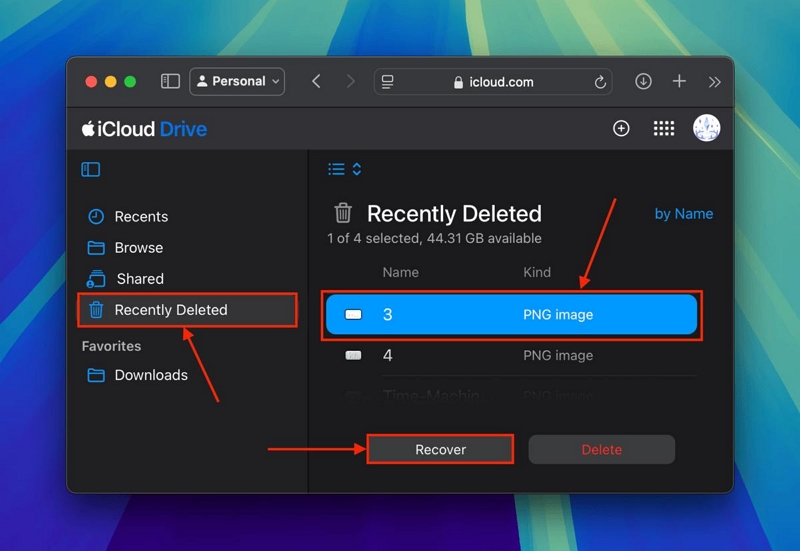
Step 4: Select deleted message files or attachments > click Recover.
Step 5: Wait for your iPhone to sync again via iCloud.
Important Point:
- Works only if messages were stored in iCloud Drive.
- Does not recover WhatsApp or third-party app messages.
Method 5: Retrieve Deleted Text Messages on iPhone Without Backup (Using Eassiy Software)
If you don’t have a backup, you can still retrieve deleted text messages on iPhone without backup using Eassiy iPhone Data Recovery — a trusted professional recovery tool.
Step-by-step Process
Download and install Eassiy iPhone Data Recovery from the official website on your computer.
Connect your iPhone to the computer using a USB cable, then select Recover from iOS Device from the main interface.
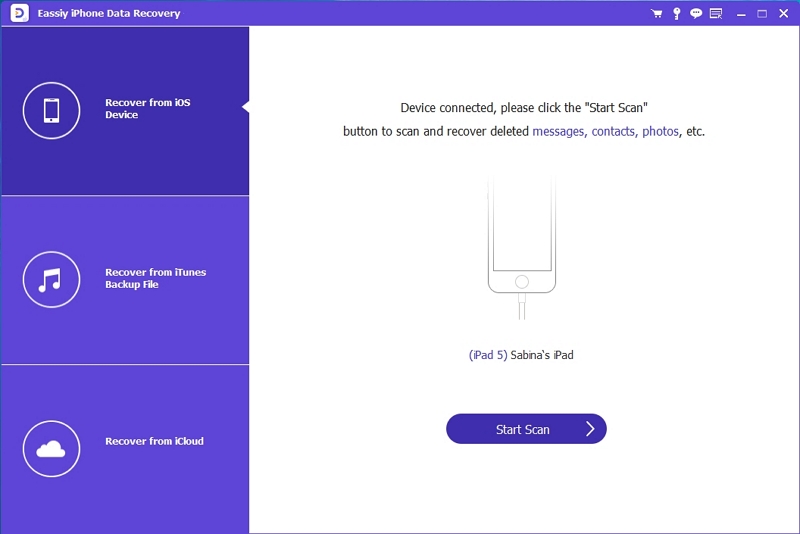
Click Start Scan to allow the software to detect deleted messages and other lost data on your iPhone.
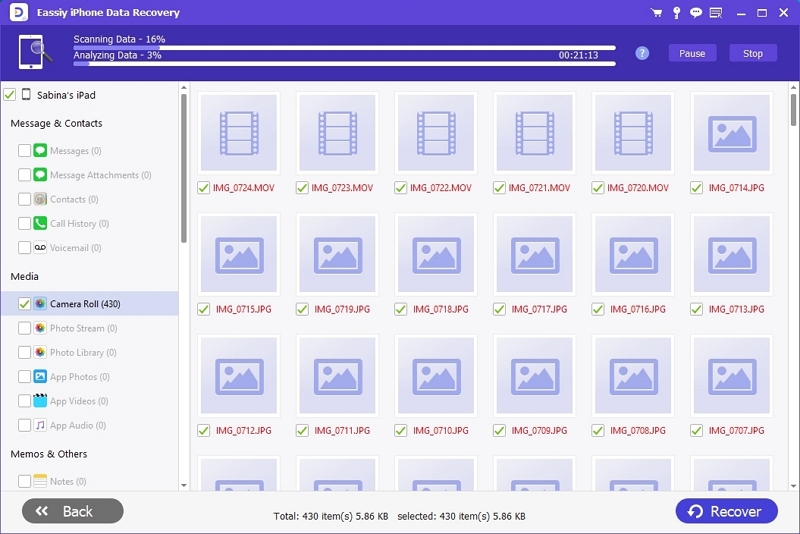
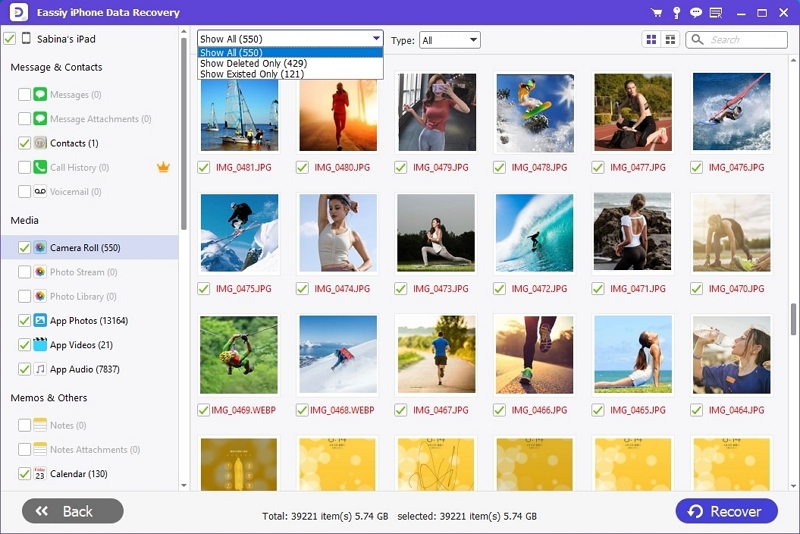
Preview the scan results and select the messages you want to recover. Click Recover to save them to your computer or restore them directly to your iPhone.
Important Considerations Before You Start
Please note the following points before you start the recovery process.
Backup timing matters: The iCloud and iTunes/Finder Backup methods require the latest backups—the more recent the backup, the more complete the recovery. Messages received on the iPhone after the backup date are lost forever.
Risks of data overwrite: The iCloud and iTunes/Finder backup methods involve rewriting backup data. Therefore, these processes involve erasing all existing data on the iPhone before attempting to recover it.
Tips to Prevent Future Message Loss
1. Enable Automatic iCloud Backup
Step 1: Open Settings on your iPhone.
Step 2: Tap your Apple ID at the top.
Step 3: Select iCloud.
Step 4: Tap iCloud Backup.
Step 5: Toggle on “Back Up This Phone.”
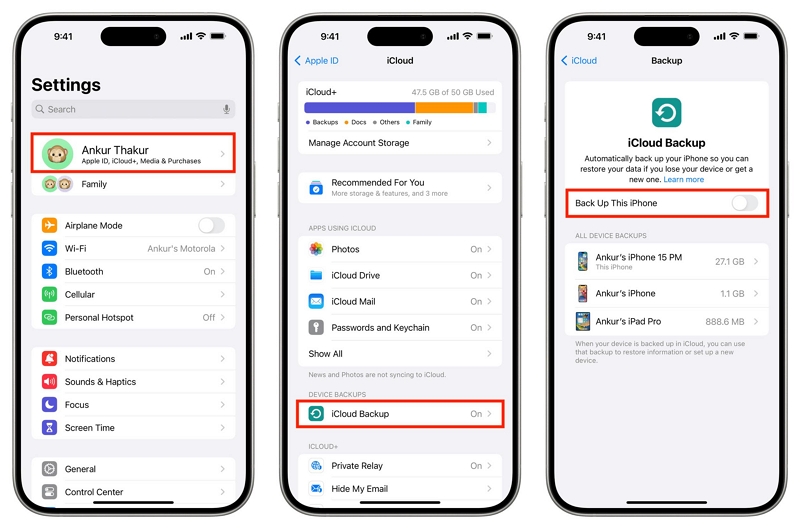
Your device will now back up automatically when charging and connected to Wi-Fi.
2. Use Message Forwarding or Exporting
Step 1: Open Messages and go to the conversation.
Step 2: Tap and hold the specific message you want to forward.
Step 3: Tap More from the pop-up menu.
Step 4: Select the messages you want to forward.
Step 5: Choose messages > Tap the Arrow icon > Enter recipient and Send.
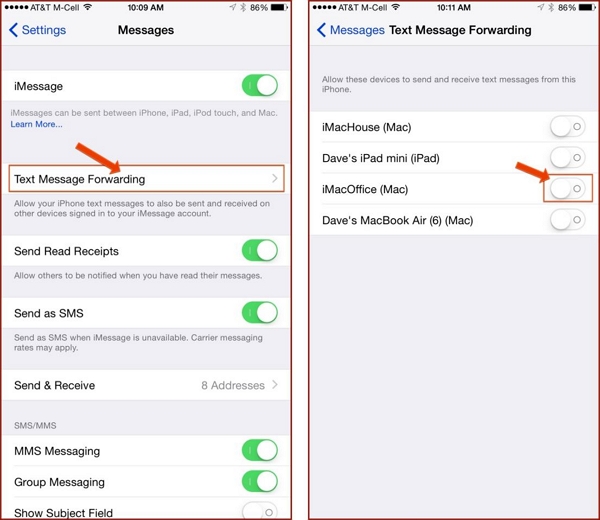
You can also copy and paste conversations into Notes or take screenshots for backup.
Frequently Asked Questions
Conclusion
Accidentally deleting important texts doesn’t mean they’re gone forever. You can retrieve deleted text messages on iPhone through the Recently Deleted folder, iCloud, or Finder/iTunes backups.
Even without backup, Eassiy iPhone Data Recovery helps you safely recover messages directly from your iPhone’s internal storage.
Act fast, and turn on automatic iCloud backups today to protect your conversations in the future.