



Users often ask whether it is possible to recover Snapchat memories. This article discusses various methods for recovering Snapchat messages and interactions using the built-in tools, iCloud backups, or 3rd party software. We introduce a reliable solution to help you easily recover your Snapchat memories on your iPhone.
Quick Summary — Best Methods at a Glance
Can You Recover Deleted Snapchat Memories on iPhone?
Yes. You can recover deleted Snapchat Memories on iPhone if:
- They were recently deleted and cached by Snapchat.
- You have a valid iCloud or iTunes backup created before deletion.
- The snaps were exported to your Camera Roll.
- You use a third-party recovery tool that can scan your iPhone storage.
If you have no backup, don’t panic — apps like Eassiy iPhone Data Recovery can deeply scan your device and retrieve deleted Snapchat Memories even without iCloud access.
How Snapchat Memories Work
Snapchat Memories are stored in Snapchat’s secure cloud servers and linked to your account.
When you delete a Memory, it’s removed from your visible feed, but cached or backed-up copies might still exist temporarily — that’s your recovery window.
When Recovery Is Possible
- Accidental deletion: If deleted recently, the data might still exist in cache or cloud storage.
- Backed-up Memories: If you synced to iCloud or exported snaps, they can often be restored.
- No backup: You’ll need a professional iPhone data recovery tool.
5 Verified Methods to Recover Deleted Snapchat Memories on iPhone
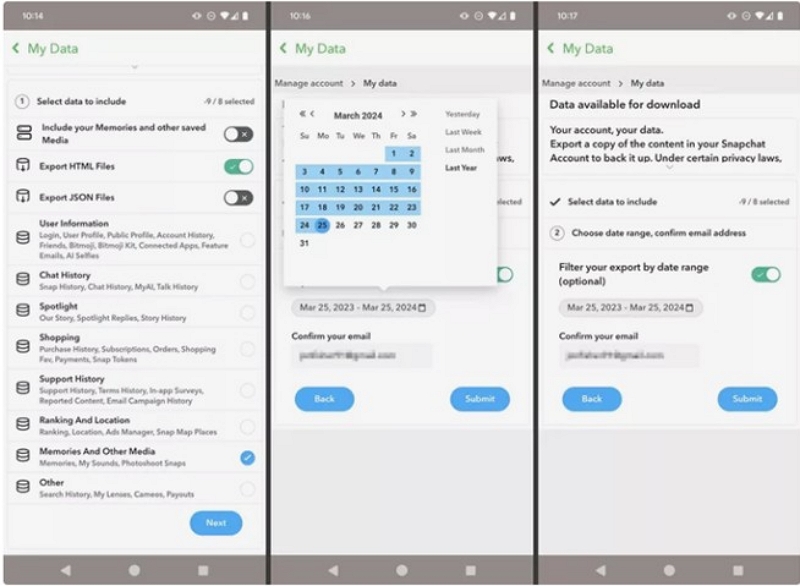
Method 1: Recover from Snapchat “My Data” (Official Way)
This is Snapchat’s official method to check if any data, including Memories info, can be recovered.
Steps:
Step 1: Open Snapchat and tap your Profile icon.
Step 2: Tap the gear icon to open “Settings” and scroll to “My Data” and log in.
Step 3: Request your data and wait for the download link to be sent to you via email.
Step 4: Download the file from your email. Unzip it to check for Memories info.
Success Rate:
- Actual media recovery: 10–30%
- Metadata recovery: 40–60%
Inference:
Best used for verification and metadata retrieval, not full photo/video recovery.
Method 2: Recover Deleted Snapchat Memories iPhone via iCloud Backup
If you regularly back up your iPhone, you can restore deleted Snapchat Memories on iPhone using iCloud.
Step 1: Go to Settings > General > Transfer or Reset iPhone.
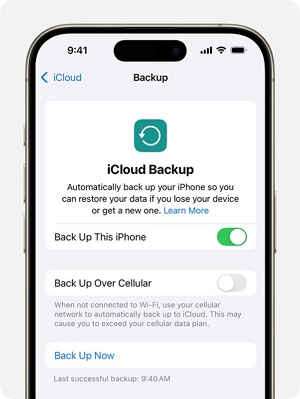
Step 2: Tap Erase All Content and Settings.

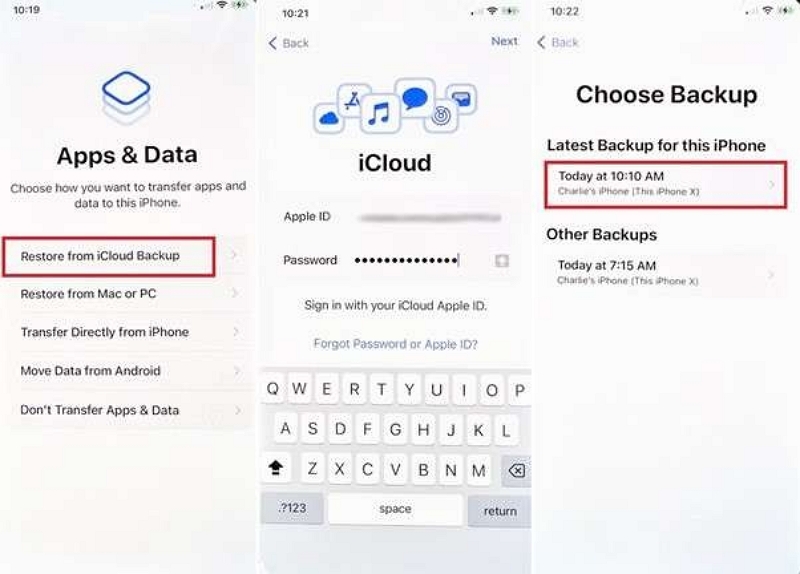
Step 3: During setup, choose Restore from iCloud Backup.
Step 4: Select a backup created before your Memories were deleted.
Success Rate:
- No backup: 10–30%
- With old iCloud backup: 70–90%
Inference:
A reliable method for those who back up regularly to iCloud.
Method 3: Restore Deleted Snapchat Memories from iTunes/Finder Backup
If you’ve previously backed up your iPhone to a computer, this is a great alternative to iCloud.
Step 1: Connect your PC to your iPhone using a USB cable.
Step 2: Open iTunes (Windows/macOS Mojave or earlier) or Finder (macOS Catalina or later).
Step 3: Select your device and click “Restore Backup.”
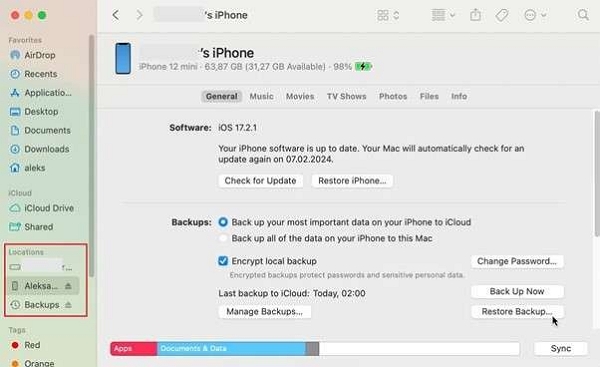
Step 4: Choose a backup that is likely to contain the Memories.
Success Rate:
- No backup: 10–30%
- Proper backup before deletion: 70–90%
Inference:
Excellent choice for offline users who back up regularly to their computer.
Method 4: Recover Deleted Snapchat Memories iPhone Without Backup
If you have no backup or iCloud access, you can still recover deleted Snapchat Memories iPhone without backup using Eassiy iPhone Data Recovery.
Download the official version of Eassiy from Eassiy.com and install it on your PC. Then, use a USB cable to connect your iPhone to the computer.
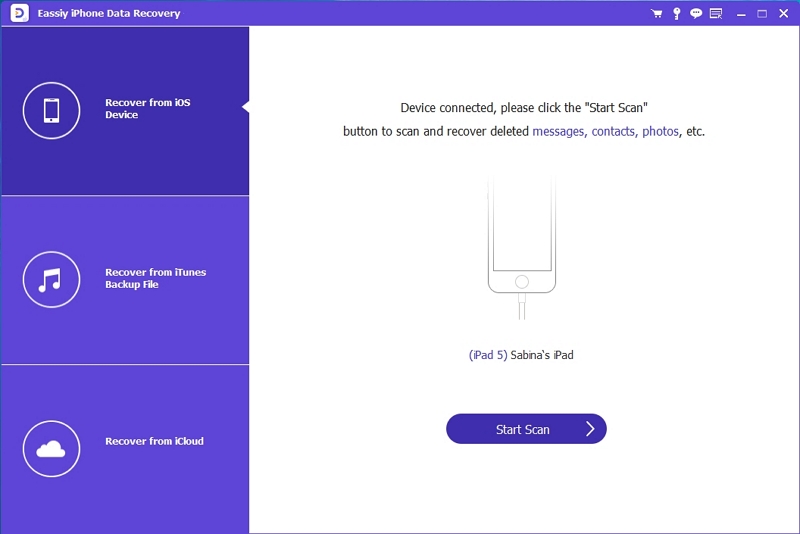
Launch Eassiy on your computer, select iPhone Data Recovery, and then click Recover from iOS Device to continue.
Once your iPhone is detected, click Start Scan. The software will perform a deep scan to find deleted Snapchat data.
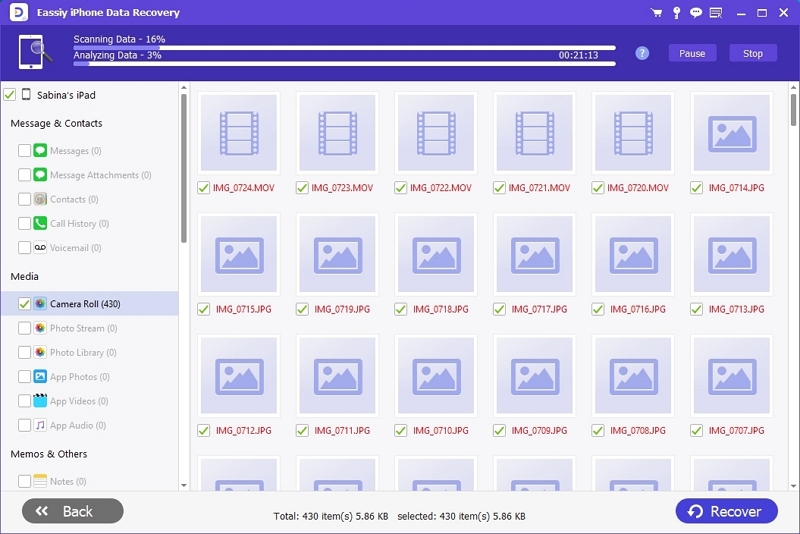
After the scan is complete, preview the recoverable files on the screen. Select Snapchat Memories and click Recover to restore them to your computer.
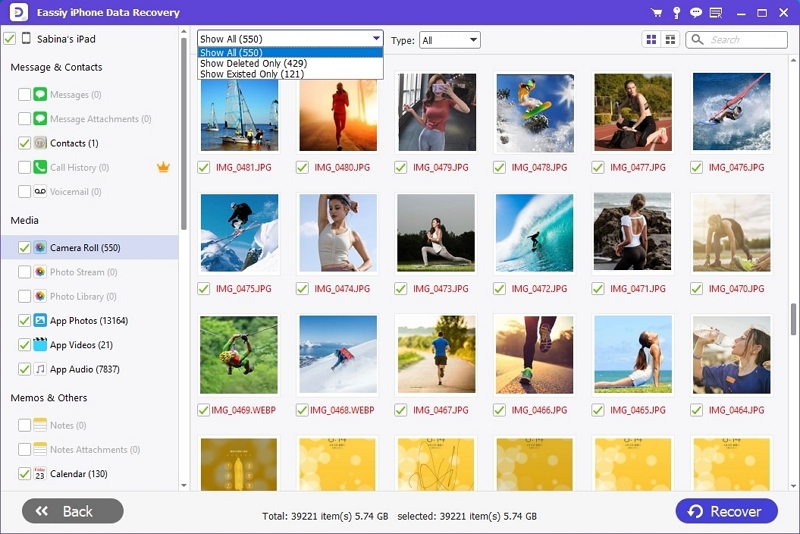
Success Rate:
- Without backup: 50–70%
- If previously saved to Camera Roll/backups: 80–95%
Inference:
Best all-around solution to recover deleted Snapchat Memories iPhone — especially when no backup exists.
Method 5: Recover from Recently Deleted Photos Folder on iPhone
If your Memories were exported to your Camera Roll, you might recover them directly.
Step 1: Open the Photos app on your iPhone.
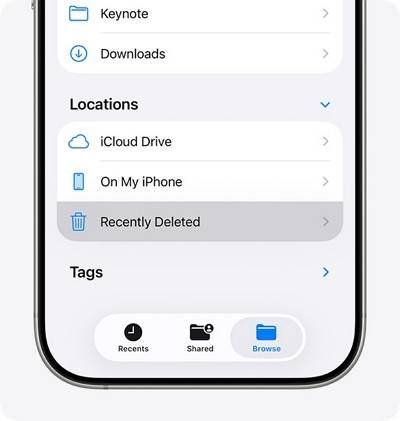
Step 2: Tap “Albums” and scroll down to the “Utilities” section.
Step 3: Tap Recently Deleted and browse the deleted photos and videos.
Step 4: Select the items you want to recover and tap “Recover.”
Success Rate:
- Deleted in last 30 days: 90–100%
- Never saved to Camera Roll: 0%
Inference:
Perfect for recently deleted, exported Snapchat Memories.
Bonus: Prevent Future Loss — Enable Smart Backup on Snapchat
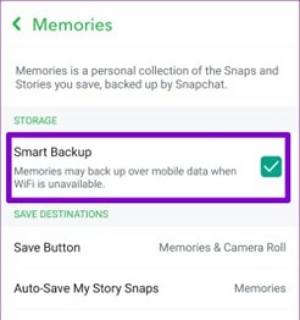
Here’s a bonus. You can enable Smart Backup on Snapchat to avoid losing Memories again.
Step 1: Open Snapchat → Tap your Profile icon.
Step 2: Go to Settings > Memories.
Step 3: Turn on Smart Backup.
Step 4: Under “Save Button,” select Memories & Camera Roll.
Success Rate:
- With Smart Backup: 95–100%
- With iCloud/Camera Roll sync: 100%
Inference:
Smart Backup is the easiest way to secure your Memories permanently.
Method Comparison Table
Recover Deleted Snapchat Memories iPhone Without Computer
If you don’t have a computer, don’t worry. You can still:
- Use My Data (official Snapchat method).
- Restore iCloud backup from your iPhone settings.
- Check the Recently Deleted folder in Photos.
These three methods let you recover deleted Snapchat Memories on iPhone without computer — though recovery rate is lower compared to desktop tools.
Frequently Asked Questions (2025)
Step 1: Open your File Manager app.
Step 2: Go to Internal Storage > Android > data > com.snapchat.android > cache.
Step 3: Look for folders with names like received_image_snaps or similar.
Step 4: Browse image or video files with .nomedia, .jpg, or .mp4 extensions.
Step 5: Rename .nomedia files to .jpg or .mp4 to preview them.
Step 6: Move recovered files to a visible folder such as DCIM or Downloads.
- The Memories were exported to Camera Roll or cloud storage before deletion.
- You use a third-party iPhone recovery tool like Eassiy to detect residual data.
- You requested your data via Snapchat My Data before the cache was cleared.
To avoid data loss, use Eassiy iPhone Data Recovery, which supports selective recovery without erasing existing files.
Conclusion
Losing your Snapchat Memories doesn’t mean they’re gone forever.
Whether you’re trying to recover deleted Snapchat Memories on iPhone without backup, through iCloud, or using a data recovery tool, one of the methods above will work for you.
For the highest success rate and safest process, Eassiy iPhone Data Recovery remains the top choice — it helps you recover deleted Snapchat Memories iPhone even when no backup or computer access exists.
Tip: Enable Smart Backup today to ensure your Snapchat Memories are never lost again.