



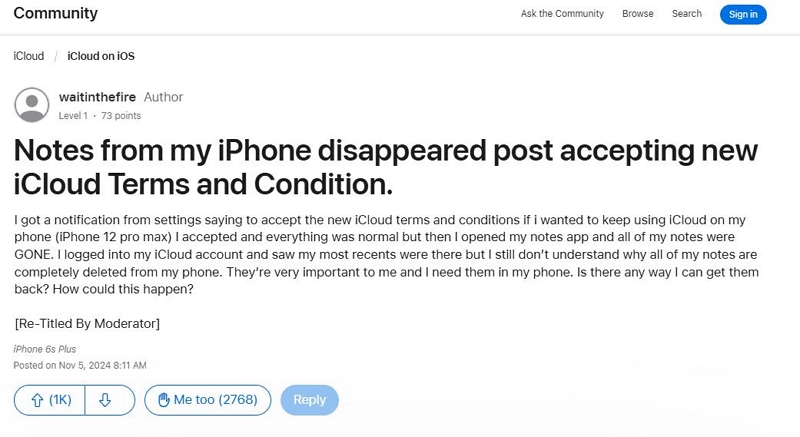
The Notes app on your iPhone is often where important ideas, passwords, or work details are stored. However, after unlocking your iPhone—such as removing a screen lock, Apple ID, or resetting the device—you may suddenly find that some or all of your Notes are missing.
If this happens, it’s normal to worry, especially when no iTunes or iCloud backup is available. Many users experience note loss after an unlock process due to account changes, sync issues, or data resets.
The good news is that deleted or missing Notes can often still be recovered. The methods discussed in this guide apply to all iPhone models, from iPhone 5 to iPhone 16, running iOS 10 through iOS 18.
Next, let’s walk through the most effective ways to recover your Notes after unlocking an iPhone.
Part 1. Why Notes Get Deleted or Disappear
There are several reasons why the Notes might disappear or get deleted. Here are some of the potential causes that users run into from time to time:
- An outdated Notes app or iOS could result in bugs that delete your old notes.
- Signing in to your iPhone with a different Apple ID could also hide your existing notes.
- Third-party syncing errors could come up if you have synced notes from another email account.
- Accidental deletion, and 30 days have passed since, taking the Notes out of the ‘recently deleted’ section.
- Having to perform a factory reset without backing up your device.
Identifying the exact cause can significantly improve the recovery success rate, as it allows you to take the correct steps to fix the specific issue.
Part 2. First Check: Hidden or Synced Notes (No Backup Needed)
The first step to recover your Notes is to check the hidden or synced notes on your iPhone. This process works even without an iCloud or iTunes backup, so you should perform them anyway.
2.1 Check “Recently Deleted” Folder
Thankfully, your iPhone doesn’t permanently remove your Notes after you’ve hit the delete button. It stores them in the ‘Recently Deleted’ for 30 days before automatically deleting them permanently.
Here are the steps you should follow to restore any Notes from the Recently Deleted folder:
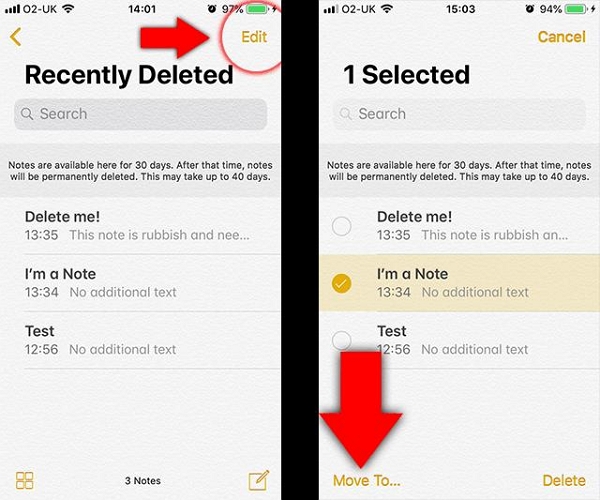
Step 1: Open the Notes app, and head to the ‘Recently Deleted’ folder.
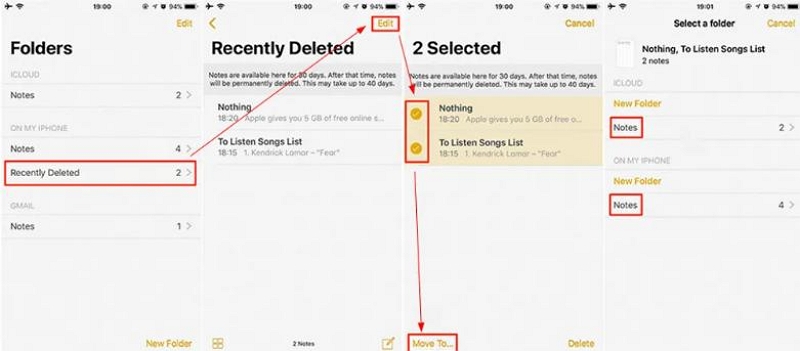
Step 2: Tap Edit in the top right corner, and choose the notes you want to restore. Then, tap Move To on the bottom left corner.
Step 3: Select Notes or a relevant folder to restore it.
Limit: The notes in your Recently Deleted folder are only available for 30 days.
Pro Tip: Use keyword search before recovery to confirm that you’re restoring the right note.
2.2 Check All Accounts Linked to Notes
You should also check whether you’re using the right account linked to the Notes you want to view. Otherwise, your Notes could be hidden since they don’t belong to the right account.
Here are the steps you should follow to ensure you can see the notes from another email account:
Step 1: Open your iPhone Settings, and then go to Mail > Accounts.
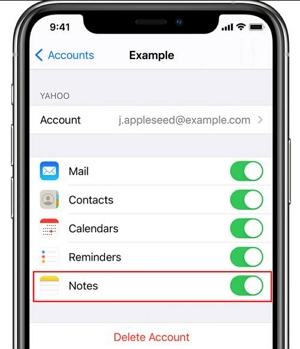
Step 2: Select the account you think your Notes could be synced to. Then, ensure that Notes is toggled on.
Check Gmail, Yahoo, Outlook, or Exchange folders to make Notes from all third-party accounts visible on your iPhone.
Why this works: Notes might be synced with external servers instead of iCloud. These steps allow you to see all the Notes synced to different accounts on your iPhone.
2.3 Sign In with Correct Apple ID
Another issue that might be hiding your Notes is if you’ve signed in using a different Apple ID.
Here are the steps you should follow to sign in using the correct Apple ID for your Notes:
Step 1: Open Settings on your iPhone and go to Apple Account at the bottom of the screen.
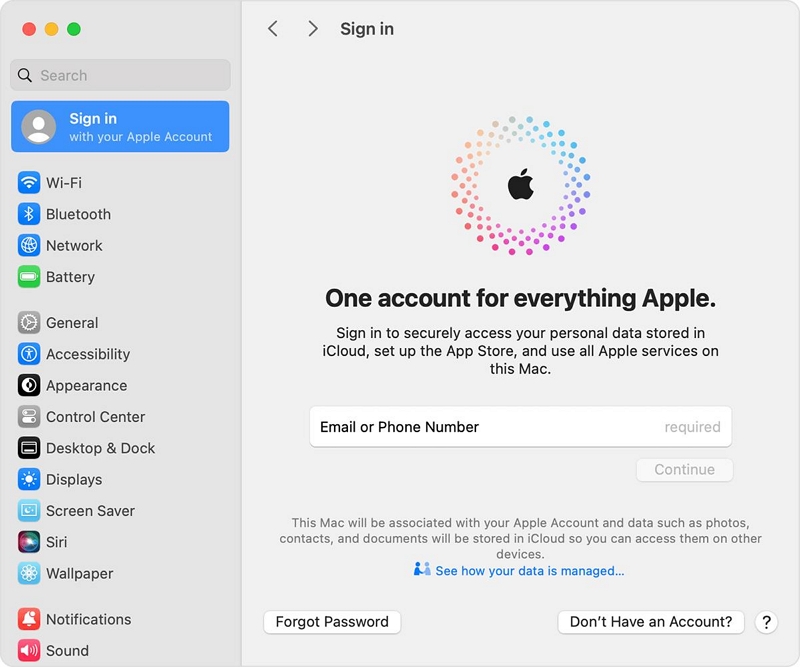
Step 2: Select ‘Sign in Manually’ and then enter your credentials.
If you’re using multiple Apple IDs (work or personal), sign in to each account and check whether your Notes have been synced there.
Part 3. iPhone 5 Special Section: How to Recover Deleted Notes Without Backup (Legacy iOS)
This section will specifically discuss how to recover deleted notes on iPhone 5 without backup. These steps are also applicable to other older iPhones running iOS 10-12, which lack newer sync features.
Here are the steps for how to recover deleted notes on iPhone 5/6 without backup:
Step 1: First, ensure Notes is enabled in iCloud settings from the iPhone’s Settings app.
Step 2: Connect your phone to Wi-Fi and then check iCloud.com/Notes for any already synced items. If iCloud is unavailable, use iTunes to browse local file data manually. Then, select and restore the Notes you require.
If the steps above don’t help you, consider trying a third-party iOS recovery software compatible with iOS 10–12. Perhaps the best tool supporting old iOS versions is Eassiy iPhone Data Recovery.
Warning: Avoid connecting to iTunes before recovery— a new sync may overwrite your previous data, preventing you from restoring deleted notes.
Part 4. Recover Deleted Notes Without Backup (Advanced Solutions)
Now, let’s take a look at some advanced solutions to recover deleted Notes without backup.
4.1 Use iOS System Repair / Data Extraction Tools
If you can’t find your recently deleted notes on iCloud since it has been over 30 days, or you never created a backup in the first place, data extraction tools might be your only shot.
If you’re confused about which tool prioritizes safety, reliability, and accuracy, you should try Eassiy iPhone Data Recovery. It requires minimal technical expertise and safely extracts deleted data from your iPhone with accuracy.
Now, you might be wondering how a data extraction tool is different from a backup service like iCloud. Here’s what they do: Instead of relying on a past backup that could be stored online, data extraction tools scan the root of internal storage on your iPhone itself. This allows it to access data that hasn’t been overwritten just yet.
Here are the steps you should follow to recover your data using a reliable data extraction service like Eassiy iPhone Data Recovery:
Step 1: First, download and install Eassiy iPhone Data Recovery on your computer through the official website. Then, connect your phone to your computer using a USB cable.
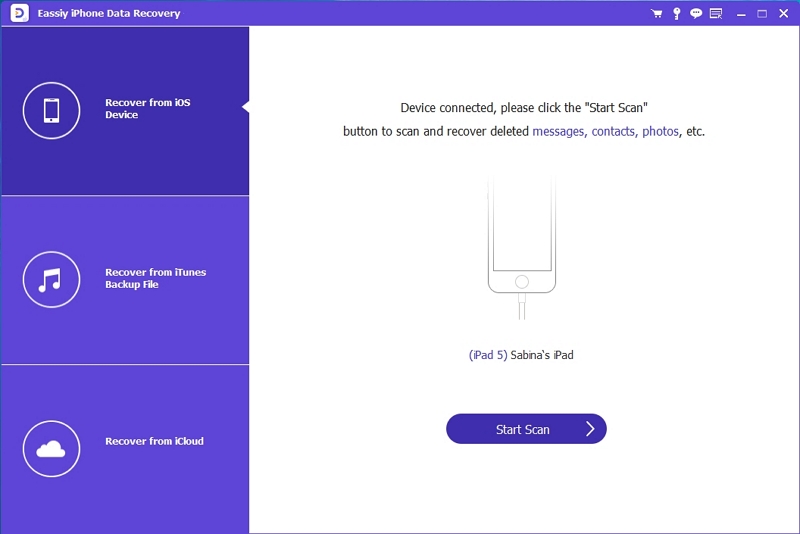
Step 2: On your computer, choose ‘recover from iOS device’ to scan the root of your iPhone’s storage. You can also choose ‘Notes’ and ‘Notes Attachments’ for convenient browsing.
Step 3: Tap ‘Start Scan’ and wait as the software returns the results of Notes that might have been deleted.
Step 4: The panel on the left-hand side will show the notes that the software found. Click on ‘Notes’ and then select the ones you want to restore. Click on ‘Recovery’ to complete the process.
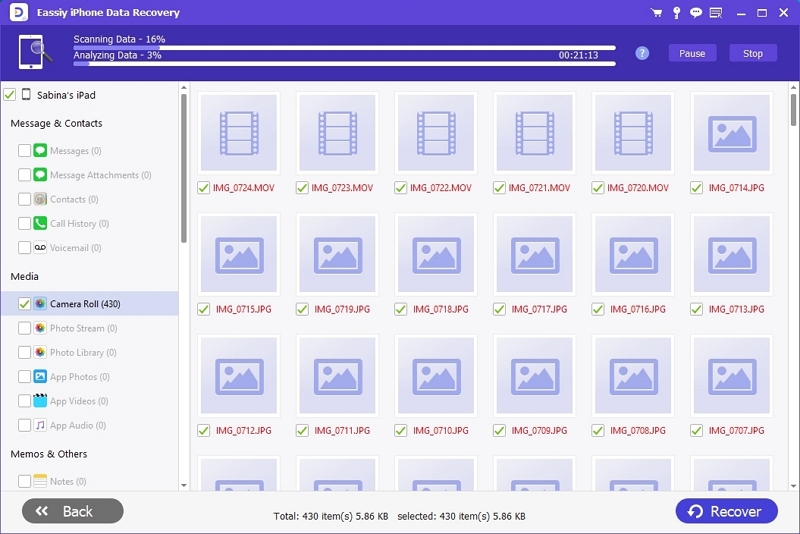
Here are the advantages of using a trusted third-party data extraction tool like Eassiy iPhone Data Recovery:
- No data overwrite.
- Works even after a reset or update to your iPhone.
- Supports selective recovery, which means you don’t need to perform a full restore to regain access to your Notes.
Ideal for: Those with no iCloud backup, permanently deleted Notes, or iPhone 5 users.
4.2 Recover via Email / App Sync History
Yet another method you could try out is if you used Notes with Gmail or another mail provider. This could cause your Notes app to go out of sync.
Here are the steps you should follow to re-sync your Notes:
Step 1: Log in to Gmail and go to Labels, and then Notes (on the web version).
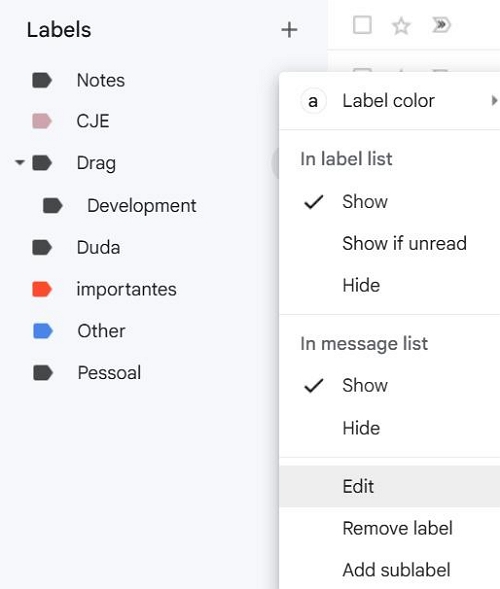
Step 2: Check Trash/All Mail folders for your old Notes.
You can re-enable sync afterward to bring them back to your iPhone.
4.3 Recover Deleted Notes via iCloud.com (If Synced Previously)
Even if you haven’t performed a full backup of your iPhone on iCloud, synced Notes may remain there for up to 30 days. To access them, follow the steps mentioned below:
Step 1: Go to iCloud.com/Notes and sign in to your account.
Step 2: Go to Recently Deleted and select the Notes you want to recover. Once you’re done, click Restore.
Limitation: A major limitation to this step is that it works only if Notes were synced before deletion. So, you need to act fast once you realize that you’re missing an important Note.
Part 5. Prevent Future Note Loss
Being careful about your Notes can save you a lot of trouble. Here are some steps that you should take to protect your notes in the future:
- Enable “Notes” in iCloud and third-party accounts so that you can view all the Notes associated with each email account in one place.
- Turn on iCloud Backup automatically (Settings > iCloud > iCloud Backup) so that you can restore notes if deleted accidentally.
- Regularly export important notes (PDF or text) as a second backup.
- Keep iOS updated and avoid jailbreaking to avoid any glitches associated with the OS.
- Use a recovery tool to make local encrypted backups regularly. This way, you have a second layer of protection with another backup.
Comparison Table: Recovery Options Without Backup
Conclusion
Now you have a clear idea of how to recover deleted notes on iPhone, based on whether or not you have a backup. If you don’t, you should try out a data extraction tool such as Eassiy iPhone Data Recovery. It is extremely safe, convenient and easy to use and allows for partial recovery as well.