


Have you ever opened your iPhone to look for an old iMessage, only to discover it’s gone—deleted accidentally or lost during cleanup?
Your first reaction might be panic. But the good news is: deleted iMessages are often recoverable, with or without a backup.
Whether you’re using iOS 16, iOS 17, or planning to restore iMessages selectively without resetting your device, this ultimate guide will walk you through every possible way to get your messages back.
Quick Answer: How to Recover Deleted iMessages on iPhone
- Deleted within 30 days (iOS 16/17): Go to Messages → Edit → Show Recently Deleted → Recover.
- If you have an iCloud backup: Erase iPhone → Restore from iCloud Backup.
- If you have a Finder/iTunes backup: Restore from Backup on your computer.
No backup available:
Use a professional tool like Eassiy iPhone Data Recovery to scan internal storage and retrieve deleted iMessages without erasing data.
Check other devices:
Your Mac/iPad may still have the messages if not synced.
Comparison: Best Ways to Recover Deleted iMessages (2025)
Part 1. How iMessage Deletion Works on iPhone (Before You Start)
When you delete an iMessage, it is not erased permanently.
iOS simply marks the storage space as “available for overwrite.” This means:
- Deleted iMessages remain recoverable until new data overwrites them
- iOS keeps deleted messages in a Recently Deleted folder for 30 days (iOS 16+)
- Restoring an entire conversation is harder than restoring a single message
Important Pre-Recovery Tips
- Stop using your iPhone immediately after deletion
- Avoid installing apps, updating iOS, or downloading large files
- Turn on Airplane Mode to minimize data being overwritten
Part 2. Recover Deleted iMessages on iOS 16/17 (Recently Deleted Folder)
This is the fastest and safest recovery option—but only works if:
- You’re using iOS 16 or later
- The message was deleted within the last 30–40 days
Steps
Step 1: Open the Messages app and tap Edit. Then, click on Show Recently Deleted.
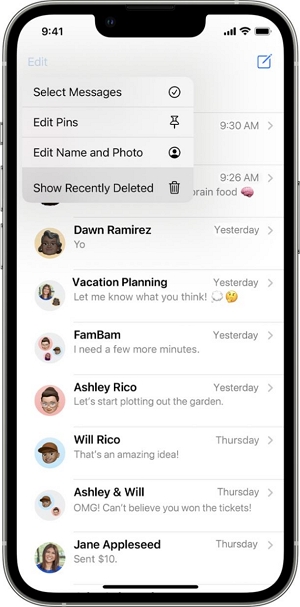
Step 2: Choose the messages or conversations you want to restore and tap Recover.
Step 3: Confirm your selection to restore them to your Messages list.
Limitations & Notes:
- Not available on iOS 15 or earlier
- Cannot recover unsent (retracted) messages
- Audio messages expiring after 2 minutes cannot be restored
Part 3. Restore Deleted iMessages from iCloud Backup
If you enabled iCloud Backup, you can restore deleted iMessages—but your whole device will reset.
Here is what you should do:
Step 1: On your iPhone, go to Settings → General → Transfer or Reset iPhone → Erase All Content and Settings.
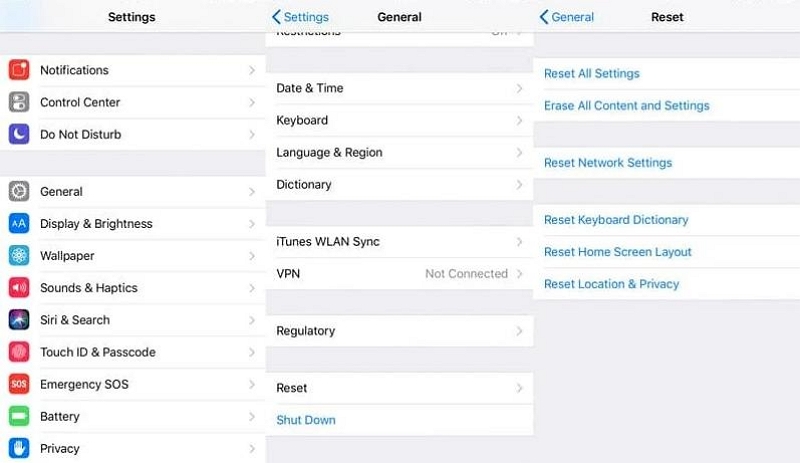
Step 2: Follow the setup prompts until the Apps & Data screen. Once you’re there, choose Restore from iCloud Backup as your method.
Step 3: Log in again with your Apple ID and pick a backup from before the date and time the messages were deleted.
Use Eassiy iPhone Data Recovery to preview iCloud backup content and extract only iMessages without wiping your device.
Part 4. Recover Deleted iMessages via Finder or iTunes Backup
If you back up your iPhone to a Mac or PC, this method can restore deleted iMessages.
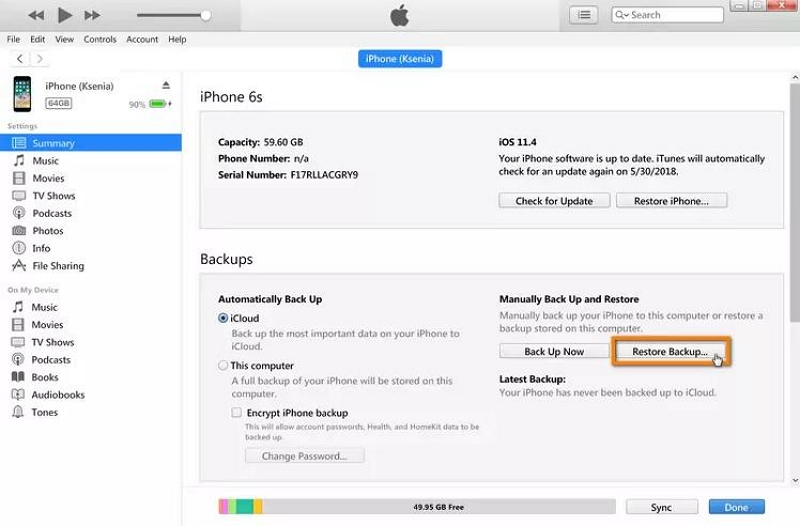
Step 1: Connect your iPhone to your Mac (Finder) or PC (iTunes) with a lightning or USB cable.
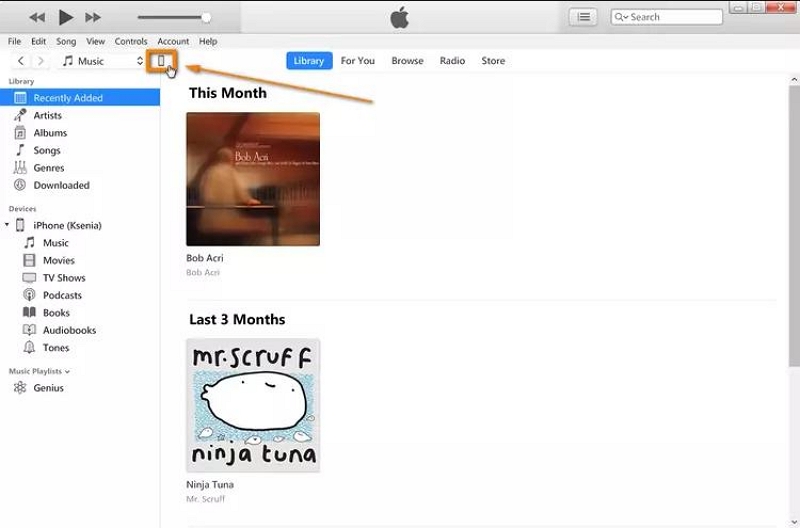
Step 2: Select your device (your iPhone, in this case) and then click on Restore Backup.
Step 3: Choose a backup made before deletion and click ‘Restore.’
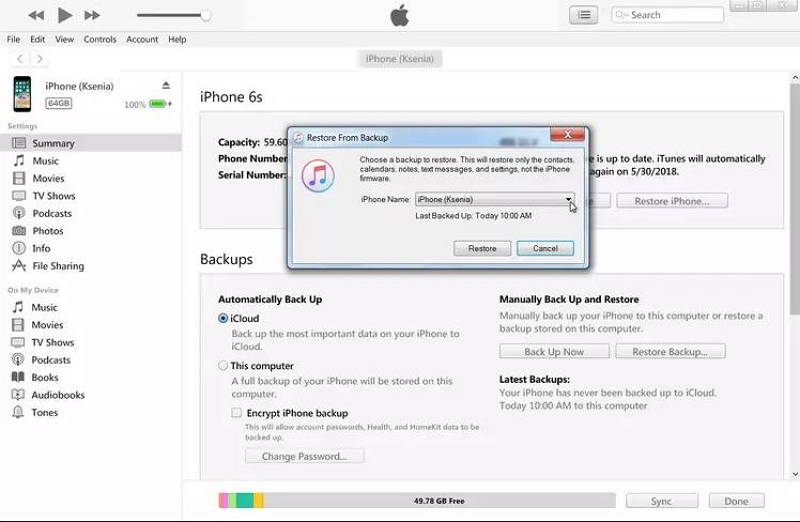
Like iCloud restore, this method erases all current data on your iPhone.
Better alternative: Eassiy allows scanning your iTunes backups and extracting only iMessages—no full reset needed.
Part 5. Retrieve Deleted iMessages Without Any Backup
Many users believe recovering deleted iMessages without backup is impossible.
Just take a look at some common forum myths sourced by users on Reddit:
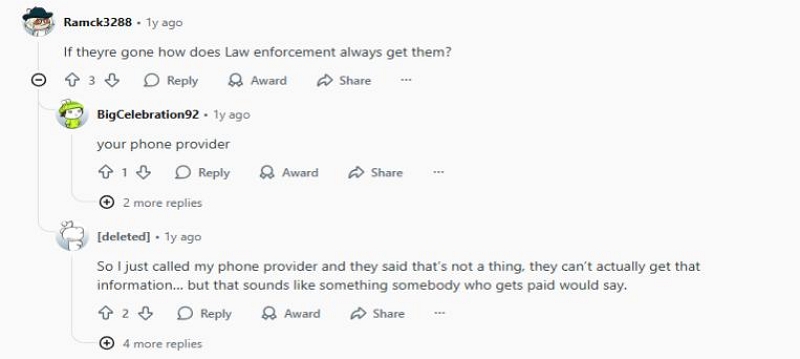
❌ “Apple keeps a secret message history.” → False.
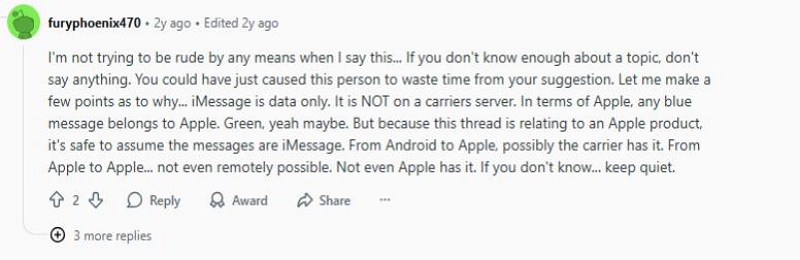
❌ “Carriers can give you your iMessages.” → False. Carriers may keep SMS logs, but iMessages are operated by Apple and not your carrier.
Users on Reddit have discussed that “carriers can’t get iMessages”, such as BigCelebration92. And that is true.
✅ “Deleted data may still exist in device storage until overwritten.” → True, and that’s where recovery software helps.
Best Solution: Eassiy iPhone Data Recovery
While deleted data does exist in your device storage till it is overwritten, it is critical to use the right tools to extract it. So, rely on professional iPhone data recovery tools, the best of which is Eassiy iPhone Data Recovery.
To illustrate how convenient it is to use Eassiy iPhone Data Recovery, here are its key features:
Now, take a look at the steps you would have to take to restore iMessages using Eassiy iPhone Data Recovery:
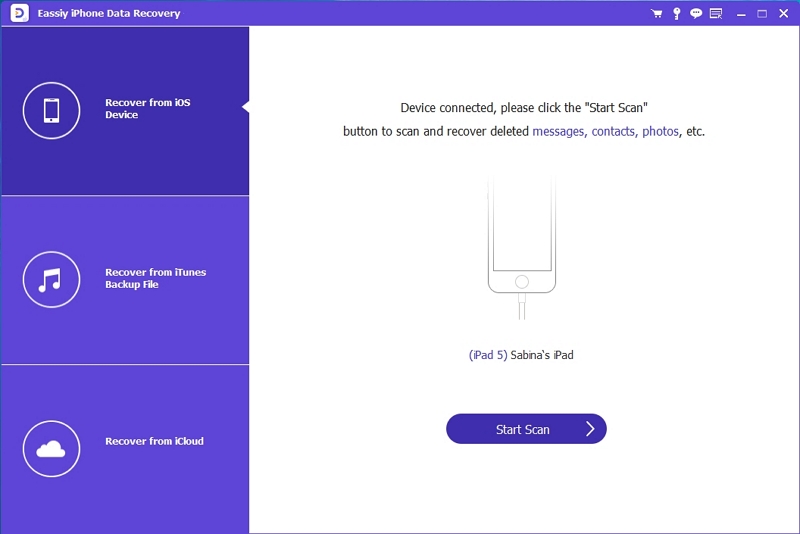
Step 1: Install Eassiy iPhone Data Recovery on Mac/PC.Connect your iPhone → click Start Scan.
Step 2: Select Messages from the sidebar. Choose deleted messages you want to restore
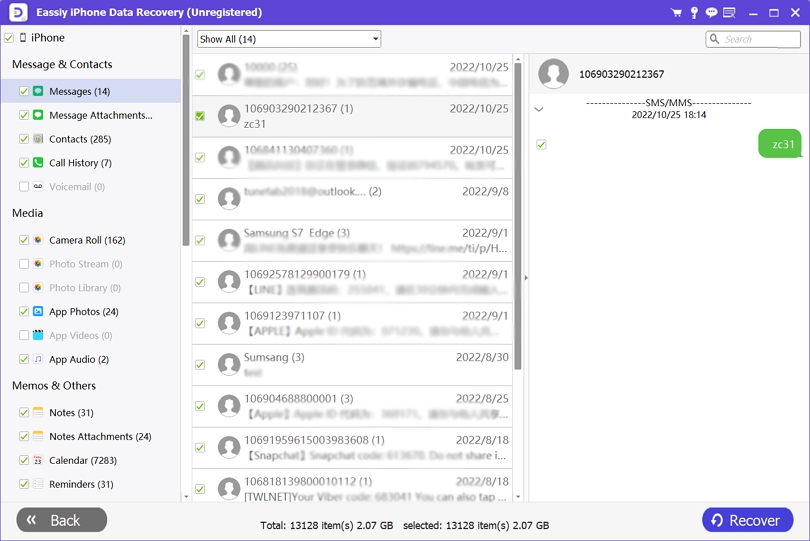
Step 3: Click Recover → save them to computer
Step 4: Choose the location where the backup will be exported by Eassiy. Then, Eassiy will export the messages to your PC’s local drive.
Stop using the iPhone immediately after deletion to prevent data from being overwritten.
Part 6. Check Other Devices or Accounts
Before doing any resets or scans, check:
- Mac
- iPad
- Apple Watch
Mac Users: Recover via Time Machine
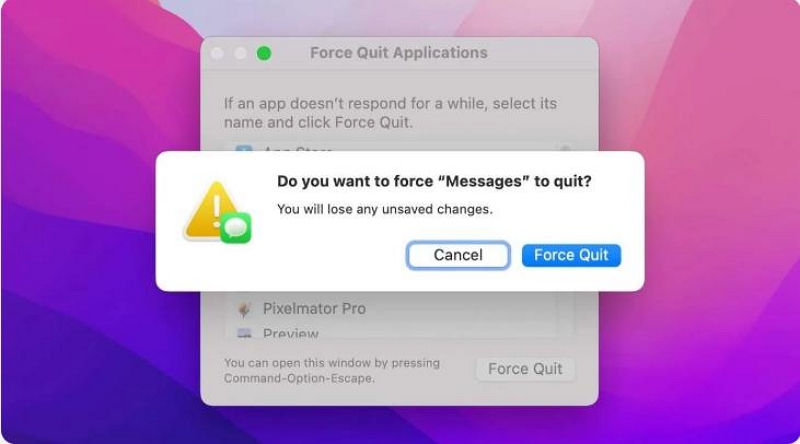
Step 1: Sign out of all your accounts in the iMessages app and then quit the app.
Step 2: On your Mac, hold down the Option key. While holding it down, head to the top menu in the Finder and select “Go>Library.”
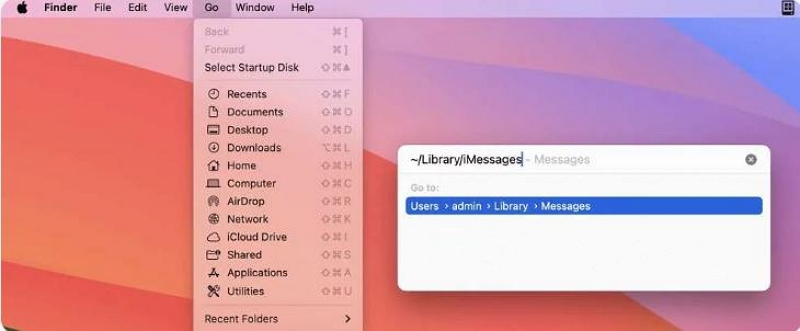
Step 3: Once you’re in the Library, look for a folder labelled ‘Messages.’ Open the folder and find a file with the title ‘chat.db’ from before when the message you want was deleted.
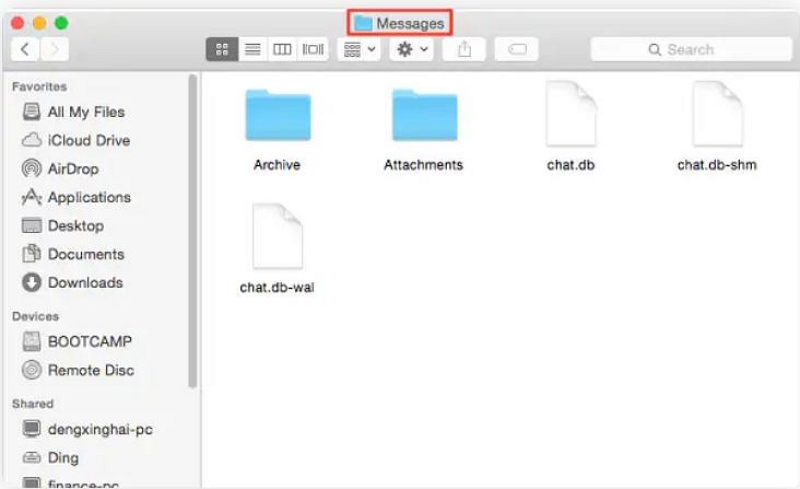
Step 4: Click on the correct chat.db file and then click Restore to view the texts on your Mac.
Part 7. Contacting Your Carrier (For SMS, Not iMessages)
Carriers cannot retrieve iMessages because Apple encrypts and handles them.
But for SMS/MMS, some carriers may provide message logs upon request.
Part 8. Expert Tips to Increase Recovery Success
Here are some tips that could help if you’ve recently realised you’ve accidentally deleted some important messages:
- Turn on Airplane Mode right after you’ve deleted the texts.
- Avoid installing new apps or downloading large apps to prevent your phone from overwriting the vacated space.
- Regularly back up to both iCloud and Finder/iTunes to have a means to restore important texts.
- Use “Messages in iCloud” carefully — syncing means deletion syncs too.
- Always preview backups before restoring by double-checking the date of deletion and the date and time on the backup file you’re restoring.
Part 9. FAQs
Conclusion
Now you have a thorough idea of the steps you should take to restore your iMessages based on your situation. If it hasn’t been as long and you have a backup, it might be a good idea to perform an iCloud or iTunes restore. However, if you don’t, try a data recovery tool like Eassiy iPhone Data Recovery that scans your local storage and allows partial restoration with previews.