


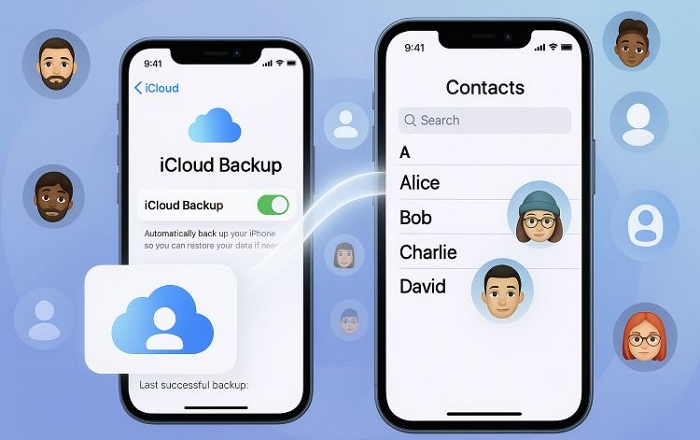
iCloud keeps a copy of your iPhone contact list if you have enabled iCloud Contacts. It allows you to quickly restore the contact if you accidentally deleted them on your iPhone. In fact, it’s simple to recover contacts from iCloud and you can do this in several ways, such as syncing your contacts from iCloud, restoring an earlier copy or downloading them as vCards. Here, we’ll go through each method step by step. If you don’t have an iCloud backup, don’t worry. We’ll also show other ways to recover lost contacts to iPhone.
How to Restore Contacts from iCloud to iPhone
You’ve got a few simple ways to bring the iCloud contacts back.
- Re-sync from Settings.
- Use iCloud.com.
- Restore from iCloud backup.
How Long Does It Take to Restore Contacts from iCloud?
It depends on the method you choose:
- Refreshing the contact list via Settings will take a few seconds.
- Getting an archive list from iCloud takes longer, from a few hours to a full day, depending on Apple’s server load and number of your contacts.
Restoring via iCloud backup requires you to erase the iPhone completely. So, if you want to avoid that, you can use Eassiy iPhone Data Recovery. It can scan iCloud backup and restore the contact you need directly
Way 1. Restore iCloud Contacts in Settings
The Settings menu is ideal if your iPhone is already signed in with the iCloud account holding your contacts.
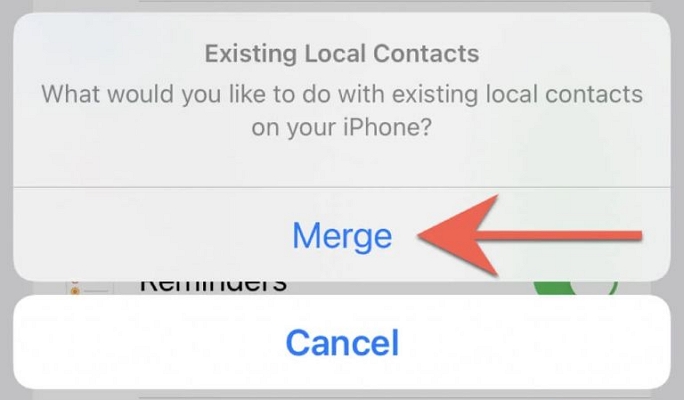
You should also know that this way will merge your local contacts with your iCloud contacts. Any duplicates can be managed during the merge itself.
Also, every Apple device logged in with the same ID will also share the updated contact list automatically.
Here’s how to do it step by step:
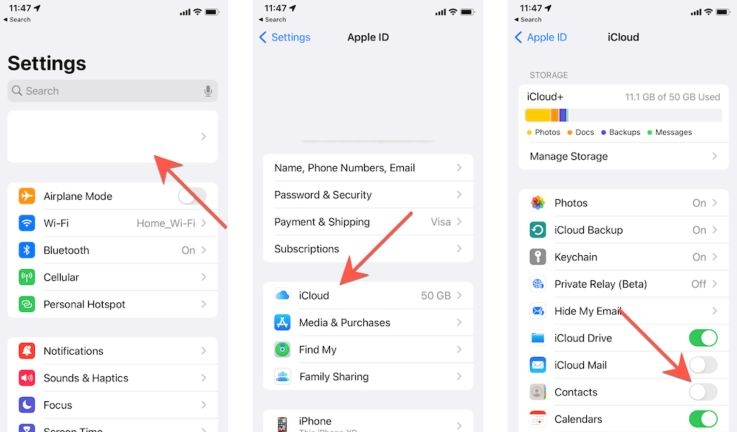
Step 1. Open the Settings app. Then, tap the Apple ID banner right at the top.
Step 2. Select iCloud on the next page.
Step 3. Scroll down until you reach Contacts. Look at the toggle: grey means off, green means on.
If it’s green, flick it off once.
Step 4. Tap Merge when the pop-up appears.
That’s it! Your iCloud contacts will be recovered onto the iPhone.
Way 2. Extract iCloud Contacts via iCloud Site
This method is ideal to bring back the contacts in different scenarios:
- When you want to recover deleted contacts on the iPhone.
- The iPhone and the iCloud account holding the contacts don’t have the same Apple ID.
- Export the contacts as a vCard. So, you can move them to another Android device or send them to others.
Here’s how it works:
Step 1. Sign in at iCloud.com. Make sure you’re on a computer or tablet, because mobile browsers don’t show this option.
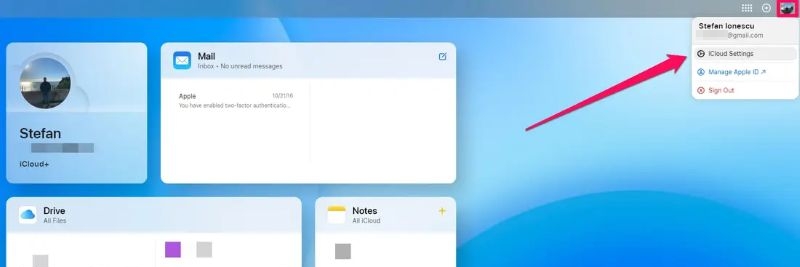
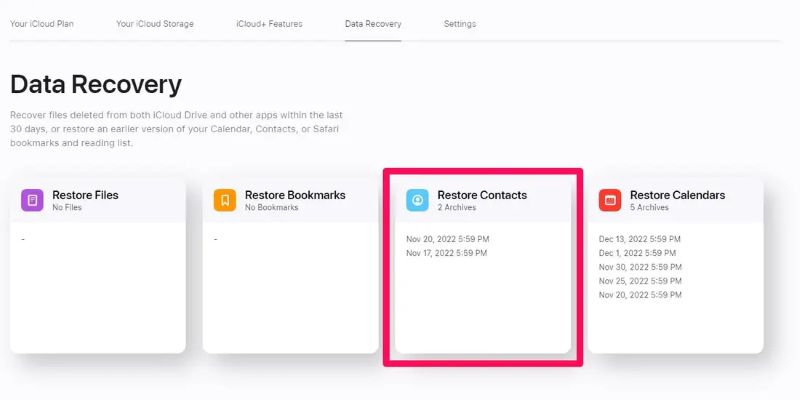
Step 2. Go to Account Settings. Under the Data Recovery section, select Restore Contacts.
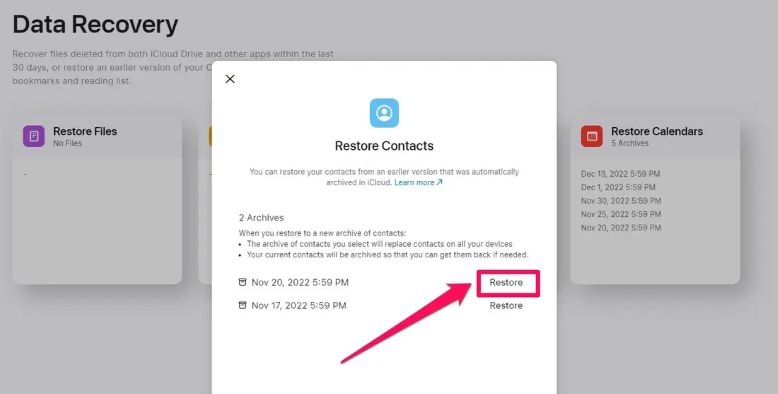
Step 3. Choose a date from the list of archived versions and tap Restore. The contacts from that version will return to the Apple account. Ensure your iPhone is signed with the same Apple ID. Then, you will find the recovery contacts.
Way 3. Get iCloud Contacts During Set up
This method is not the first choice, but it exists for a reason:
- It usually comes into play when setting up a new iPhone. In that case, you can bring back contacts from a full iCloud backup saved on another Apple device.
- It also helps if live iCloud sync wasn’t turned on. So, there is no live iCloud contacts list available. The only copy you have sits inside that manually created iCloud backup.
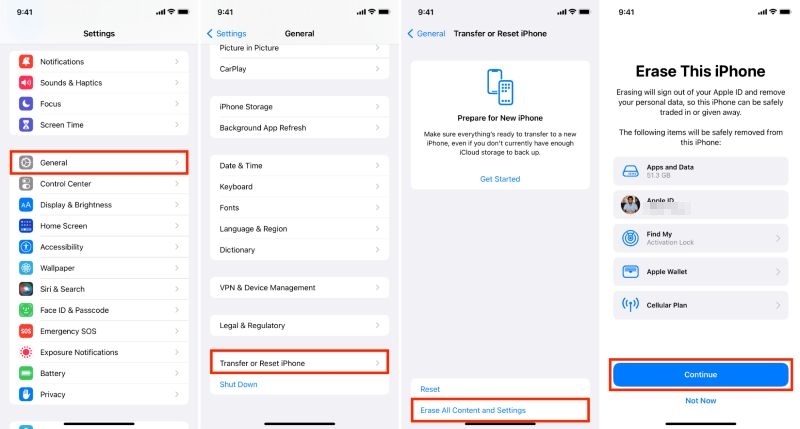
When you use this method, remember that all data on the iPhone will be erased first. Meanwhile, the iPhone will then restore to the exact date that iCloud backup was created—recovering contacts and every other piece of data saved at that time.
Here’s how to do it:
Step 1. Erase the iPhone via the Settings menu.
Step 2. Turn on the iPhone. Complete the initial setup. After reaching the Apps & Data screen, choose Restore from iCloud Backup.
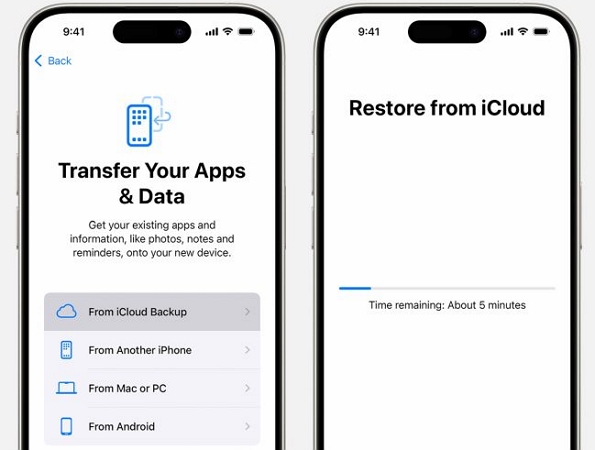
Step 3. Sign in with the Apple ID. Then, pick the backup you want to use.
The iPhone will restore the contacts from that iCloud backup, along with other saved data.
Which One Is Better for You?
Now that you’ve seen the methods, you could still wonder which one fits best. So, here’s a quick table. It sets all three ways side by side with their pros, cons, time taken, and the essentials you’ll need, making the choice simple and fast.
Work instantly if Apple ID is the same Need live iCloud sync May cause duplicates 1–2 minutes iPhone already signed in with iCloud
Require browser access A few minutes to 24 hours Web browser and Apple ID login
Work even without iCloud sync Erase all data first
Restore entire backup, not just contacts
You will lose the contacts not included in the iCloud backup 30 minutes to 1 hour (depend on backup size and network speed) iCloud backup, screen passcode and Apple ID credentials
How Do I Get My Contacts Back on My iPhone Without iCloud
Here are three methods that allow you to recover your contacts even when you don’t have an iCloud backup. Each fits a different kind of need.
Way 1. Restore Deleted Contacts to iPhone with a Professional Tool
When there’s no backup and your contacts are lost.
Eassiy iPhone Data Recovery is designed to scan the iPhone’s internal storage and find all the data that still exists there, included the deleted ones. When you delete something on an iPhone, it doesn’t instantly vanish. Instead, it just hides from your view. The files still sit in the phone’s storage until it is replaced by new files. So, Eassiy scans all storage sections, including those hidden from sight, and allows you to recover the deleted contacts with a high success rate.
Whether it’s one contact or a hundred, Eassiy just requires you to act quickly. Until the data is overwritten, it can easily retrieve the deleted contacts from the iPhone’s storage.
Steps to Use Eassiy iPhone Data Recovery for Contact Recovery
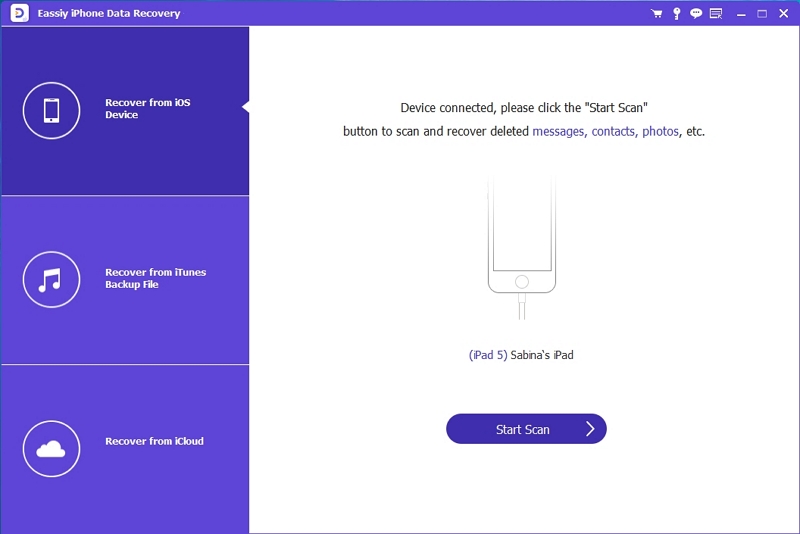
Launch Eassiy on your computer. Plug your iPhone in with a cable. Instantly, the connected device will show up on the software screen.
From the main panel, pick Recover from iOS Device. Hit Start Scan to begin searching the phone’s storage.
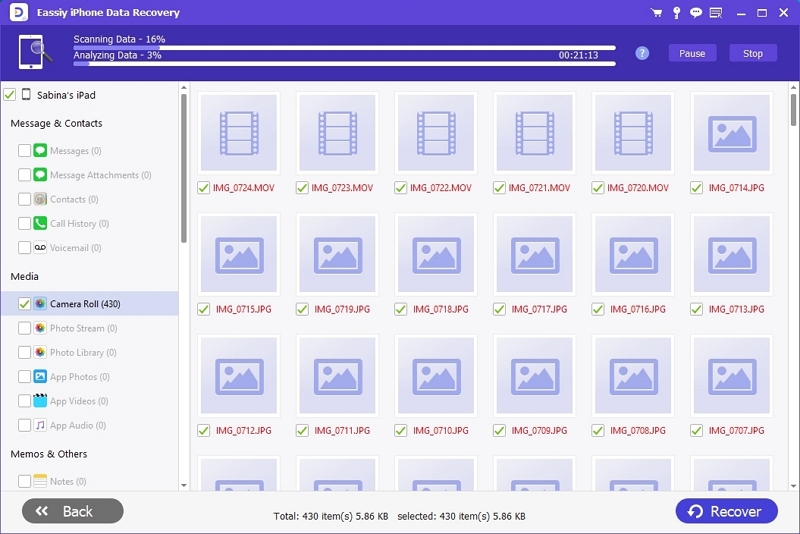
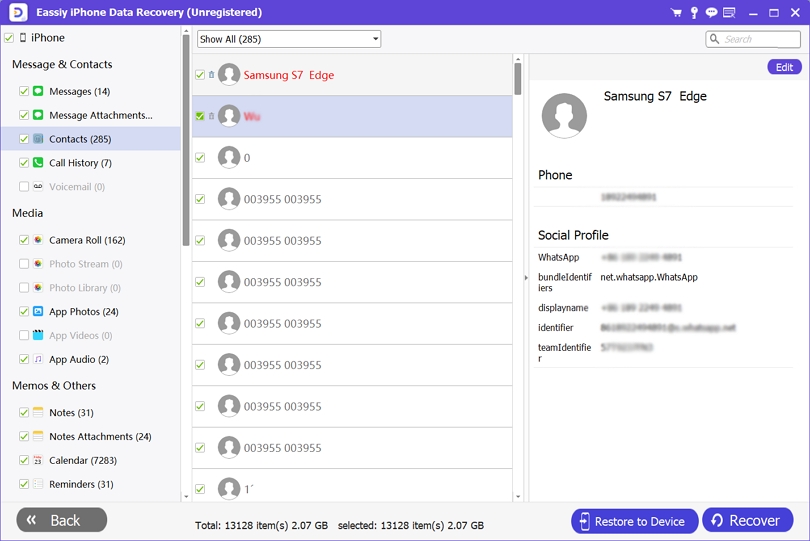
On the sidebar, tap Contacts. You’ll see a mix of current and erased numbers laid out clearly.
Tick the names you’re after. Choose Restore to Device to bring them back to your iPhone directly or use the Recover button to export them onto your computer.
Way 2. Restore Contacts on iPhone from Google
When your iPhone was earlier linked with Google (Gmail), your contacts may still live quietly on Google’s servers.
Like iCloud, Gmail Contacts works as a live mirror: remove a name on your iPhone and the change will reflect instantly on Google’s side. Yet, Google keeps a safe net—deleted contacts stay in the Bin for up to 30 days.
Additionally, this method helps when the iPhone was wiped clean or replaced, but was previously signed in with a Gmail account. So, turning sync back on can pull those names again from Google’s servers to your iPhone.
Depending on what you need, whether to re-sync or recover deleted ones, the steps will differ. Let’s walk through both.
To Re-Sync Contacts from Google
Step 1. Head into Settings, scroll till you spot Contacts, and open it. Step 2. Tap Accounts > Add Account. Then, pick Google from the list.
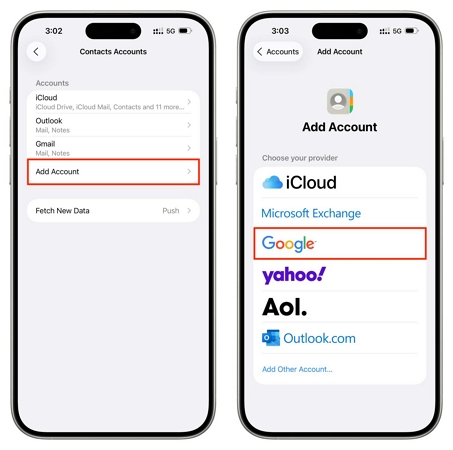
Step 2. Enter your Gmail credentials and tap Continue. The phone will link the account in seconds. When you’re shown the toggles for Mail, Contacts, Calendars, and Notes, switch Contacts on and hit Save in the top corner.
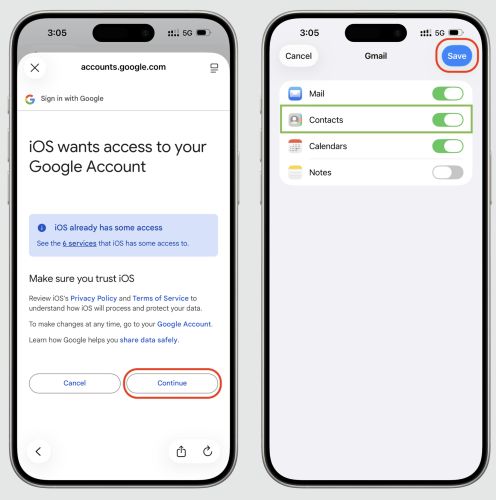
Step 3. If a small pop-up asks what to do with the contacts already on the iPhone, choose Merge.
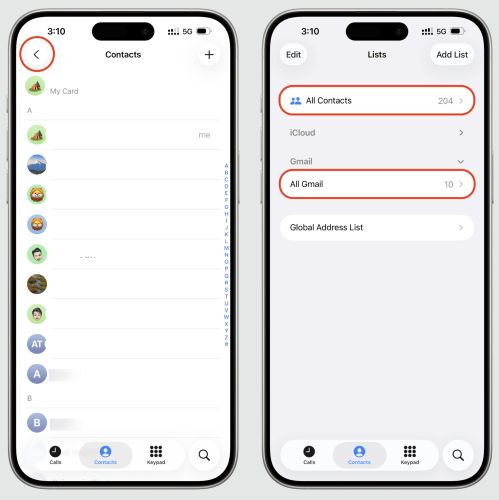
Step 4. Now, open the Contacts app. From the top-left, check Lists and make sure your Gmail list is turned on. Wait a few moments. Contacts will be synced back straight from Google’s servers.
To Recover Deleted Contacts from Google
If you’ve deleted contacts from Google Contacts, you will have to look inside Google’s Bin directly:
Step 1. Open a browser like Safari and Chrome and visit contacts.google.com.
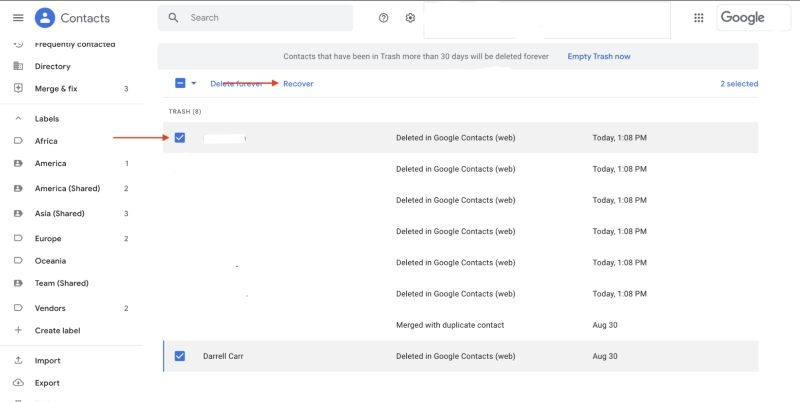
Step 2. Sign in with the same Gmail account once linked to your iPhone. On the left panel, scroll till you see Trash.
You’ll find every deleted name stacked neatly with the time they vanished.
Step 3. Tick the ones you want back and tap Recover. They will return to your main iPhone’s contact list.
Way 3. Retrieve iPhone Contacts via iTunes/Finder
When you’ve a local computer backup of your iPhone, such as the ones made with iTunes or Finder. Also, you don’t mind erasing the device and rolling it back to an earlier date of the backup.
iTunes or Finder backup captures a full image of your iPhone, including apps, settings, messages, and contacts, etc. So, restoring that iTunes/Finder backup will bring all those contacts that once existed on it.
Pro Tip: To restore only contacts from the iTunes backup, you can use Eassiy iPhone Data Recovery. It can scan your iTunes/Finder backup directly and lets you exactly what you need. So, you can avoid overwriting your phone’s current data.
Otherwise, to restore an iTunes or Finder backup, follow these steps:
Step 1. Connect the iPhone to your Mac or Windows computer using a cable.
Step 2. Open Finder or iTunes.
Step 3. In iTunes or Finder, select your iPhone (via Summary or General.)
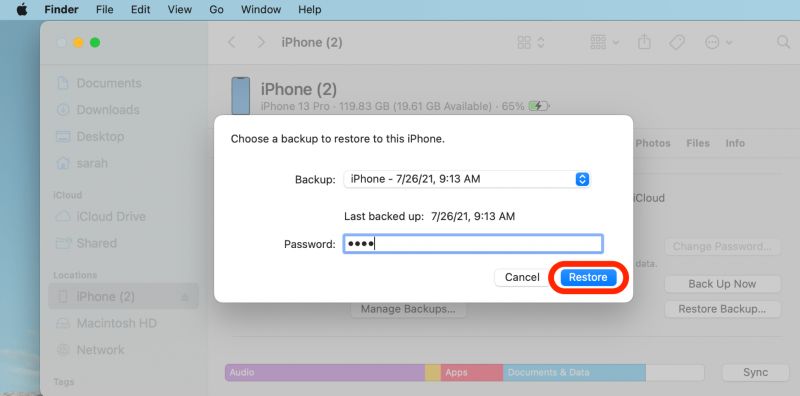
Step 4. Choose Restore Backup…. Pick the backup by its date—the one that contains your contacts.
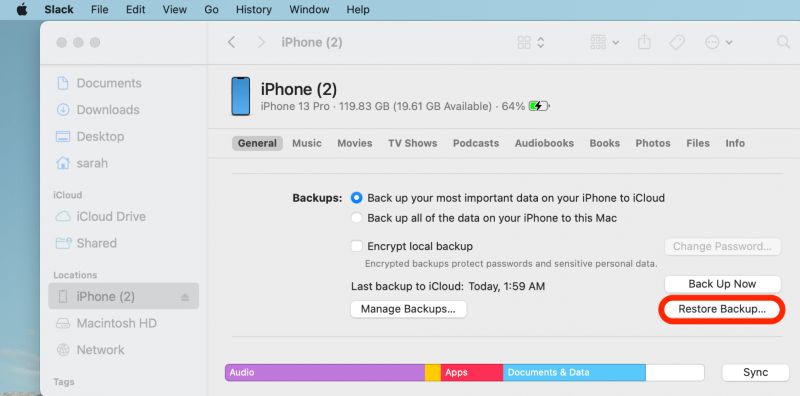
Step 5. Click Restore. Enter the password if the backup is encrypted.
Your iPhone will load everything from that backup, including the contacts list.
FAQs
Here are the most common questions about iCloud contact recovery and what to do in each case.
It can happen for three reasons:
A server or system-side problem.
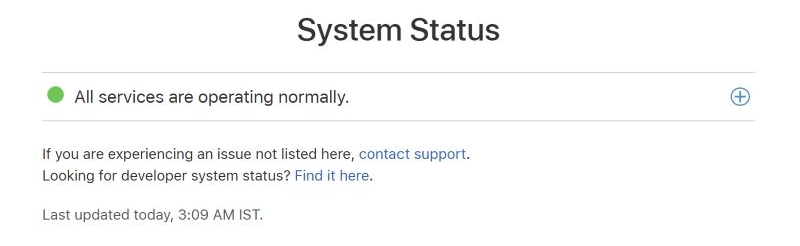
First: check Apple’s System Status page. This will ensure iCloud Contacts is not facing an outage.
A local or account-level change on your device.
If it’s not a server issue, check your iPhone:
- Avoid Low Power Mode.
- Toggle iCloud Contacts off and on again.
- Occasional iOS glitches can delay contact sync: you can restart the iPhone or re-link iCloud to fix it.
You deleted them by mistake.
- Go to the iCloud site and select the Recover button, as explained earlier.
If they are stored in iCloud or Google Contacts, sign in with that account on your new device. Your contact list will sync automatically.
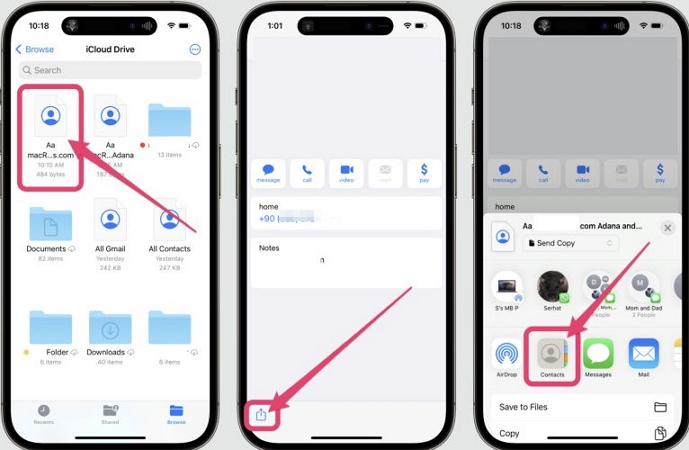
If you prefer not to sign in with the same account, you can export the contact list as a VCF file from iCloud. Then, email the file to yourself:
- Open that email on the new iPhone.
- Tap the attached file.
The new iPhone will import all contacts automatically.
Final Words
That wraps up everything about recovering contacts from iCloud to your iPhone. So, you can choose what fits your situation best and get your numbers back on the iPhone.
Eassiy iPhone Data Recovery is helpful in both cases:
- When you have an iCloud backup: it can pull contacts directly from your iCloud backup without forcing a full restore.
- When you don’t have an iCloud backup: it digs into your iPhone’s own storage sectors and lets you recover the deleted contacts before they’re gone for good.