


If you’re locked out by Samsung FRP (Factory Reset Protection), you’re not alone. FRP is designed to protect your device from unauthorized access—but once you forget the Google account password, you may find yourself stuck on the verification screen.
This 2025 guide explains everything about Samsung FRP bypass tools, including how they work, which tools are reliable, download options (PC, Mac), and model-specific unlock methods for devices like Samsung A14, A15, A21s, A53, A54, and more.
Samsung devices can’t bypass FRP natively—you need a professional tool. Free PC tools exist but are unreliable and sometimes unsafe. Most working solutions require USB + PC software using ADB or Download mode. Model-specific FRP tools use the same process. Avoid cracked tools—they’re risky and ineffective.
Part 1: What is Samsung FRP? Why Google Verification Appears After Reset
Samsung FRP activates automatically when:
- You reset the phone without removing Google account
- You forget your Google password
- You buy a second-hand device with the previous account still attached
Once triggered, the phone asks for:
- Google account email
- Previous owner’s password
- Network verification
- The only way forward is:
- Enter the correct Google credentials, or
- Use a Samsung FRP bypass tool.
Part 2. Are Free Samsung FRP Bypass Tools Safe?
Searching for keywords like:
- “samsung frp bypass tool for pc free download”
- “samsung frp bypass tool free 2024”
- “samsung frp bypass mac free download”
…often leads users to questionable programs.
Risks of free / cracked FRP tools
- Malware bundled installers
- FRP bypass fails midway
- Device soft-brick
- Data wipe
- Illegal cloned versions (“crack / cracked / patched”)
If you absolutely must use a free option, choose tools with:
- Clear website documentation
- Verified SHA-256 checksums
- No password-protected ZIP files
Part 3: Best Samsung FRP Bypass Tools (2025 Tested)
#1 Passixer Samsung FRP Bypass Tool (Best Overall – Free Download)
Unlike outdated or unreliable methods, Passixer Android Unlocker is designed with cutting-edge technology, ensuring:
Recommended reasons
- No Google account required
- No complicated manual steps
- No risk of damaging your device
How Passixer Unlock Sumsung FRP Lock (Step-by-Step Guide)
Install and open the full version of Passixer Android Unlocker on your computer.
On the home screen, select the FRP Bypass mode.
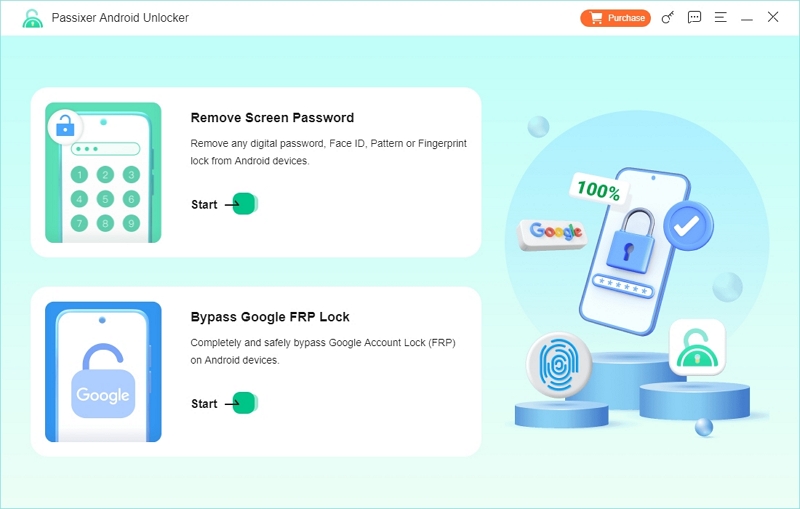
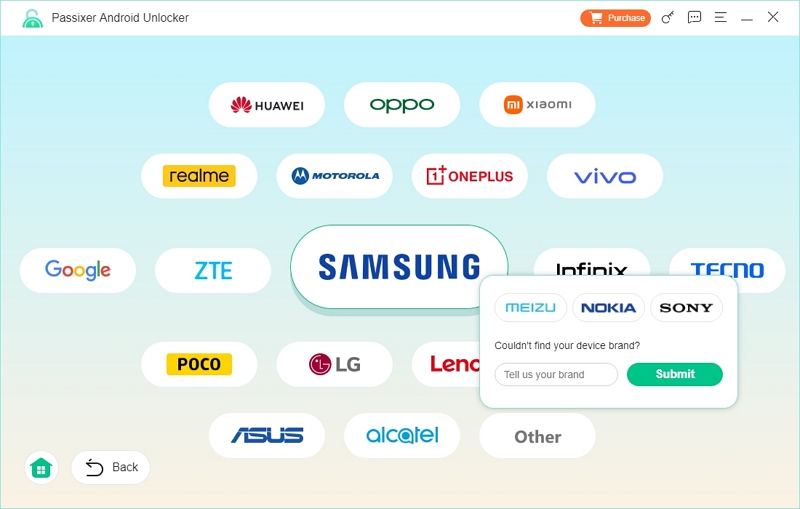
Choose Samsung from the device list to load the correct FRP removal method.
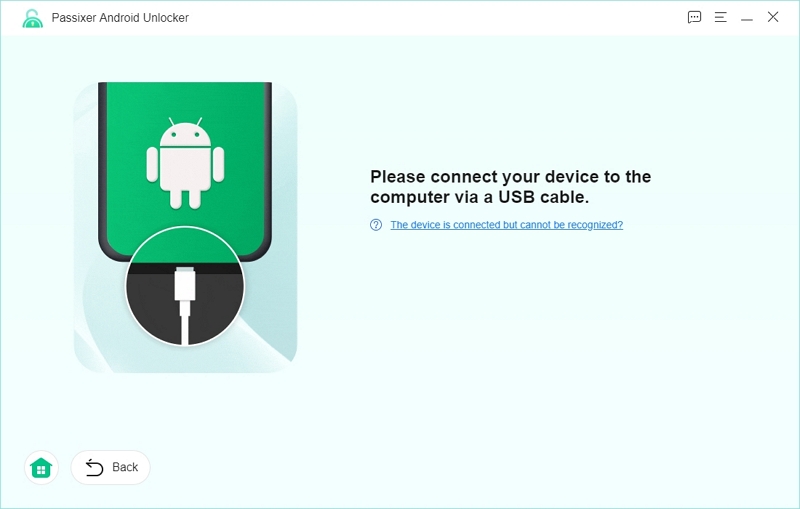
Use a stable USB cable to connect the device to your PC. Wait for Passixer to detect it automatically.
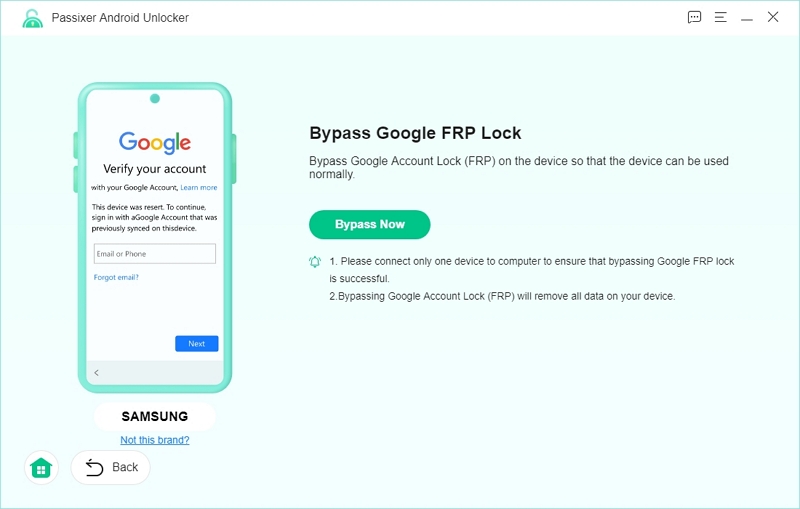
Click “Bypass Now” to initiate the unlocking procedure.
Passixer will guide you to activate USB debugging. Tap Allow on your phone when prompted.
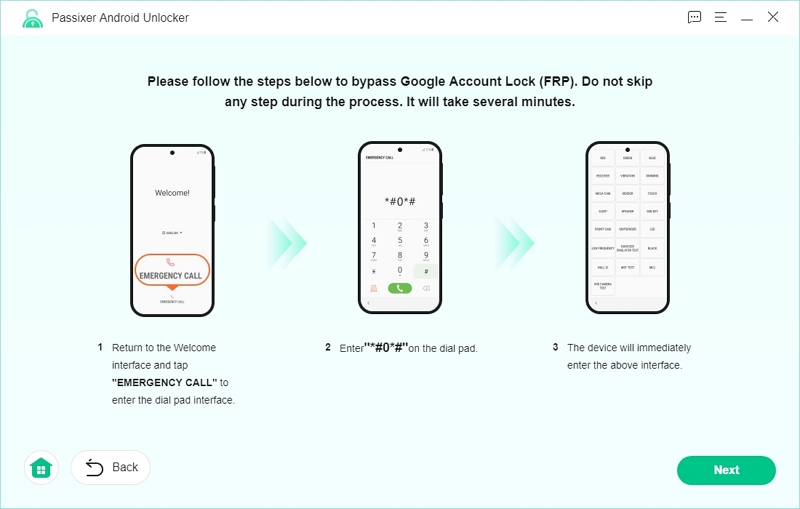
Choose the correct Android OS version installed on your device for proper execution.
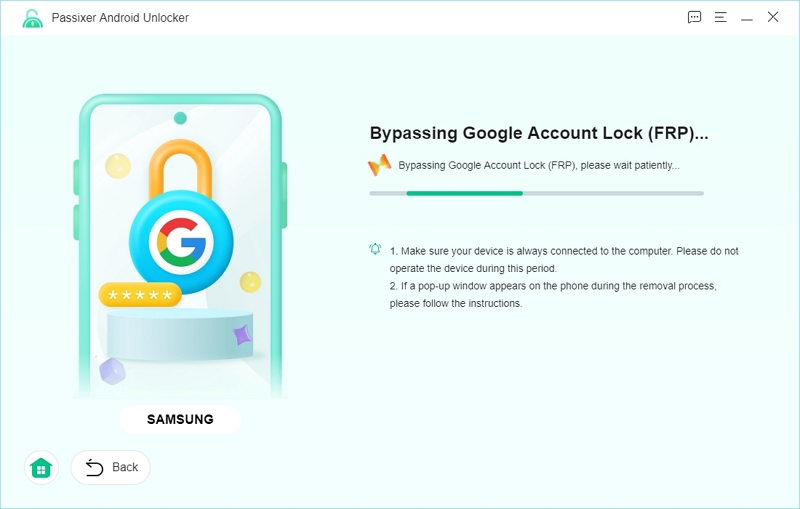
Wait for the process to finish. Once you see “Successfully bypassed Google Account Lock (FRP)”, your Samsung device is unlocked and free of Google verification.
How Passixer Stands Out from Other FRP Bypass Methods
Editor Advise:
Ensure a Stable Connection: A secure USB connection helps prevent interruptions during the unlocking process.
Use the Latest Version of Passixer: Regular updates ensure compatibility with the latest Samsung software.

#2 UnlockJunky (Remote Service)
Suitable for: Users who want professional technicians to operate remotely
A reliable internet tool called UnlockJunky was created to assist consumers in getting past Google’s Factory Reset Protection (FRP) lock on a number of smartphone brands, such as Samsung, LG, ZTE, and Motorola. UnlockJunky, who have been known as the top FRP bypass team since 2015, makes unlocking easy enough for those without any technical knowledge.
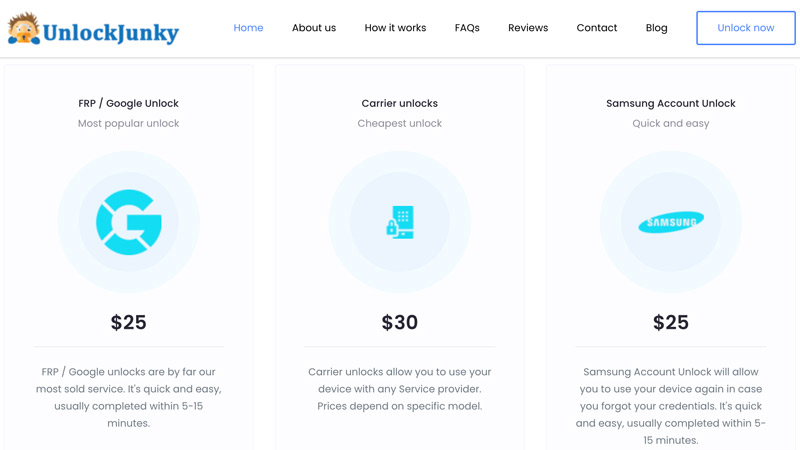
How to bypass Samsung FRP using UnlockJunky
Step 1: Submit a Request
Enter your name, email address, and phone number. Your data is not shared or kept on file.
Step 2: Make a Secure Payment
PayPal handles payments, so even as a guest, you can use credit or debit cards.
Step 3: Quick Setup
On your Mac or Windows computer, install the virus-free USB Redirector program, then enter the technician’s address that was included in your order email.
Step 4: Speak with a Technician
After everything is set up, launch a live chat session, and a qualified technician will start the unlocking procedure.
Step 5: Unlock Complete
You can remove the USB Redirector program when your device has been unlocked for five to ten minutes.
#3. Samsung Reactivation/FRP Lock Removal Service
Suitable for: Users whose second-hand phones have been locked or who have forgotten their Samsung accounts
Samsung reactivation lock designed to protect your device from unwanted access by requiring the original Samsung account information (eg. password) to make sure the right owner is using the device after performing a factory reset and even after it is stolen. This program can provide a strong security for your phone but it can become an issue if users cannot recall or lose their Samsung details, mostly password and email.
How Does Samsung Reactivation Lock Bypass Work?
Users can have access to their android device by deleting their Samsung Reactivation Lock security feature in their phone without entering their Samsung account details. Users can use different methods that are employed for this, such us;
1. Official Samsung Account Reset: You can use the Find My Mobile feature to log in and disable the reactivation lock if you can recall your Samsung account information.
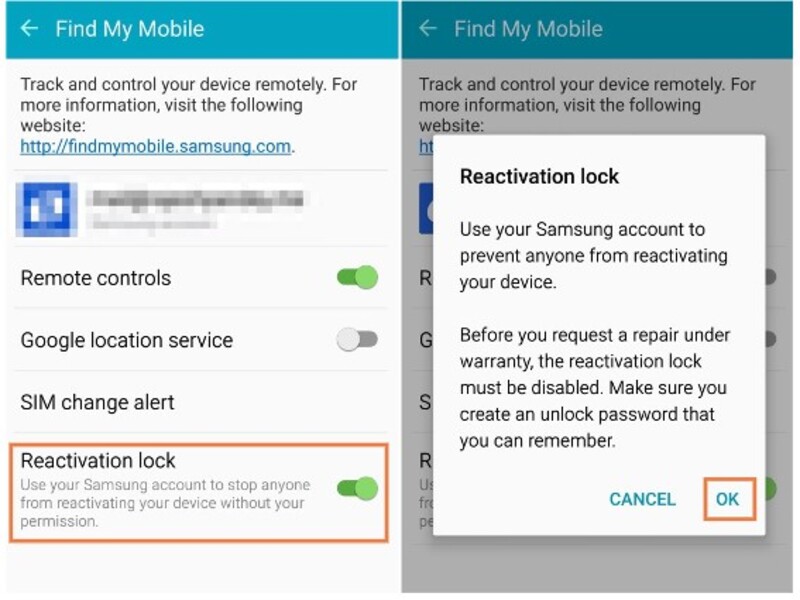
2. Manual Settings Change: Before doing a factory reset, some users may choose to disable the lock in the device’s settings.
3. Third-Party Bypass programs: Users who do not have login credentials can remove the reactivation lock with the use of a number of programs and APKs. These tools change the security settings on the device to grant access.
4. Octoplus FRP Tool
Suitable for: Professional technicians/multi-brand equipment store owners
Octoplus FRP Tool is developed to remove FRP lock from many phone brands, including Motorola, Huawei, Xiaomi, LG, Samsung and Alcatel. It effectively gets around FRP locks without asking the original login information from Google account.
Octoplus FRP Tool’s main features:
- Compatible with various android devices, such as Samsung, Huawei, LG, etc.
- Provides different approaches to FRP removal, including Download Mode, ADB Method, and UART Mode.
- Some techniques save user data, when resetting the FRP lock.
- Compatible with Windows 7, 8, and 10.
- The tool’s interoperability with more recent security fixes is enhanced by frequent updates.
#5. Foneazy Unlockit
Suitable for: Ordinary users who only need a quick one-click FRP
With the help of Unlockit Android Screen Unlocker, users can easily get around FRP on Samsung smartphones and get back into their handsets without having to remember their Google account password. This program streamlines the frequently difficult FRP removal process with a one-click bypass, making it possible even for non-technical people to use. Regardless of the Android version on your device 6-14 Unlockit Android guarantees a quick and dependable unlocking process.
Part 4: How to Bypass FRP on Samsung Devices (Free Method – No PC)
Free Samsung FRP Bypass Method (No PC Needed)
Manual FRP bypass methods based on Wi-Fi Settings, keyboard Settings, and language switching vulnerabilities.
This method is applicable to some old Samsung patched devices (with a relatively low success rate).
How to Bypass FRP on Samsung Devices (Bypass Google Verification Free Method)
Step 1: Start the Setup Process
On the Welcome screen, tap Start. You’ll see a “For Your Review” page with agreements → tap Agree to All (optional) → then click Agree to continue.

Step 2: Connect to Wi-Fi
When the “Choose a Wi-Fi network” screen appears, select your network.
Enter the Wi-Fi password → tap Next to connect.

Step 3: Modify Wi-Fi Settings (Static IP Trick)
When your phone shows “Getting your phone ready,” return to the Wi-Fi screen.
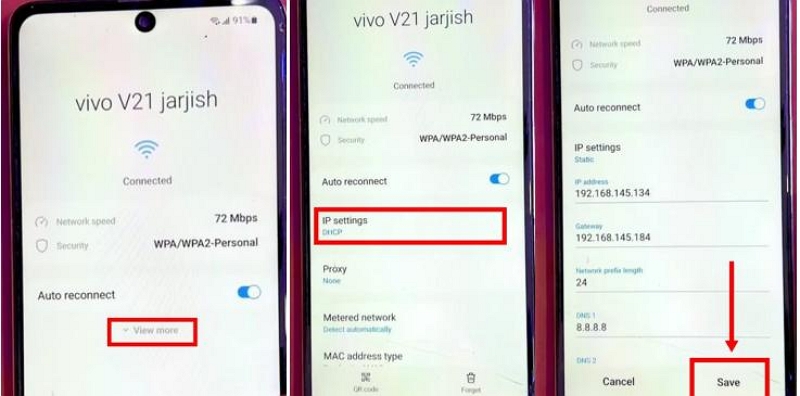
Tap the Settings icon next to your connected network → scroll down → tap View More.
Change IP Settings from DHCP → Static → tap Save, then go back to the Wi-Fi list.
Step 4: Open Keyboard Settings
Tap Add Network, then tap the Keyboard Settings icon.
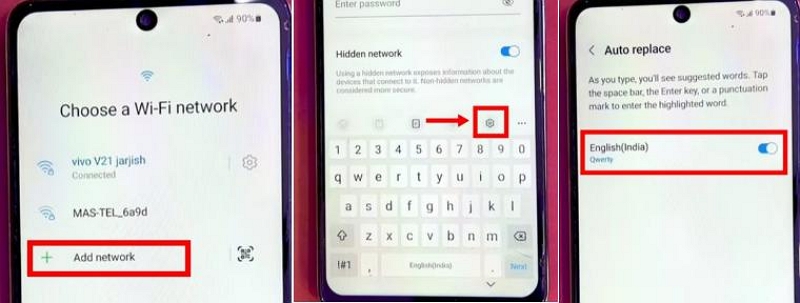
Go to Auto Replace → return → open Languages and Types → Manage Input Languages.
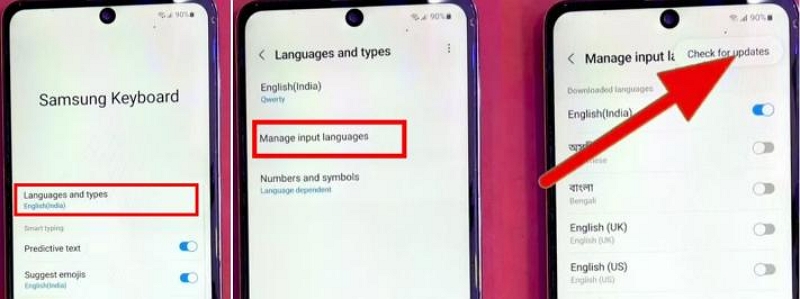
Tap the three-dot menu → Check for Updates → activate English (US) and English (UK).Go back to Auto Replace → disable all languages except English (US).
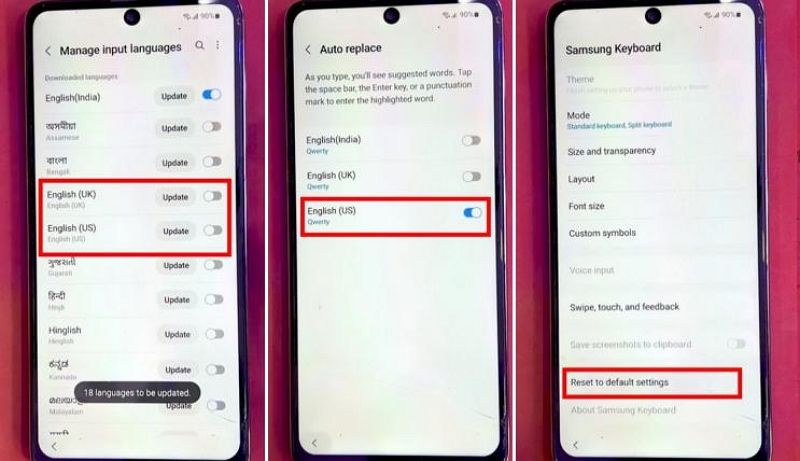
Scroll down → select Reset to Default Settings → choose Erase Personalized Touch Recognition Data.
Return all the way back to the Welcome screen.

Step 5. Use Emergency Dialer Codes.
Tap Emergency Call.Enter *#2288*3855#. If it doesn’t work, try *#*#0*#*#.
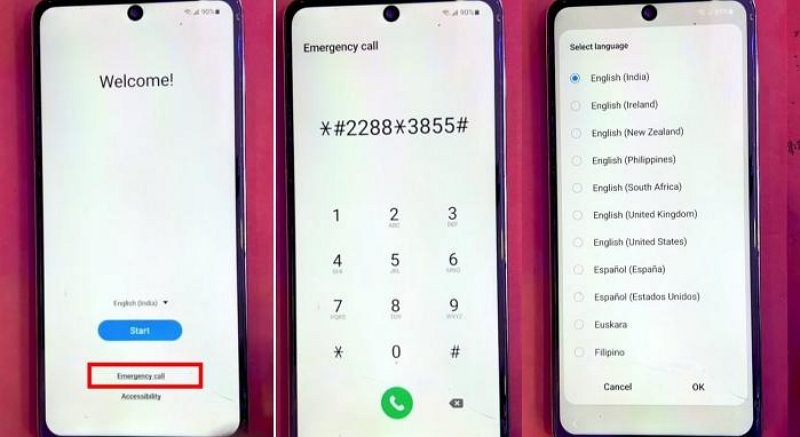
If a “call cannot be made” message appears:
• Return to Welcome Screen
• Open Language menu → select English (United States)
Then tap Start again → Agree to all → Agree.

Step 6: Add Text Shortcuts (FRP Trigger Method)
On the Wi-Fi page, tap Add Network → open the keyboard’s Settings icon.
Scroll to Text Shortcuts → tap +.
Create a shortcut:
- Shortcut: @samsung
- Expanded Phrase: @frpbypass
Tap Add to save.
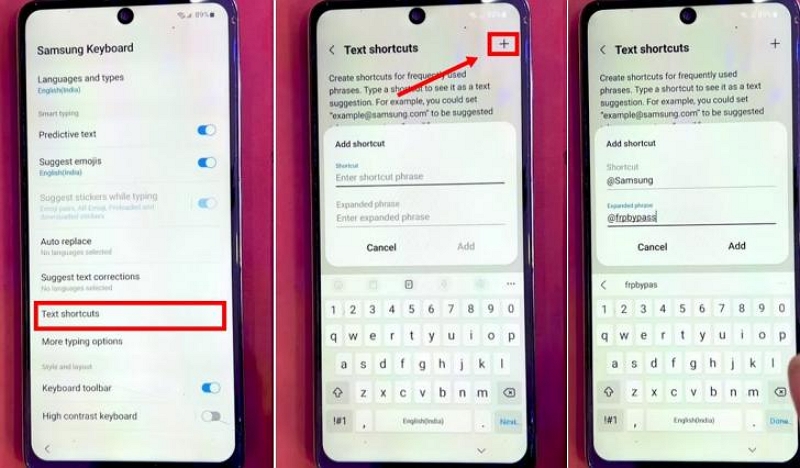
Then return to Reset to Default Settings → tap Reset → select Erase Personalized Touch Recognition Data.

Step 7: Reset Keyboard Settings
- Return to the Wi-Fi list.
- Tap the Settings icon of your Wi-Fi → View More → expand additional options.
- Change IP Settings from Static → DHCP.
- Disable Auto Reconnect.
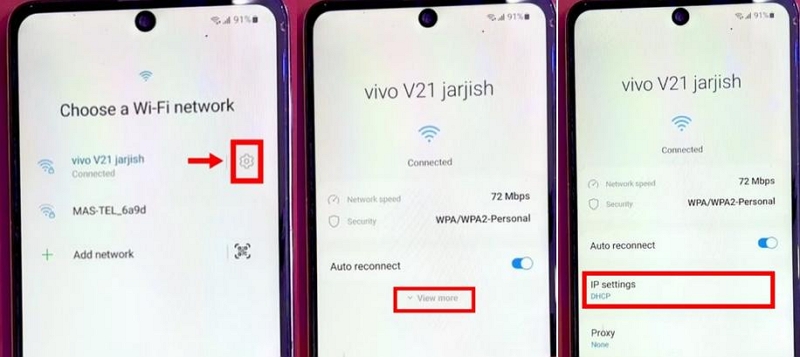
Step 8: Skip Wi-Fi and Complete Setup
Back on the Wi-Fi screen, select Skip → confirm Skip again.
Tap More → Accept → Skip whenever prompted.
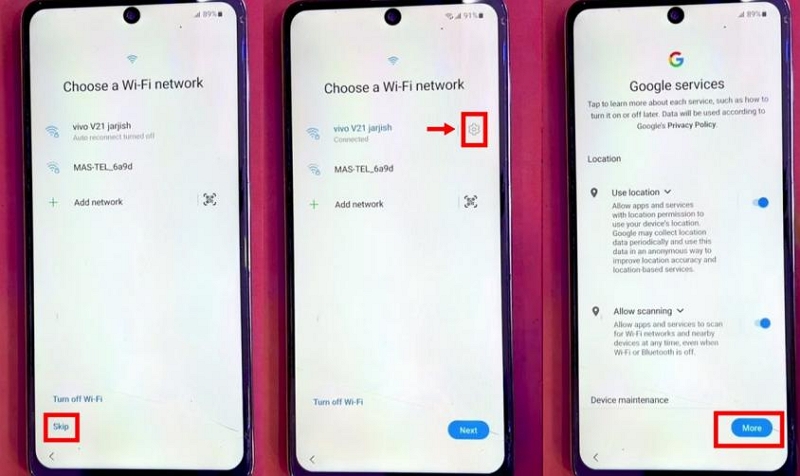
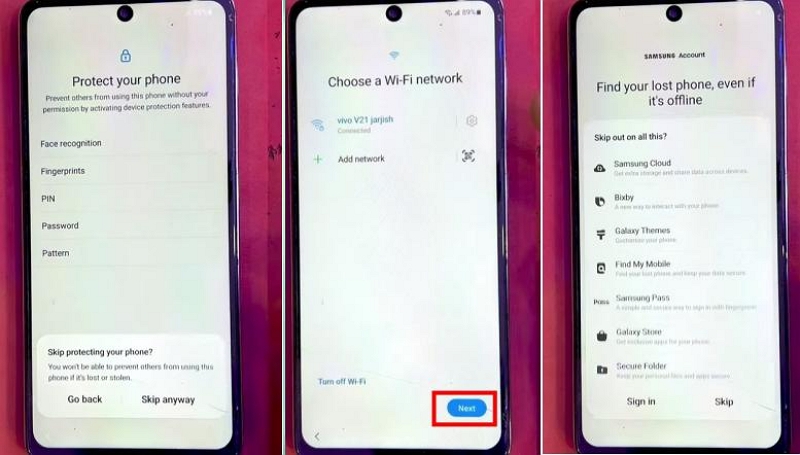
If you see “Skip Protecting Your Phone” → tap Skip Anyway.
Continue with Next → Skip → Save → Skip → Agree → Next until the setup completes.
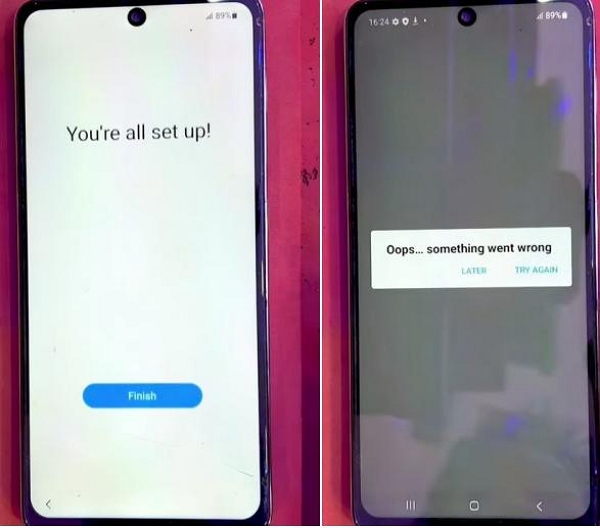
Once you see “You’re all set up”, tap Finish.
If an “Oops! Something went wrong” message pops up, simply tap Later.
Part 5. Why You Should Avoid Cracked FRP Tools
Users often search:
- ultfone samsung frp bypass tool crack
- cracked moto frp bypass tool
- cricket frp bypass tool free download
These versions are dangerous because:
- They contain spyware
- Cannot update
- Often fail mid-process
- Violate software security laws
Cracked FRP tools also frequently damage: EFS partitions; IMEI configuration; Bootloader state
Part 6. Android 14 & Android 15: What Changed for FRP Bypass?
With Android 14 and Android 15, Google implemented the biggest FRP security upgrades since Android 11. These versions are designed to block most traditional bypass methods, making older YouTube-, Maps-, and Shortcut-based tricks ineffective.
Here’s what changed:
1. Stronger Setup Wizard Protection
The Setup Wizard now blocks navigation loopholes that previously allowed users to open system menus during device activation.
2. Emergency Call Exploit Patched
Popular FRP bypass codes no longer open hidden diagnostic menus. Most emergency-dialer–based bypass tricks are patched on Android 14 and 15.
3. Restricted USB Debugging Activation
Enabling ADB from hidden settings is heavily restricted, preventing bypass tools from injecting commands unless the device is supported by specialized software.
4. Older FRP Methods Are Now Blocked
Tricks using: YouTube, Samsung Keyboard shortcuts, Maps directions, Shortcut apps
are no longer reliable on Android 14 and especially Android 15.
Why Specialized Tools Are Needed
Because of these security patches, FRP removal now requires tools that explicitly support Samsung Android 14 FRP bypass and Android 15 FRP bypass, rather than relying on outdated free steps.
This ensures compatibility and prevents the device from re-locking during setup.
Part 7. FRP Bypass for Other Brands
Although this guide focuses on Samsung devices, including other Android brands helps improve topical depth and captures additional long-tail traffic.
1. Motorola / Moto FRP Bypass
Motorola devices running Android 12–14 often require a brand-specific FRP bypass tool. Some models support temporary browser access tricks, while newer ones need a Motorola dedicated tool to unlock the Google verification page.
2. Cricket FRP Bypass
Cricket-branded devices frequently use a custom setup flow. Free FRP tools exist, but success varies by model. Users often search for “Cricket FRP bypass tool free,” so including this topic improves search relevance without complicating the main guide.
3. Universal FRP Bypass for Android
For users who want a one-page solution, “free FRP bypass tool for Android” is a common search phrase. Most free universal methods work only on Android 8–12; Android 13–15 typically require specialized tools due to stricter security.
FAQs
• Android 11 or below → Many no-PC tricks still work (YouTube, Settings shortcut, keyboard exploit).
• Android 12–13 → Most old methods are patched; limited success.
• Android 14–15 → Almost impossible without a PC or specialized tool.
If you’re using a 2023–2025 Samsung model, assume you need a PC.
• Professional tools (Passixer, etc.) → Remove only the FRP lock, NOT user data.
• Factory reset methods → Will erase data.
• Manual exploit tricks → Results vary; unexpected resets can occur.
To avoid data loss, ALWAYS choose a method that explicitly states “no data wipe.”
• Many contain malware or spyware
• Some include illegal cracked files
• Many fail on Android 12+
• Some can soft-brick your Samsung device
If you try a free tool, use one with many verifiable reviews and avoid cracked downloads entirely.
• Emergency dialer exploits
• YouTube → Browser tricks
• Samsung Keyboard shortcuts
• Maps navigation loopholes
This is why older YouTube-based and TalkBack-based methods no longer work on Galaxy A14, A15, A25, A54, S23, S24, etc.
• Samsung Galaxy A14 / A15 / A25 / A54
• Galaxy S22 / S23 / S24 series
• Galaxy Tab A & Tab S series
These require updated tools with Android 14–15 support.
Conclusion: Choose Safe Tools & Avoid Cracks
Samsung FRP is a strong security layer, but with the right method, you can regain access quickly.
If you want the highest success rate, use a professional FRP tool. If you prefer free options, choose trusted ADB-based utilities and avoid cracked downloads.
A clean, safe approach = better device security + higher chance of success.