


Have you ever opened Messenger on your iPhone only to discover an important conversation is gone? Many users accidentally delete old chats or lose them when switching devices without restoring a backup.
Unlike iMessage or traditional SMS, Messenger operates on a server-client system, meaning your chats are synced across devices. Deleting a message or conversation on one device may remove it everywhere, and Messenger doesn’t provide a simple “Recover” button.
The good news is that deleted Messenger messages aren’t immediately erased. With the right steps, you can often restore them — whether they were recently deleted, archived, or lost due to device changes. In this guide, we’ll walk through six proven ways to recover deleted Messenger messages on your iPhone, including free methods and professional tools
Method 1: Check Archived Chats on Messenger (Quickest & Free)
Many users mistakenly think a chat is deleted when it’s actually archived. Archived chats are moved to a separate folder and hidden from the main chat list, but they can be restored easily.
Here are the steps you should follow to restore archived chats if necessary:
Step 1: Open Messenger on iPhone and go to your profile. From here, look down and you’ll find Archived Chats.
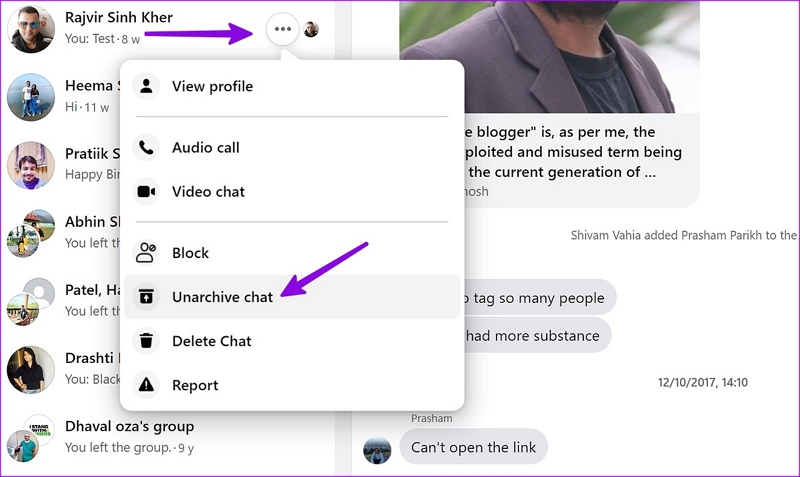
Step 2: Once you’re inside the archived chats folder, choose the conversation you want to restore. Then, tap and hold on the thread and select “Unarchive.”
Archived chats are synced across all the devices you’re using your Messenger account on.
Archived messages older than 30 days may auto-delete. So, you must act fast if you think you have archived an important conversation by mistake.
Method 2: Recover Deleted Messenger Messages via Facebook Data Download
Facebook offers a Data Download feature that allows you to retrieve deleted messages if they still exist on Facebook’s servers. This backup includes messages, photos, videos, and call logs.
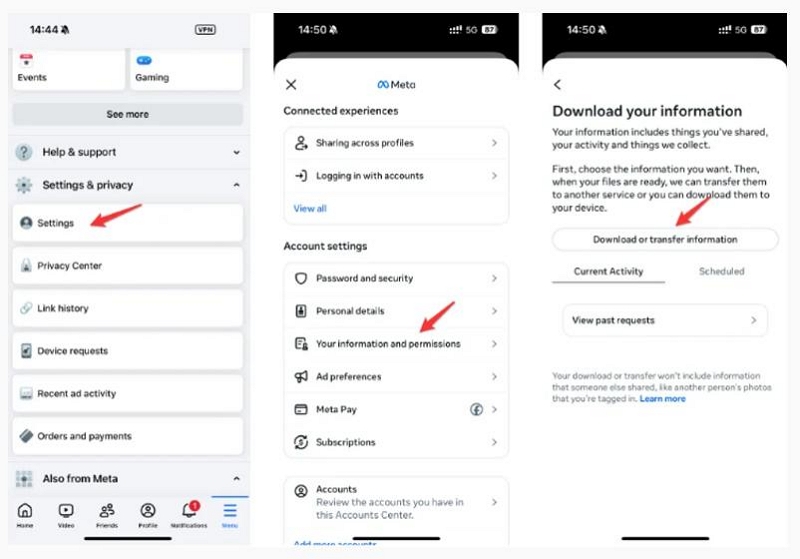
Step 1: Open the Facebook App on your iPhone. Go to your profile, and then scroll down to Settings & Privacy, and then choose Download Your Information.
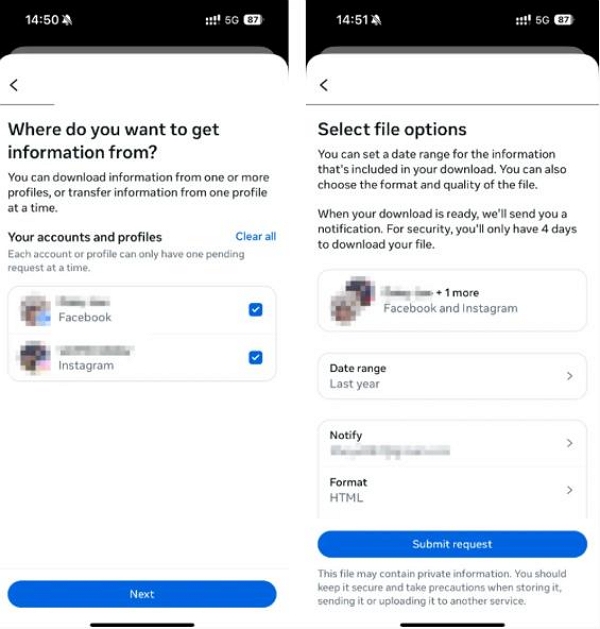
Step 2: Select Messages only, and choose the date range you want to access. Then, tap Request File.
Step 3: Download the file and unzip it. Then, open the index.html in a browser of your choice to view the recovered messages.
Deleted messages may remain on Facebook servers for up to 90 days. Act quickly to recover older conversations.
Method 3: Restore Deleted Messenger Messages via iCloud Backup
If your iPhone backs up to iCloud, you can restore deleted Messenger messages through a full device restore — but note, this will erase any data added after the backup.
Step 1: Check backup date by going to your device’s Settings → Apple ID → iCloud → Backups.
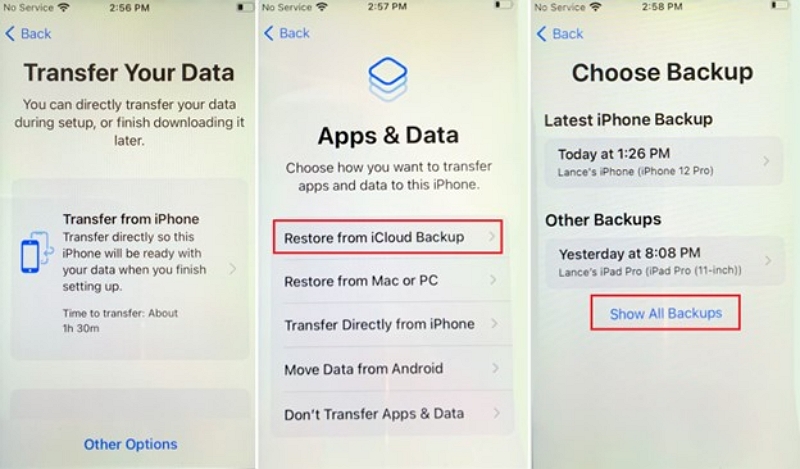
Step 2: Then, you need to reset your iPhone and perform a Restore from iCloud Backup. Leave your phone idle for a while as it resets, and you should eventually have your old data back on your device.
Messenger data must have been synced at the time of backup. If not, this method won’t recover deleted chats.
Method 4: Check Other Devices (iPad, Old iPhone, Mac, or Web Browser)
Messenger deletions aren’t always processed instantly across devices. If you use Messenger on multiple devices, check them before attempting other recovery methods.
- Open Messenger on a PC browser, iPad, or old iPhone.
- Screenshots or copied conversations can help restore content before it syncs and disappears.
Acting fast increases the chance of recovering deleted messages without additional tools.
Method 5: Ask the Recipient for a Copy
If you didn’t use “Unsend for Everyone”, the other person in the conversation still has the chat.
- Ask them to screenshot the conversation or copy-paste it back to you.
- This is a free and reliable method if the conversation is recent.
Messages deleted for everyone cannot be restored through this method.
Method 6: Use a Professional iPhone Data Recovery Tool (When No Backup Exists)
Deleted Messenger messages remain on your iPhone until overwritten. Professional recovery tools can scan storage and restore them safely.
Here are the steps to recover deleted Messenger messages iPhone without backup using Eassiy iPhone Data Recovery:
Step 1: Download and install the official version of Eassiy on your computer by heading to their official website.
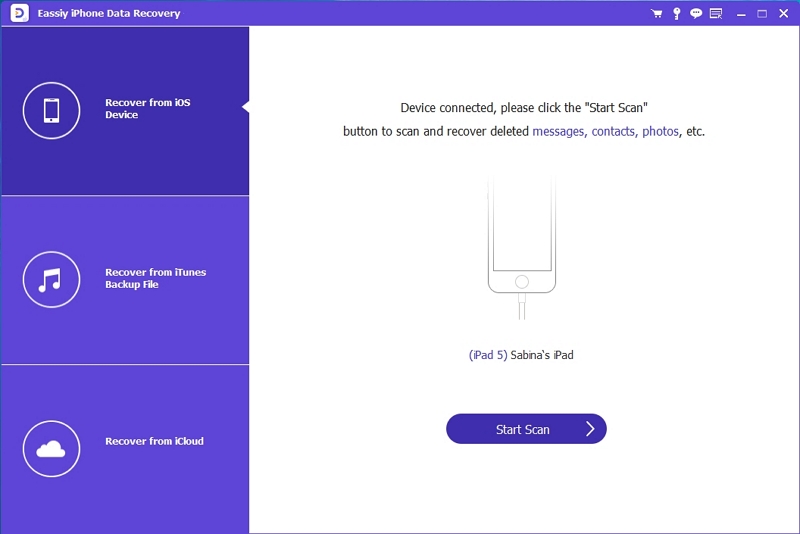
Step 2: Connect your iPhone to your computer using a USB cable, and click on Start Scan on the Eassiy app. Now, the software will scan your device for deleted data.
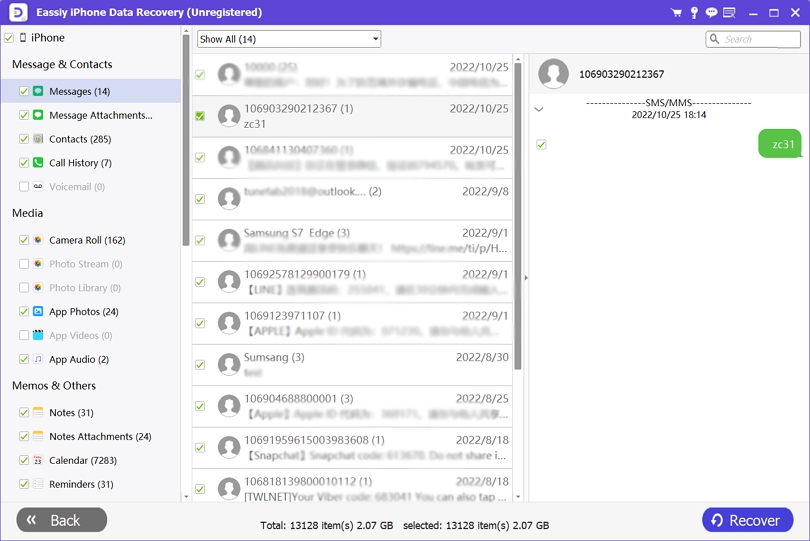
Step 3: Now, you will be able to see a categorized list of the type of data available on your phone on the panel on the right-hand side. To restore messages, click on ‘messages’ and select the ones you see from Facebook.
Step 4: Select the deleted messages you want to retrieve and click ‘Recover.’ Then, Eassiy will export the messages to your PC’s local drive.
Act quickly — new data may overwrite deleted messages. This method is the most reliable when free options fail.
How does it compare to free methods?
If you can’t access your chats on another device or can’t ask the recipient for a screenshot of the chats, using a data recovery tool might be the best option. It is a last resort, but it has the highest success rate when compared to the methods you’re using for free.
Bonus: Recover Deleted Messenger Messages via Facebook Support (Rare Case)
Now, let’s take a look at a bonus method you could try if you need some chats restored. However, this is a very rare case. The necessary pre-conditions are that the account involved must be a business page or a verified account.
If so, you could try contacting Meta Support. Click this link to head to the Facebook Help Center. Although there is a slim chance that Meta will respond or help you, the chances are significantly higher if you have a verified account.
Prevent Future Message Loss
There are several steps you can take to prevent losing important messages in the future. Here are some useful tips that you might want to implement:
- Enable iCloud Backup or Facebook Data Download reminders to have a timely backup of important conversations.
- Use Archive instead of Delete when you want to hide a chat, allowing you to go back to access it later if needed.
- Regularly export important conversations so that they don’t get lost if you change devices or have to reinstall the app.
- Avoid uninstalling Messenger during app updates without a backup of your chats.
FAQs
Conclusion
Now you have a clear idea of how to recover deleted messages in Messenger on iPhone. We’ve discussed seven methods applicable to a wide variety of situations. While the free methods are useful if there is a noticeable sync delay or if you can get the recipient to send you a screenshot, the last resort should be data recovery. If you’re looking for a reliable tool to help you with the process, you can’t go wrong with Eassiy iPhone Data Recovery.