


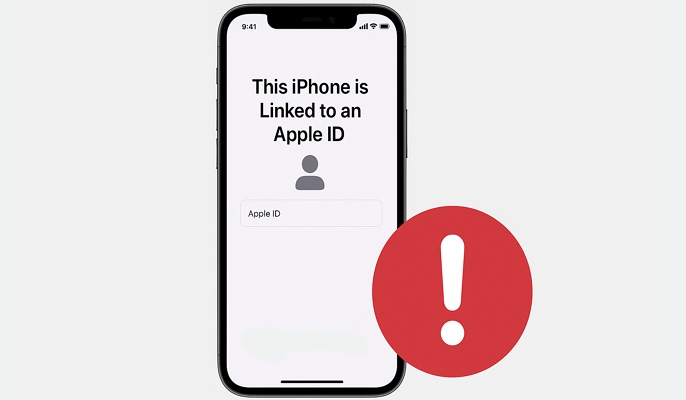
Oftentimes, the error “This iPhone is linked to an Apple ID” pops up on secondhand iDevices. You can also experience it on a firsthand device. The reason for such an error is Apple ID and Find My related and that will be discussed in detail here in this post. Additionally, we will uncover how to solve “This iPhone is linked to an Apple ID” easily without hassles. Keep reading!
Why Does My iPhone Say This Device Is Linked to an Apple ID?
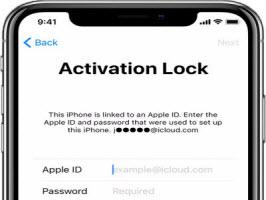
As we all know, an Apple ID is required for you to access the full functionality of an iPhone, including all the features under the Apple ecosystem. If you subject such a device to factory reset while Find My is active on it, you will receive a prompt with the title “Activation Lock” and the caption “This iPhone is linked to an Apple ID. This prompt comes up for verification purposes to confirm that you own the iPhone. You will have to enter the Apple ID and password to bypass the iCloud lock.
Starting with iOS 15, you’ll see a “Locked to Owner” screen instead of “This iPhone is Linked to an Apple ID”. Check out this post to learn more.
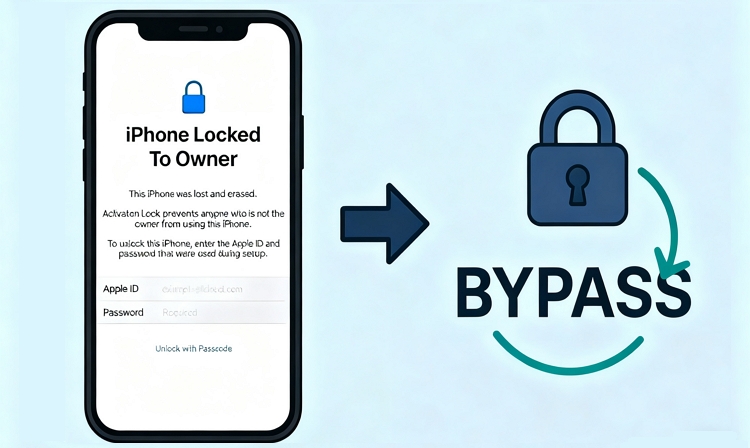
With the corresponding Apple ID and password, you can easily turn off “Locked to Owner”. What if you see “Locked to Owner” on your second-hand iPhone? Find the solutions here. View Post
How to Bypass This iPhone is Linked to an Apple ID on Second-Hand iPhone
If your iPhone is secondhand and you encounter the error “This iPhone is linked to an Apple ID”, here are some solutions you could use to resolve it:
Way 1. Ask the Previous Owner to Unlock the Apple ID in Person
Perhaps you stay or reside close to the previous owner of your iPhone, we suggest that you contact the owner in person to fill in the Apple ID and password as required by the Activation Lock screen. This way, you can access your used iPhone normally.
Way 2. Contact the Older Owner for Remotely Removing the Apple ID
From iCloud, the previous owner of your iPhone can also clear “This iPhone is linked to an Apple ID” issue if you don’t stay close to him or her. All thanks to the Find My feature on iCloud site which removes the Apple ID connected to an iDevice remotely by simply erasing it.
To do this, ask for the old owner to follow the steps below:
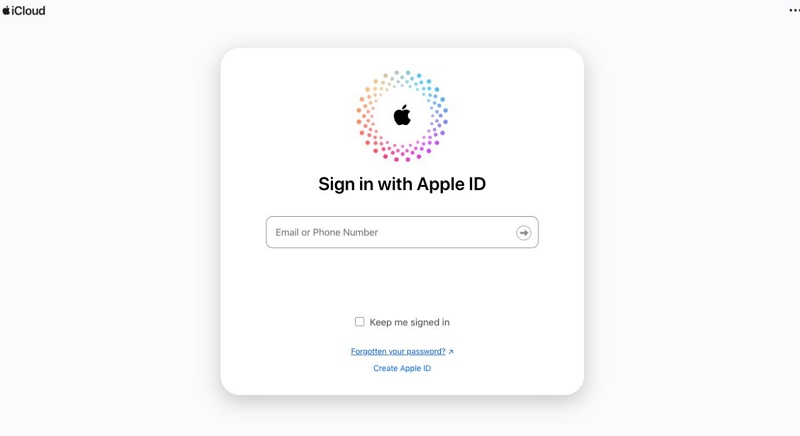
Step 1: Launch your favorite web browser on any internet-enabled device and visit iCloud.com. On the page that appears, click Sign In and fill in your Apple ID details in the fields provided. After that, tap the Enter button.
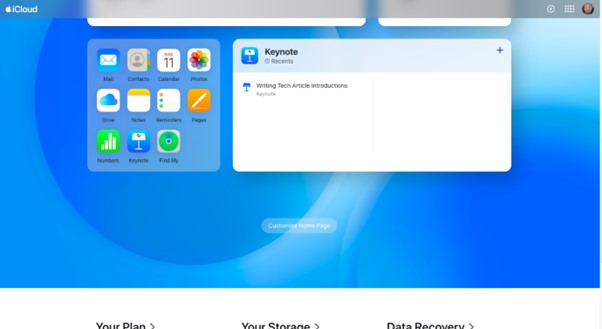
Step 2: Locate where the Find My icon is and click on it.
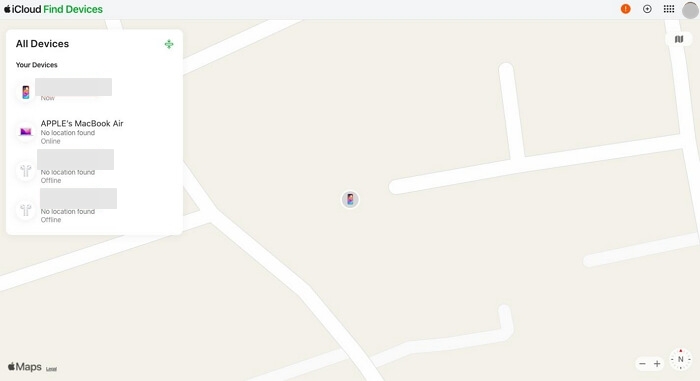
Step 3: Proceed to the top of the subsequent screen and expand the drop-down menu beside All Devices, followed by selecting the iCloud-locked iPhone.
Step 4: Click on Erase This Device and input your Apple ID password in the space provided. Once the erasing process ends, choose Remove This Device.
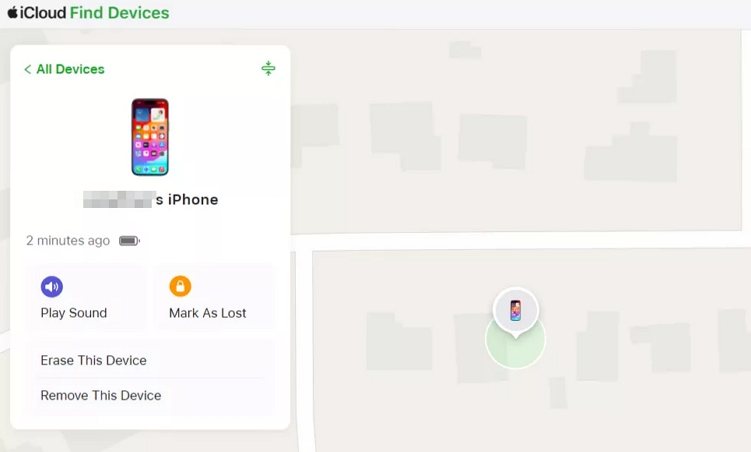
Now, Activation Lock is removed from your iPhone and you can sign in to the iOS device with your own Apple ID.
How to Remove This iPhone is Linked to an Apple ID from Your Own iPhone
In case the iPhone with the Activation Lock problem is yours, you can try out any of the solutions recommended down here to fix it:
Way 1. Enter the Correct Apple ID and Password
If you can remember the credentials to the Apple ID linked to the iCloud-locked iPhone, simply fill them in the spaces provided. It’s best that you take your time and not rush while entering the Apple ID account and password to ensure what you provide is correct.
Way 2. Use Your Passcode
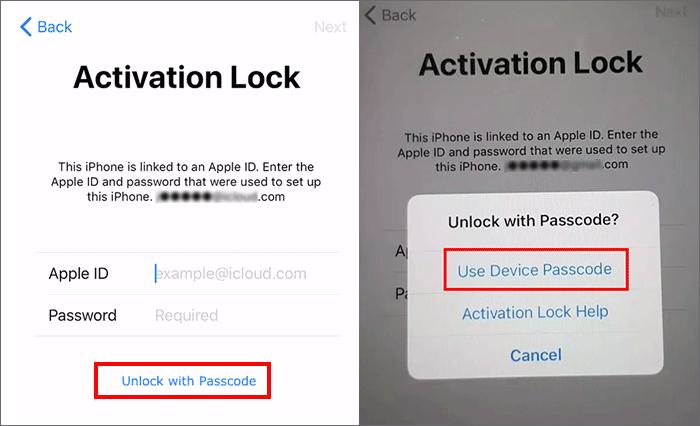
Check whether there is a Unlock with Passcode option under the Password field. If there is, tap the option and choose Use Device Passcode. Then enter your screen passcode to remove iCloud Activation Lock.
Way 3. Reset Your Apple ID Password
Another measure to fix “This iPhone is linked to an Apple ID” on your device is to reset the Apple ID password. This solution is helpful if you can’t remember Apple ID password. However, it’s crucial you know and have access to the email or phone number used in creating the Apple ID linked to the iPhone with the underlying issue. Once this is set, follow the steps below to reset your Apple ID password.
You can look up your Apple ID password before resetting it: Find Apple ID Password.
Steps to Reset Apple ID Password with Trusted Device
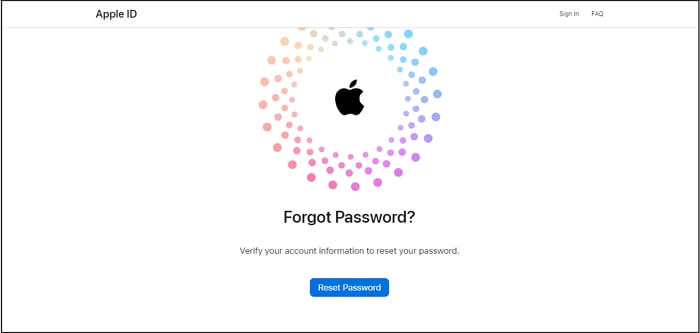
- Open a web browser and head to iforgot.apple.com.
- Tap on the blue Reset password.
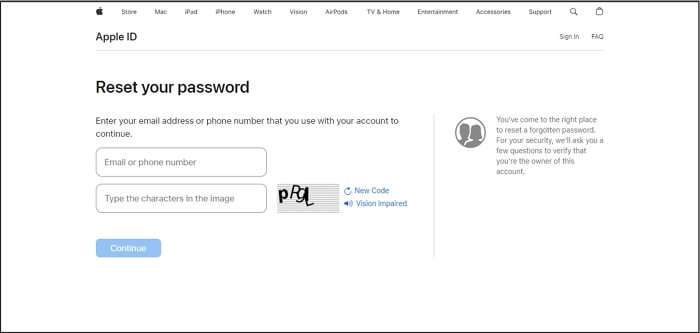
- Type the email or password of the Apple ID linked to your phone in the space provided plus the captcha characters. Once done, click Continue.
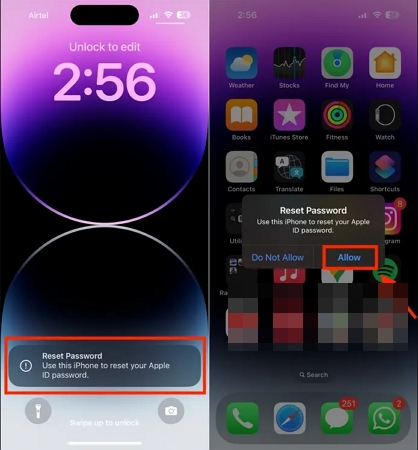
- Next, a prompt will be sent to any Apple device connected to your Apple ID. Click Reset if you are using macOS and Allow if you use an iPhone or iPad.
- After that, enter the device passcode and set a new Apple ID password.
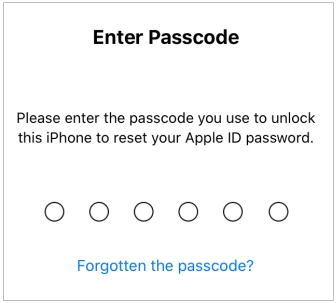
Additionally, you can directly use the trusted device to change Apple ID password with device passcode.
Step 1. Run the Settings app and tap your account name at the top of the screen. Then, choose Sign-In & Security.
Step 2. Tap Change Password and input your screen passcode or authenticate using your face or fingerprint.
Step 3. Enter a new password for your Apple ID and confirm the reset by entering the same password again.
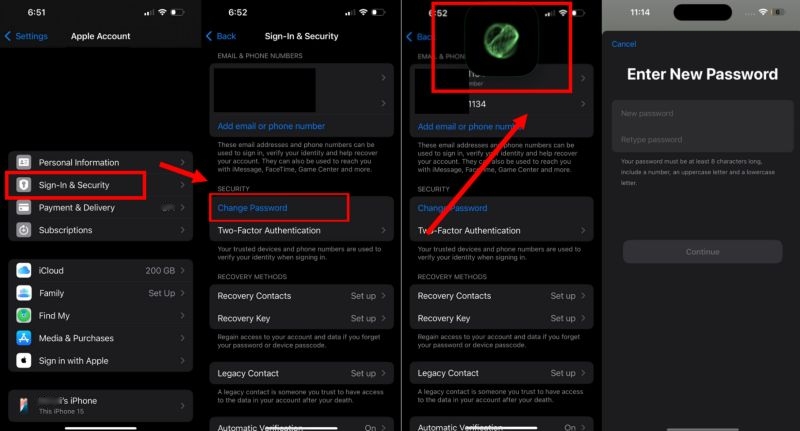
Now, use the new Apple password to bypass iCloud Activation Lock on your screen.
Way 4. Start Activation Lock Removal Request
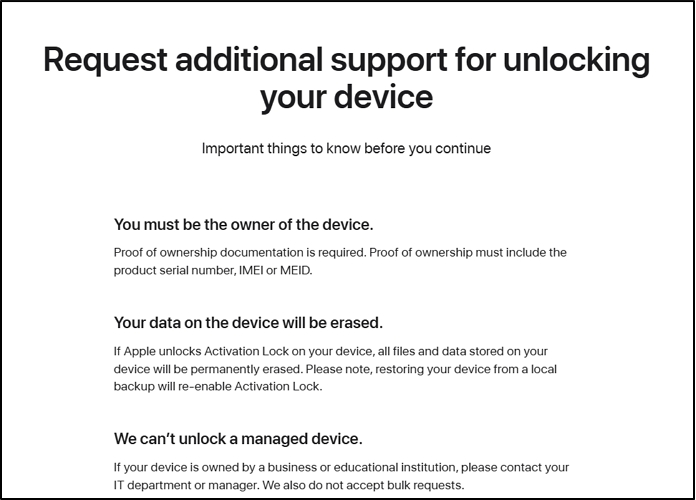
If you’re the device’s primary owner and can prove your identity, for example, with a proof of purchase, Apple may help remove Activation Lock. The process can take several days for Apple to review and approve, and success is not guaranteed.
Step 1: Go to this official site and hit Continue.
Step 2: Input an email address that Apple can use to inform you of the result.
Step 3: Enter the serial number or IMEI of the locked iPhone.
Step 4: You will receive a confirmation link in the email you provide. Then, follow the onscreen steps to finish your request.
Universal Way for Unlocking Used/Own iPhone Showing This iPhone is Linked to an Apple ID
Passixer iPhone Unlocker offers the ultimate way to get rid of “This iPhone is Linked to an Apple ID” issue by bypassing Activation Lock on both owned and used iPhone without requesting any credentials and previous owner. Simply connect your iPhone to Passixer and the software will guide you through the iCloud-lock bypass process. Besides bypassing iCloud Activation Lock, you can also use Passixer to bypass other types of restrictions such as screen lock, SIM lock, Screen Time, MDM lock and more.
Stepwise Guide to Unlock Your Used/Owned iPhone Showing This iPhone is Linked to an Apple ID
Start with launching Passixer iPhone Unlocker after installing it on your computer, then select Bypass iCloud Activation Lock on the main interface displayed.
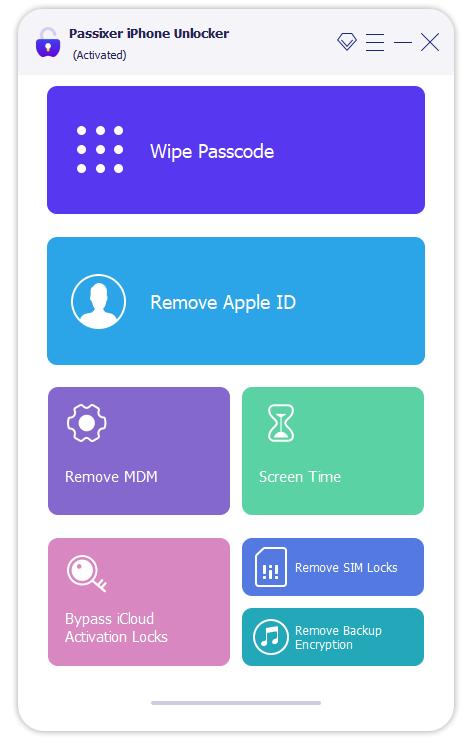
Connect the iPhone to your computer through a reliable USB cord. Then, confirm the statement and hit Start to move on.
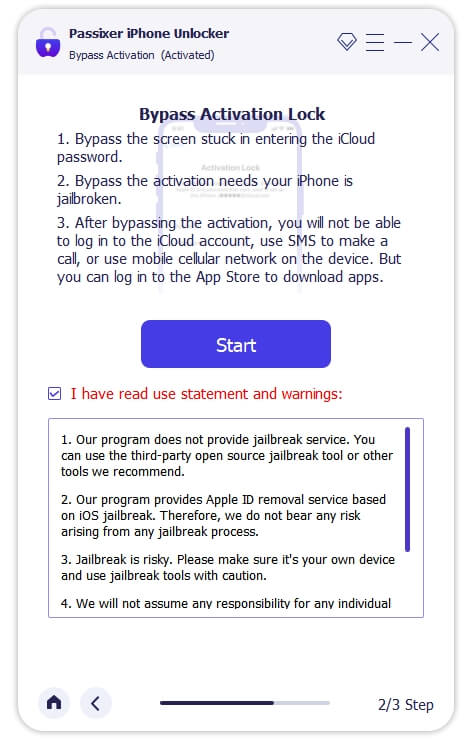
Click iOS Jailbreak Tutorial and follow the onscreen guide to jailbreak your iPhone.
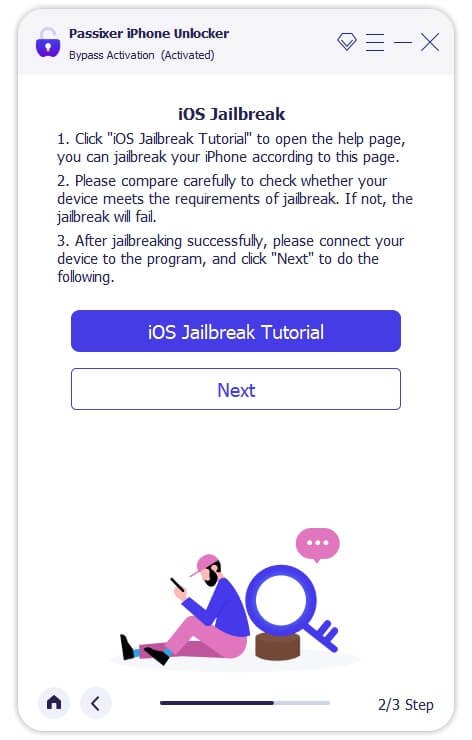
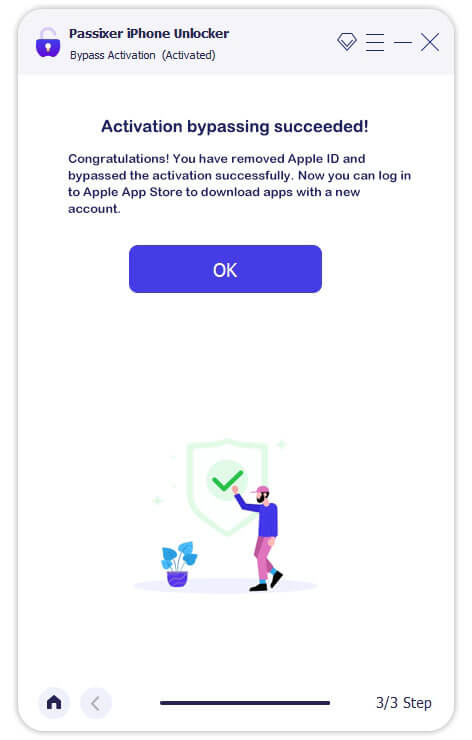
After jailbreak, click Next and Passixer will start bypassing iCloud Activation Lock on your device. Be patient till the process is finished, and don’t interact with the connection to avoid interruption.
Fixed: This Device is Already Associated with An Apple ID
“This Device is Already Associated with an Apple ID” commonly appears when the device you’re using has apps or services purchased with a different Apple ID. It means the device was previously linked to another Apple ID. Most of the users encounter this issue on their second-hand or refurbished iPhone after iOS update. No worry, you can easily remove this prompt by following the steps below.
If you’re using a second-hand iPhone, ask the previous owner to follow these steps on the device, as their Apple ID or password may be required during the process.
Step 1: Open the Settings app and tap the Apple ID tab.
Step 2: Select Media & Purchases.
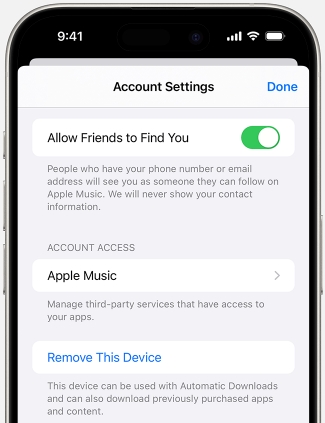
Step 3: Tap View Account. You may need to enter the Apple ID password.
Step 4: Scroll to the bottom of the screen and hit Remove This Device.
Conclusion
Being stuck on “This iPhone is linked to an Apple ID” screen can be frustrating but that doesn’t mean you can’t reclaim access to the device. We’ve provided 7 simple ways to fix the problem with or without a password. Just choose and apply the solution that’s easiest for you. The quickest and easiest method from the list is the one, involving the Passixer iPhone Unlocker. This professional software lets you fix the underlying issue without providing any information.