



One of the main reasons Apple is among the best tech companies in the world is due to its emphasis on security. Unfortunately, things might backfire on users, and they could end up locked out of their own devices if they’re not careful.
Apple uses multiple security mechanisms to protect users, and this could cause their iPad to get locked. Here are some reasons why you might be unable to unlock your iPad:
- You probably forgot iPad password or passcode.
- Screen Time / parental control restrictions that could prevent users from signing in.
- Touch ID / Face ID failures.
- Apple ID or activation lock issues
Though your iPad seems completely locked, there are multiple ways to regain access safely. You can factory reset your iPad without a passcode through iTunes or Finder, use iCloud to erase the device remotely, or try Recovery Mode if you’ve forgotten both Apple ID and password. For a faster, simpler option, use Passixer iPhone Unlocker — the safest tool to remove iPad passcode or Apple ID without data loss or complex steps.

Part 1. User Operation Causes
In this section, we’ll address all the reasons that you might’ve gotten locked out due to user operation causes such as forgetting your passcode or being unable to get past Face or Touch ID.
1. Forgot Unlock Passcode (Screen Lock)
Reason: Long periods of inactivity or frequent password changes could cause users to forget the original passcode. If you’ve forgotten your screen lock passcode, read this section.
Way 1. Reset via iTunes / Finder / iCloud
As a result, please ensure that you have backed up your data recently to avoid any unnecessary loss. Here are the steps you should follow to restore your iPad using iTunes / Finder:
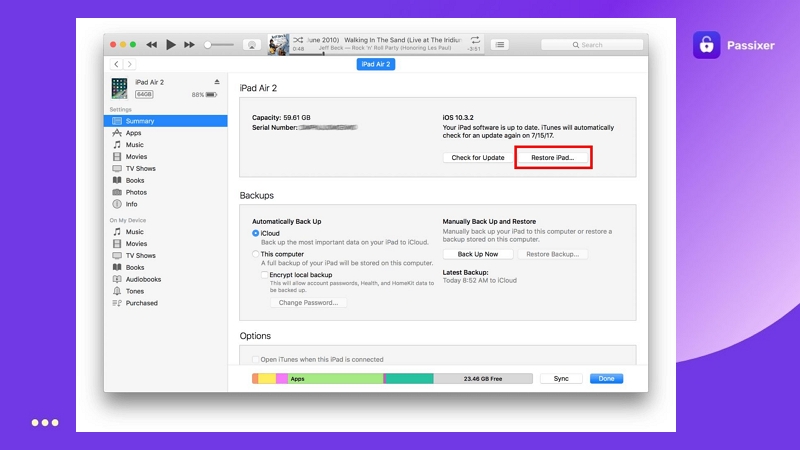
Open iTunes / Finder > connect the iPad > choose “Restore iPad” > wait for the system to finish erasing.
For more detailed steps, check out our guide on how to factory reset iPad without passcode. To learn about more methods to remove the iPad passcode, regardless of whether you remember the original password or not, you can refer to: [How to Remove Passcode from iPad with or Without Passcode]
Way 2. Unlock via Apple ID (Find My On)
If you cannot enter the correct Apple ID and password, please refer to: How to sign out of Apple ID.
Way 3. Unlock with a Third-Party Tool
If neither of the above two methods is applicable in your case, you may need to use a third-party tool to help you regain access to your iPad. In such a scenario, Passixer iPhone Unlocker can help you quickly remove the screen lock without a passcode.
To illustrate how easy it is to remove the screen lock with Passixer, here are the steps you would have to take to remove the screen lock from your iPad with the tool:
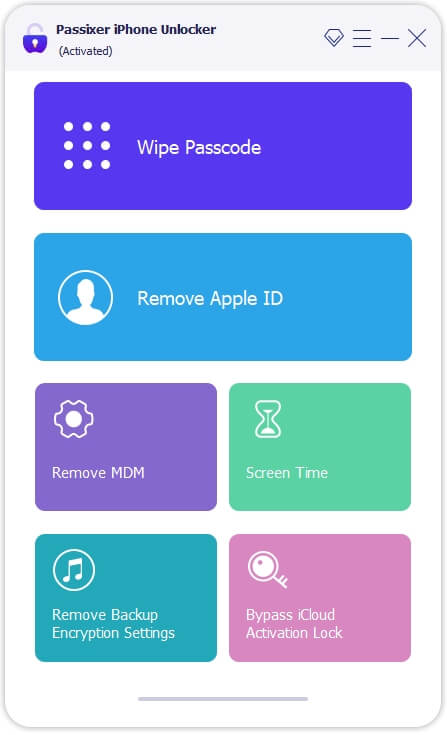
Connect your iPad to the computer via USB. Launch Passixer and choose Wipe Passcode.
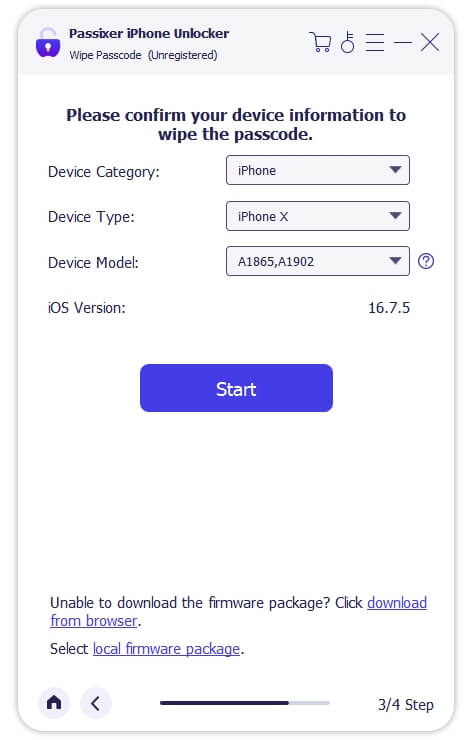
Once detected, confirm your device information and click Start to download the firmware needed to unlock your device.
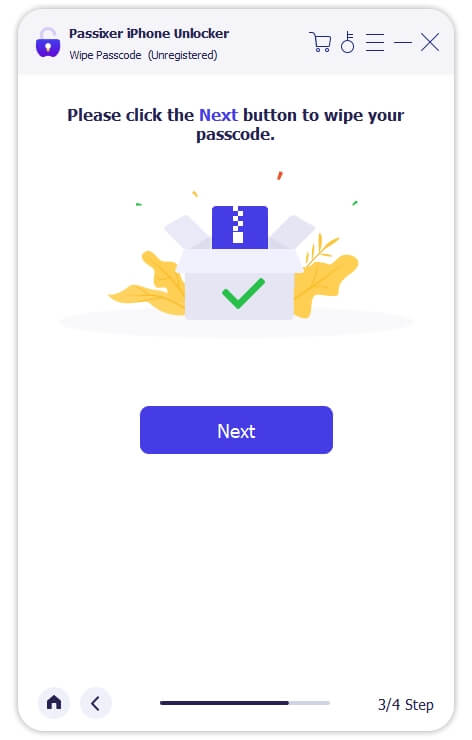
After the firmware download completes, click Next to proceed with unlocking your device.
Read the warnings and enter 0000 to confirm. Click Unlock and Passixer will begin removing the passcode.
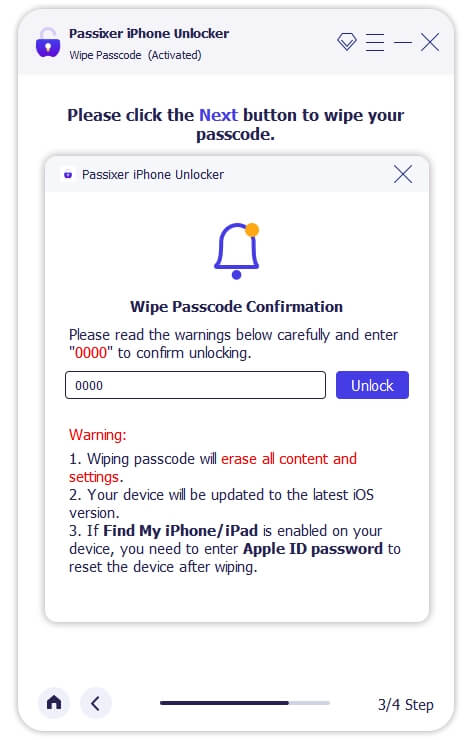
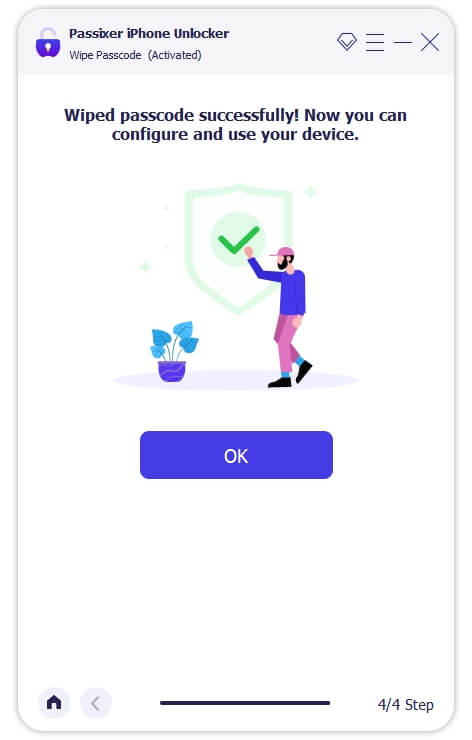
Keep your iPad connected until the process finishes. When you see the success message, disconnect and set up your iPad as new.
You May Also Like
2. Forgot Screen Time (Parental Control) Passcode
Reason: Users might forget the parental control passcode after setting limits for screen time usage, locking them out of the iPad.
Way 1. Reset via Apple ID
Apple offers a separate parental control passcode for added security. If you forget it, you can sign in with your Apple ID to reset it:
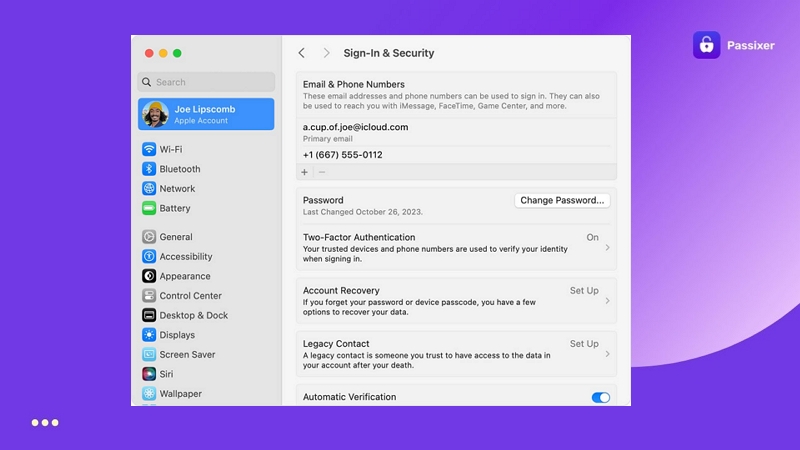
Settings > Screen Time > Change Screen Time Passcode > Forgot Passcode > enter Apple ID > reset.
You May Also Like
Way 2. Use unlock tool
If you cannot sign in to your Apple ID, use a professional third-party tool to bypass the Screen Time passcode.
Download Passixer or another Screen Time tool > select Remove Screen Time > follow the on-screen steps.
Choose software with a simple interface (like Passixer) to avoid errors.
3. Touch ID / Face ID Fails & Passcode Forgotten
Reason: If the iPad fails to recognize Touch ID / Face ID and you forget your passcode, you cannot log in.
Way 1. Use recovery mode
Enter recovery mode on a computer to erase the device and reset the passcode.
If your passcode is not working, learn how to reset a password on iPhone/iPad.

Steps: Connect the iPad/iPhone to computer > enter recovery mode > restore via iTunes/Finder > reset passcode.
Way 2. Re-enroll & reset
You can reset Touch ID / Face ID and the passcode only when you’re already inside the iPad.
If locked out, use recovery mode or the official erase method first. (Return to Way 1.)
A. Check & Preparation
Before taking any of the steps mentioned above, make sure the iPad is unlocked and connected to a network (Wi-Fi or cellular).
Update the iPad to the latest iPadOS (Settings > General > Software Update); sometimes system bugs can affect recognition.
Clean the sensing area (Face ID: the front camera area; Touch ID: the Home button) of dust/water and remove any obstructive case or screen protector.
B. Delete old biometric data (optional but recommended)
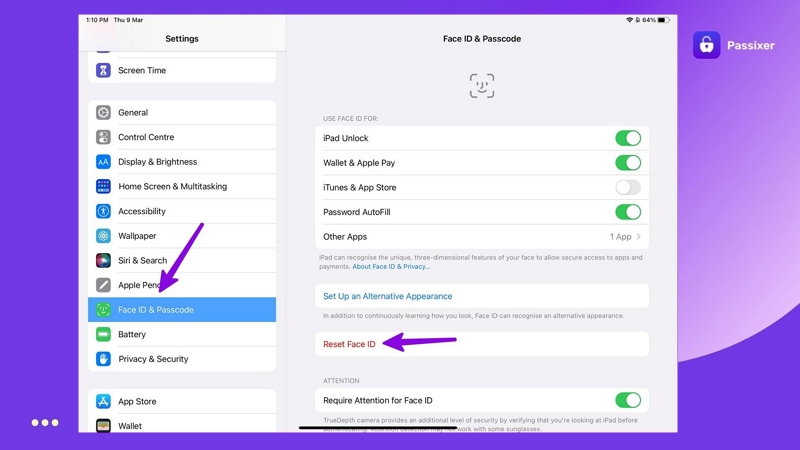
(Recommended: Delete old data first to avoid recognition conflicts)
- Open Settings.
- Go to Face ID & Passcode (or Touch ID & Passcode).
- Enter the current device unlock passcode (the system will request verification).
- On the Face ID page, tap Reset Face ID, or on the Touch ID page, swipe to delete old fingerprints (Delete Fingerprint).
C. Re-enroll Face ID steps
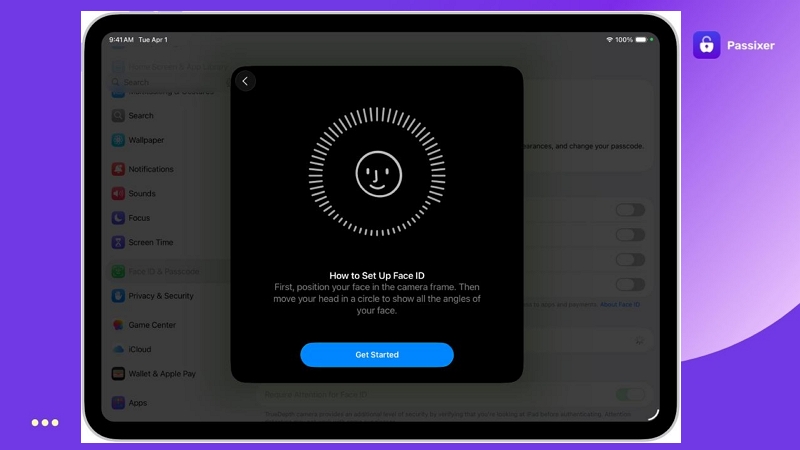
In Settings > Face ID & Passcode, tap Set Up Face ID (or Reset Face ID).
Follow on-screen prompts to position your face for the camera, slowly move your head to complete the first scan (complete the full range within the circle).
After the first round, continue the second scan to improve recognition accuracy.
After setup, confirm that the features you want to use with Face ID are enabled (for example: Unlock iPad, iTunes & App Store, Apple Pay, AutoFill Passwords, etc.).
D. Set or change the screen unlock passcode

- Open Settings > Face ID / Touch ID & Passcode > Change Passcode or Turn Passcode On.
- Enter the old passcode (if changing) > enter a new passcode (Recommend: 6 digits or an alphanumeric combination).
- Then, save the passcode and record it in a safe place, or use iCloud Keychain to save it.
E. Apple ID verification (if prompted)
Reset Apple ID password on the device: Settings > tap your name at the top > Password & Security > Change Password > follow prompts.
If you cannot gain access to the device, visit iforgot.apple.com and follow the prompts to reset the iPad via email or two-factor authentication.
If you forgot your Apple ID, refer to this tutorial: Reset Apple ID password without phone number.
Part 2. System / Software Related Causes
This section will go over system or software related issues that might be preventing you from unlocking your device.
1. Asked to Enter Old Password After Update or Restore
Reason: After an iPadOS upgrade or system restore, the system may require the original password to verify identity.
Solutions:
Option 1. If you don’t remember the old password, use recovery mode or iCloud to erase the device and reset it.
Need more related solutions? If you’re stuck because you can’t sign in with your Apple ID or forgot it entirely, check out this full guide: How to reset iPad without Apple ID. It walks you through multiple methods to regain access and get your iPad working again quickly.
Option 2. If the Apple ID is linked, you will also need to enter the account password to activate.
Still running into access issues on your iPad? If your device is showing the “iPad is Disabled, Connect to iTunes” message and you’re not sure what to do next, follow this step-by-step guide: iPad is Disabled, Connect to iTunes. It explains why this happens and walks you through reliable ways to unlock your device safely.
Here are the steps you would have to take to use this method:
Connect the iPad to a computer > enter recovery mode > iTunes / Finder > erase the iPad > if linked to Apple ID > enter account password to activate > reset screen passcode and set up device.
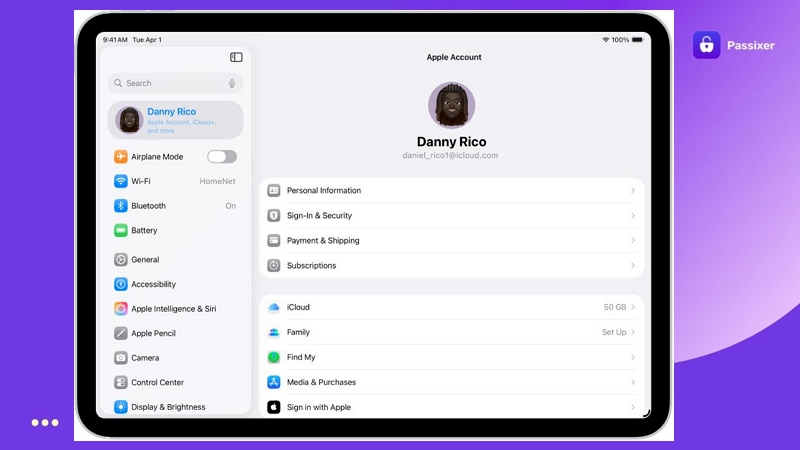
Option 3. If your iPad asks for a passcode after the reboot and you can’t recall it, refer to this article: [iPad Requires Passcode After Restarting [How to Fix], which provides solutions for passcode prompts after restart.
2. System File Corruption or Failed Update
Reason: An interrupted update (power loss or network issue) can cause system anomalies and make the system get stuck at the passcode verification screen.
Way 1. Use iTunes / Finder to re-flash the device
Detailed steps: iTunes unlock iPhone/iPad.
Broadly, here is how you would have to use iTunes or Finder to re-flash the firmware:
Download the latest iPadOS firmware > put iPad into recovery mode > use iTunes / Finder to flash the firmware > after system recovery, set a new passcode.
Way 2. Use system repair tools to restore.
Fortunately, there are a number of system repair tools that can help you regain access to your device legally, even if you don’t remember your passcode.
Need a clear, step-by-step walkthrough? Check out this guide on how to unlock an iPad without a password: How to Unlock an iPad without a Password.
Part 3. Account / Security Verification Causes
This section will address causes related to your Apple ID account or security verification issues that might be preventing you from unlocking your iPad.
1. Apple ID or Activation Lock Issues
Reason: When resetting a device without signing out of “Find My iPad,” the system requires the Apple ID password. This is to ensure that the original user is requesting to sign out of Find My iPad and not an unauthorized individual.
Way 1. Sign in with Apple ID
Sign in with the correct Apple ID password to unlock the iPad. This method is applicable when you are the original owner and know the Apple ID and password.
Example operation steps:
- On startup, enter your Apple ID and password on the activation screen; after verification, you can opt out of the ‘Find My Device’ feature.
- If security verification is prompted, you can use the bound email or two-factor authentication to complete it.
Forgetting your Apple ID password is a common issue when dealing with iCloud unlock activation. In most cases, Apple allows you to verify your identity and Reset Apple ID password by email or device. If you still can’t reset the password or access your account after verification attempts, avoid trying random passwords repeatedly — this may trigger security delays. Instead, follow Apple’s official recovery steps or contact support with proof of ownership for the fastest resolution.

Way 2. Remove Activation Lock (Original Owner)
This is applicable if you’ve bought a used iPad or received a device that was not unlinked from a different Apple ID.
Here are the steps you should take if you’re dealing with such a situation:
- Ask the original owner to sign in to their iCloud (iCloud.com);
- Go to “Find My” > select the iPad;
- Click “Remove from Account” or “Erase iPad.”
- After removal, restart the iPad and connect to Wi-Fi to reactivate.
Check out a detailed guide to unlink the Apple ID here: Remove Apple ID from iPad.
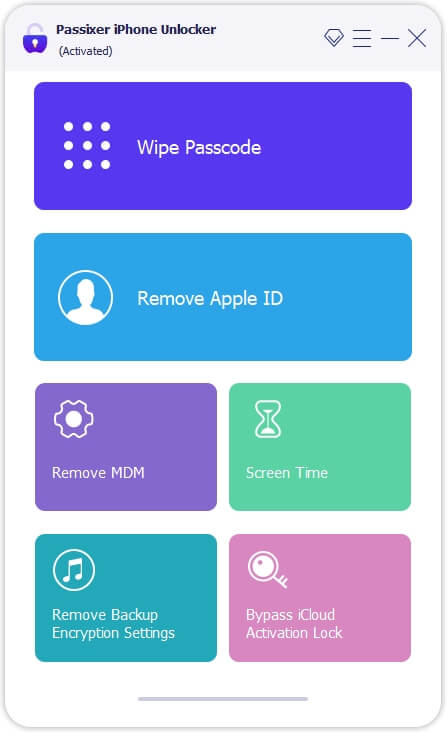
If you cannot contact the original owner, you could try Passixer iPhone Unlocker’s Remove Apple ID module to remove the account lock.
Step 1: Connect your iPad to your computer using a USB cable and open the Passixer app. Then, click Remove Apple ID.
Step 2: Click ‘Start’ to begin removing the Apple ID from the iPad.
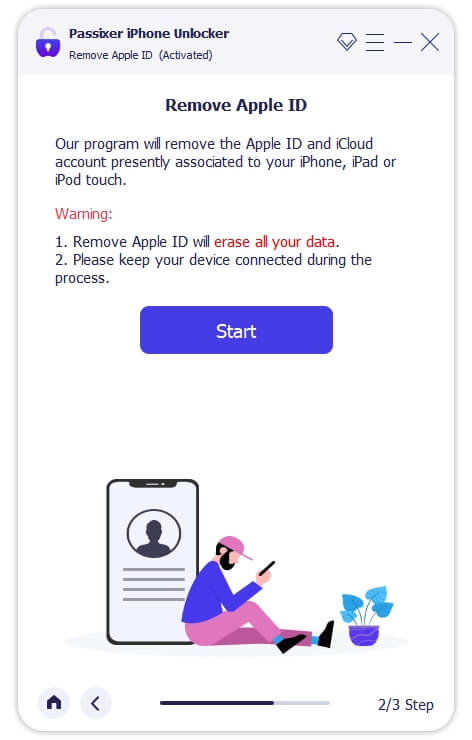
If Find My Device is off, the removal process will start right after this step. If it’s still on, follow the on-screen instructions based on your iOS version.
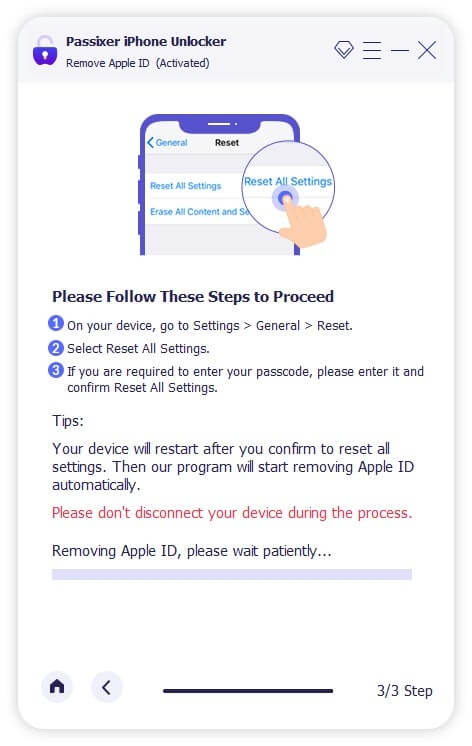
Step 3.1: If Find My Device is on (for iOS 11.4 and earlier), go to General > Reset > Reset All Settings.
Step 3.2: If Find My Device is on (iOS 11.4+), ensure two-factor authentication is enabled and enter 0000 to confirm.
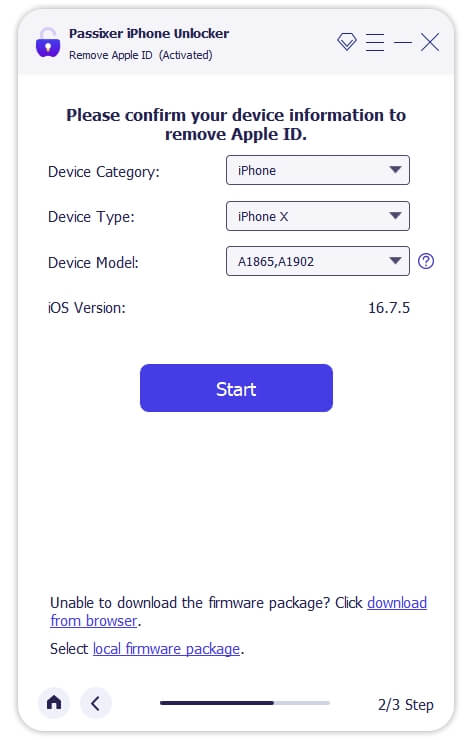
Step 4: Confirm your iPad’s details, click ‘Start’ to download firmware.
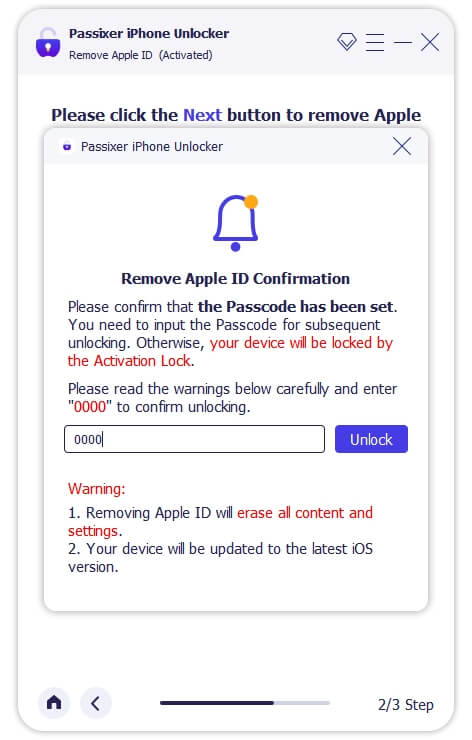
Step 5: Enter 0000 and unlock to remove the Apple ID.
Way 3. Contact Apple Support
If you have purchase proof but can’t recover your Apple ID or contact the original owner:
- Prepare purchase receipt, serial number, and ID.
- Contact Apple Support.
- Submit proof and wait for verification.
To learn how to verify or recover a forgotten account, read Forgot Apple ID password.
2. Forgot iCloud Backup Password (Encrypted Backup Password)
Reason: When backing up an iPad via iTunes / Finder, the user enabled an encrypted backup but forgot the password. Restoring data will require that password; otherwise, it cannot be restored.
Way 1. Try creating a new encrypted backup
This solution is only applicable when you can still access the original device or computer and want to keep the data.
If so, here are the steps you should follow:
- Connect the iPad to the computer and open iTunes / Finder.
- Click the device icon > choose “Disable Encrypted Backup” (if available).
- Enter the old password (if you remember) or choose “Set Up as New Backup”
- Create a new backup file and set a new password.
See full tutorial: How to reset an encrypted iPhone backup password
Way 2. Use Apple ID verification to reset the backup password
If “Use Apple ID to unlock backups” was enabled, you can use your Apple ID to reset the backup password. However, you must have your Apple ID credentials for this to work.
Here are the steps you should follow if you meet the requirements above:
- Open Settings > General > Transfer or Reset iPad;
- Choose “Erase All Content and Settings”;
- When prompted, choose “Use Apple ID to Reset Backup Password.”
For more detailed steps: Recover iCloud password
Way 3. Remove encrypted backup settings via tool
If you cannot remember your iCloud backup password or Apple ID credentials, use third-party tools to extract or bypass encrypted backup restrictions.
In such a scenario, the best third-party app to use is Passixer iPhone Unlocker on a computer. Simply connect your iPad to your computer with a USB cable, select Remove Backup Encryption Settings, and follow the steps you see on the screen.
For more third-party methods to decrypt encrypted iPhone/iPad backups, check this guide: How to unlock iPhone backup password.
Part 4. Device Management / Enterprise Configuration
In this section, we’ll take a look at issues that might arise due to device management or enterprise configuration limiting access.
MDM Management Lock (enterprise/school device)
Reason: Some iPads are configured as enterprise, school, or organization devices and are restricted through MDM (Mobile Device Management). At startup or after a reset, the system may require an enterprise account or a registration profile, preventing regular users from using the device.
Solutions:
Way 1. Contact the IT administrator to remove device management (Remove MDM via Admin Portal)
This method is applicable when the device is assigned by a school or company. If so, contact the IT admin to remove the restrictions on the device. Here are the steps you would have to take in such a scenario:
- Report “iPad locked by MDM” to your IT administrator or school tech department.
- The admin can remotely remove the profile in the Apple School Manager/MDM console.
- After removal, restart the iPad to complete activation, and you’ll regain access to your device.
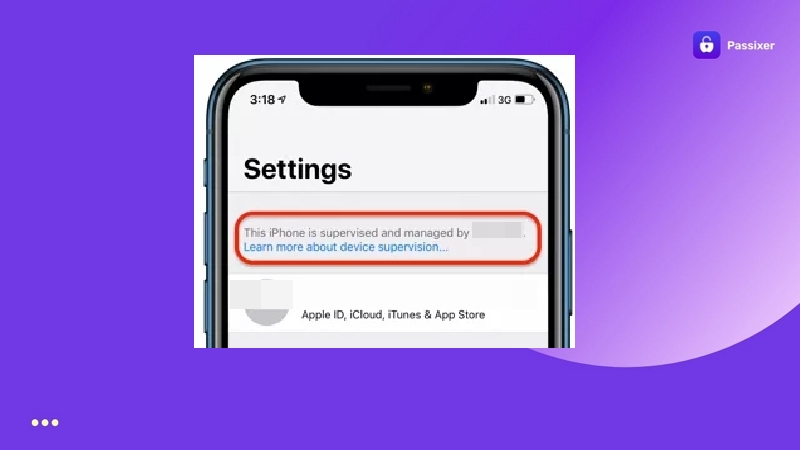
See enterprise user steps: Remove MDM from iPad
Way 2. Bypass MDM restrictions for second-hand/personal devices (Bypass MDM on Used iPad)
These steps are applicable when a purchased used iPad shows “Remote Management” or “This iPad is managed by…”
Below is a brief overview of the steps you would have to take to reset the system by using iTunes or Finder on your computer:
- At the activation screen, disconnect Wi-Fi (to prevent communicating with the MDM server);
- Connect the iPad to a computer, and then open iTunes/Finder.
- Try to restore the iPad or reset the system.
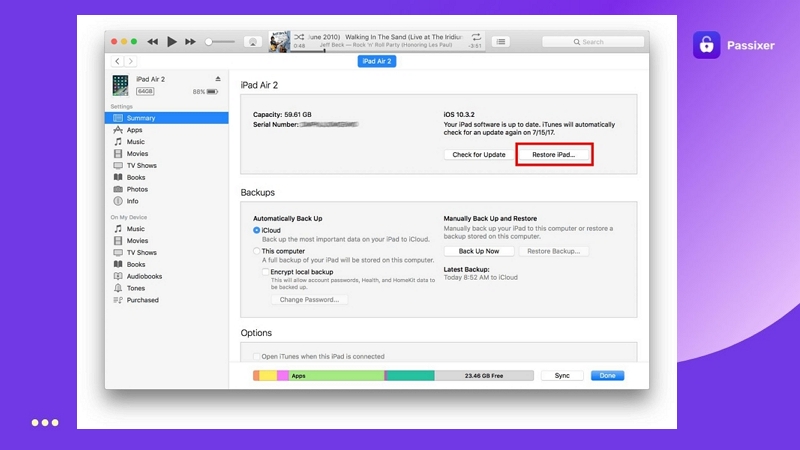
If you are unable to remove the configuration lock this way, you could try using a third-party tool.
Recommended: Passixer iPhone Unlocker supports removing MDM and safely removes management lock for all iPadOS versions.
Here is a look at how you would have to remove the MDM lock using Passixer iPhone Unlocker:
Open Passixer and click “Remove MDM” on the home screen.
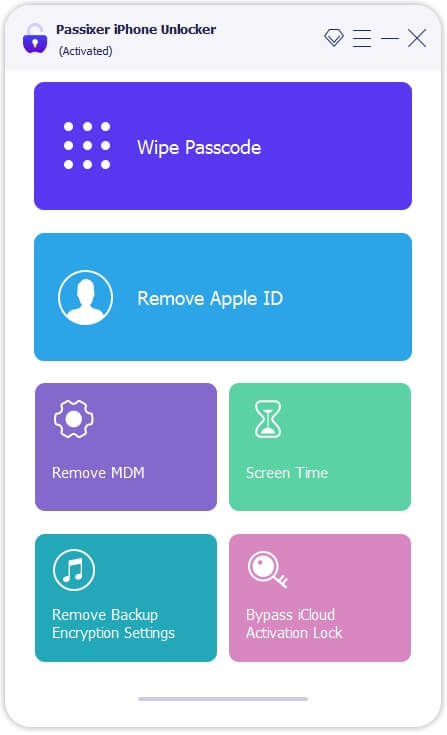
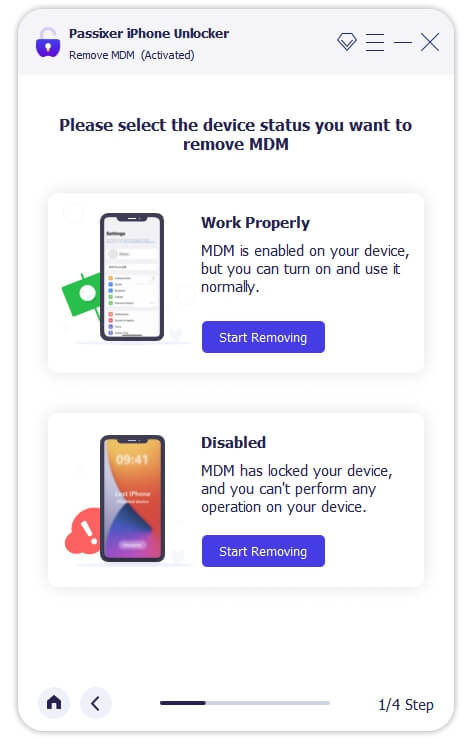
Click “Start Removing” in the Disabled section, enter 0000, and select “Remove MDM”.
Connect your iPad with a USB cable and follow the on-screen guide to enter recovery mode.
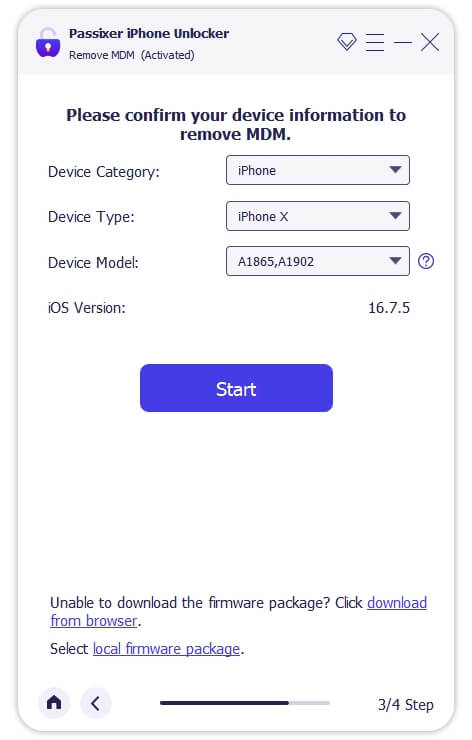
Confirm your device information and click “Start” to download the required firmware.
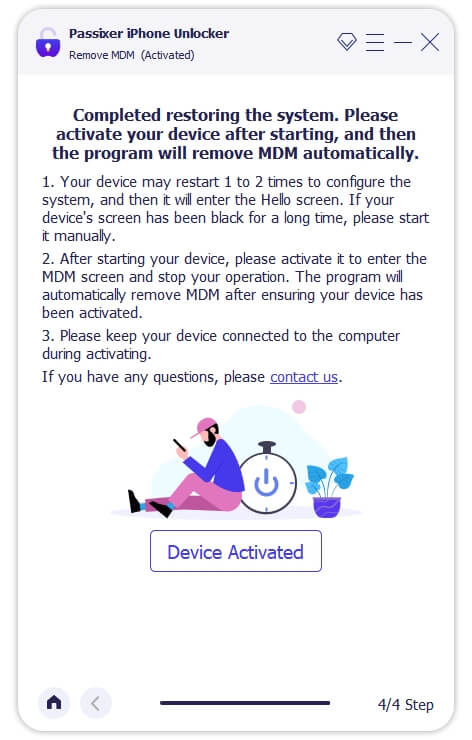
When firmware installation completes, click “Device Activated”, then click “Got it”.
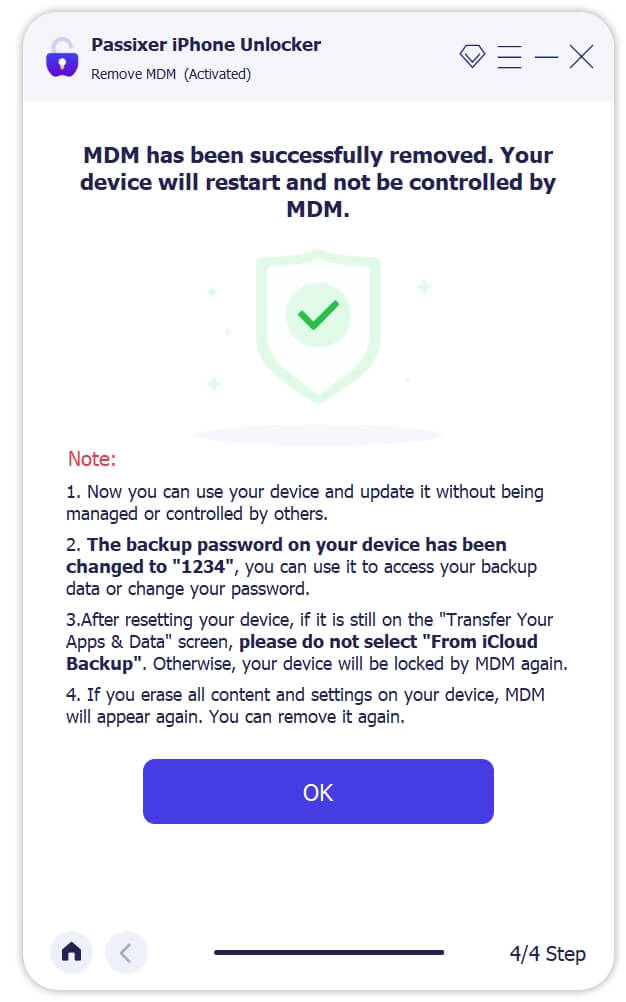
Once the MDM lock is removed, your device will restart. Activate your iPad to begin using it again.
Way 3. Use temporary bypass methods (Temporary MDM Bypass)
If you just want temporary access to the device and don’t need admin authorization, or can contact the IT admin later, it might be a good idea to rely on temporary bypass methods.
Here are the steps you should follow to gain temporary access on your iPad:
- On MDM activation screen > tap “Home” > choose “Wi-Fi Settings”.
- Manually set DNS Bypass or skip MDM server verification.
- After entering the home screen, back up your data to prevent getting locked again.
Learn more bypass tips: bypass MDM iPad free
Part 5. Network / Activation Related Issues
In this section, we’ll take a look at network or activation-related issues that might cause you to get locked out of your iPad.
1. Activation Verification Failed
Reason: After reset or reflashing, the iPad needs to connect to Apple servers to verify device status. If the network is unstable, DNS is misconfigured, or Apple servers are temporarily unreachable, the system may show: “Unable to Activate iPad” / “Activation Error” / “Could Not Activate iPad”.
Way 1. Switch to a Stable Network and Retry Activation
Ensure you use a stable Wi-Fi or mobile data network. If activation fails, delete the current WiFI network in Settings > Wi-Fi and reconnect. If you’re using mobile data, try turning flight mode on and off or moving to a location outside with good connectivity.
1. If activation repeatedly fails, try to activate your iPad using a computer via iTunes. Reference tutorial: how to turn off Find My iPhone without the phone
2. If it is still showing “Unable to erase or activate iPhone/iPad” after switching to a stable network,
click here to view more solutions: iPhone unavailable no erase option.
Way 2. Use iTunes/Finder to complete activation
As mentioned earlier, you can try using iTunes or Finder to complete activation, provided you have a computer at hand:
Step 1: Connect the iPad to a computer.
Step 2: Open iTunes / Finder and wait for device detection.
Step 3: Click “Activate iPad” or “Restore and Update”.
Step 4: After completion, enter Apple ID information for verification.
If Apple ID verification is required, see: iCloud unlock activation
If the device is disabled or fails multiple times, see: how to unlock iPad without Apple ID
2. DNS / VPN Interference
Reason: Using custom DNS or VPN can prevent the iPad from communicating with Apple activation servers, causing password verification or activation failures.
Way 1. Reset DNS Settings for Your Device.
Here are the steps you should follow to do so:
Step 1: Open Settings > VPN & Device Management > turn off VPN.
Step 2: Open Settings > Wi-Fi > tap the current network > remove custom DNS.
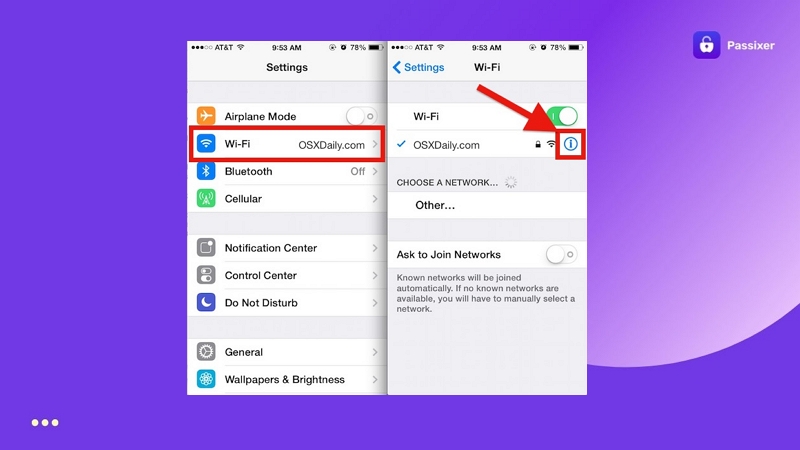
Step 3: Restart the iPad and retry activation.
Related guide: iCloud bypass DNS
Way 2. Use iTunes / Finder or third-party tools to activate
Despite network issues, you can try putting your iPad into recovery mode and using iTunes or Finder to restore it:
Step 1. Put the iPad into recovery mode.
Step 2. Open iTunes / Finder > click “Restore iPad”;
If you are still unable to activate, use third-party tools (such as Passixer iPhone Unlocker) to bypass the activation lock and perform a complete reset.
More detailed tutorials: how to unlock iPad without a password without iTunes
Network activation failures are common and often caused by DNS caching or VPN interference. It is recommended to disable all proxy services before attempting unlocks or activations to ensure normal communication with Apple servers.
Part 6. Special Cases / Misoperations
The last prominent scenario we’ll discuss today will cover special cases and misoperations that could have gotten users locked out of their iPads.
1. Child or Someone Else Entered Wrong Password Many Times (iPhone/iPad Locked After Too Many Wrong Attempts)
Reason: When someone repeatedly enters the wrong passcode, the device triggers security lock and shows “iPhone/iPad Unavailable” or “Try Again in 1 Hour.” During this period, you cannot enter the passcode or access the home screen.
Way 1: Wait or Unlock via Recovery Mode
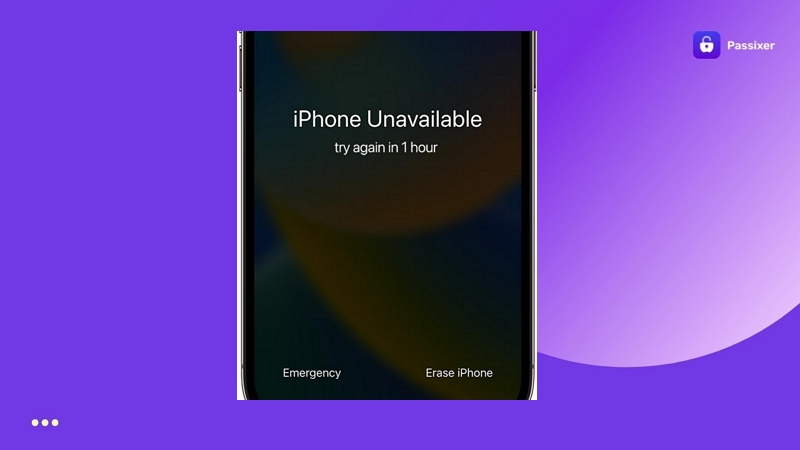
If it shows “Try Again in 1 Hour,” wait for the timer to finish and enter the correct passcode. If it shows “iPad Unavailable,” follow these steps:
- Use a computer to enter recovery mode
- Open iTunes / Finder > select “Restore iPhone/iPad”
- Follow on-screen instructions to reinstall the system and activate
Need a quick walkthrough to fix a disabled device? See the full step-by-step guide: iPad/iPhone disabled bypass guide.
Way 2: Set an Easier but Secure Passcode
After unlocking, consider setting a simpler but secure passcode to avoid repeated lockouts.
Step 1: Go to Settings > Face ID & Passcode / Touch ID & Passcode
Step 2: Tap “Change Passcode”
Step 3: Set a six-digit or custom passcode and save it securely
Enable iCloud Keychain to store passwords securely so you don’t forget them.
Want to avoid losing data when resetting your device? Learn smart passcode reset methods to keep your files safe and restore smoothly.
More tips: How to reset iPhone without losing data
2. Forgot Passcode and Have No Backup Data
Reason: If you never backed up your data, resetting the iPad will erase everything. Once you enter recovery mode or use iCloud erase, the data cannot be recovered without a backup.
Way 1: Restore from iCloud
If you have an existing iCloud backup, restore the data from the cloud backup.
Follow the steps below:
Step 1: After resetting, on the Apps & Data screen, select “Restore from iCloud Backup.”
Step 2: Sign in with your Apple ID.
Step 3: Select the latest backup and wait for data recovery.

Way 2: Extract Data Before Reset
If you don’t have an iCloud backup, try a trusted third-party tool to extract data before resetting.
Step 1: Connect the iPad to a computer.
Step 2: Open a professional data recovery software (e.g., Eassiy iPhone Data Recovery)
Step 3: Scan device > preview > export recoverable files
Step 4: After extraction, reset the iPad and set a new passcode.
If you forgot the passcode and have no backup, the safest approach is to try data extraction first, then perform recovery mode. Do not blindly erase the device to avoid permanent data loss.
Conclusion
As you might have realized by now, there are a multitude of ways you can try to unlock your iPad based on your condition. Depending on whether or not you have access to your Apple ID credentials, there are a number of approaches you can follow. If nothing else, you have the option to fall back on third-party apps such as Passixer iPhone Unlocker that can get past any lock on your iPad.